View profile details
Profile data availability largely depends on how much is captured in events such as VIEW and IDENTITY events.
On the SitecoreAI Profiles page, you can view detailed information about a profile by clicking a row in the profiles list. This information, such as session, event, device usage, and engagement details, helps you better understand your audience and turn data into actionable insights.
View the profile overview
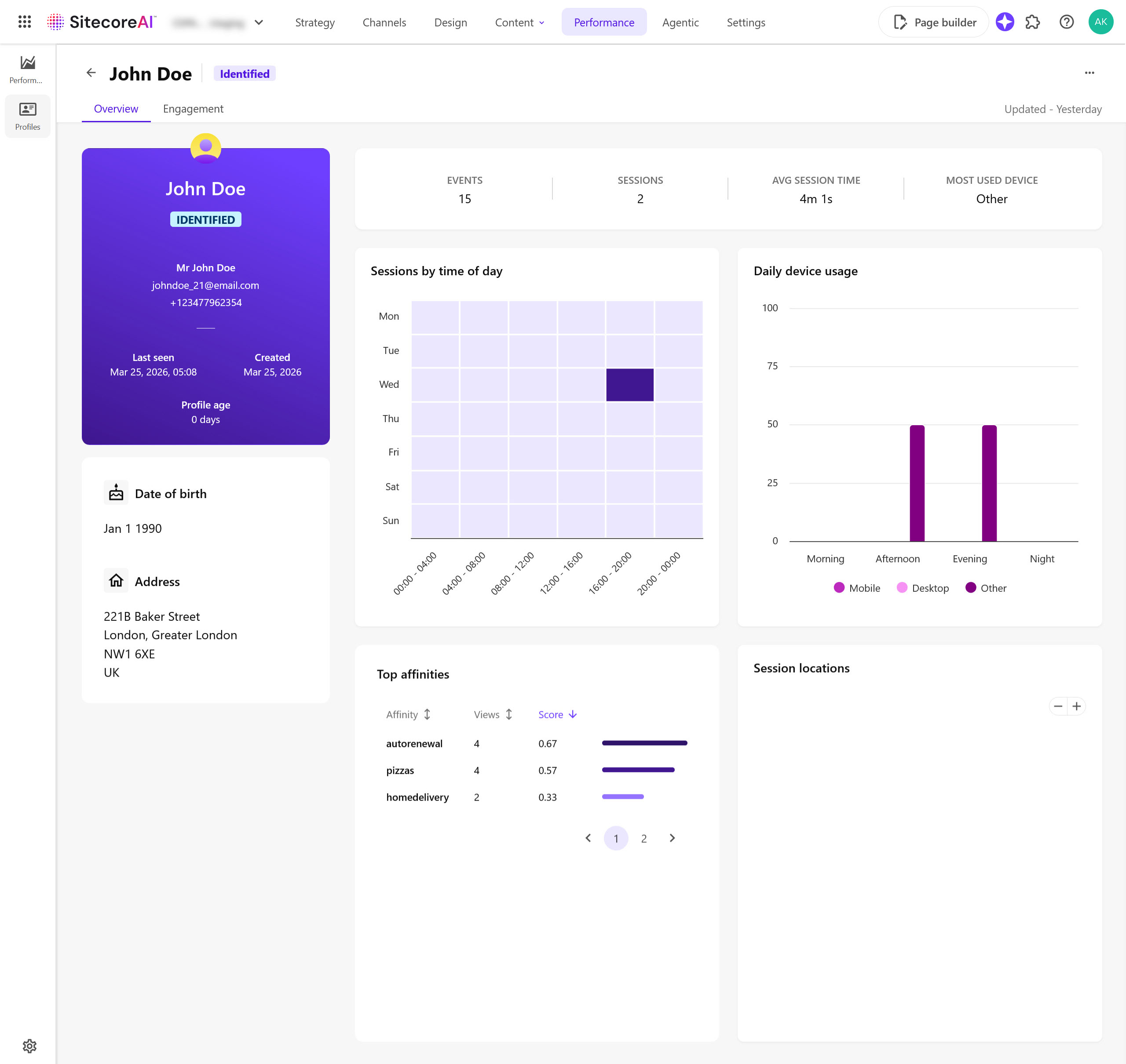
The profile Overview tab displays identity details, engagement metrics, temporal and device usage patterns, content affinities, and session locations.
To view the profile overview:
-
In SitecoreAI > Performance > Profiles, click a profile you want to view details for. The profile's Overview tab appears.
-
View the following information on the Overview tab:
-
Profile card - the profile type, the date and time the site visitor last interacted with your brand, the date the profile was created, and the profile's age (time since the profile was created). For identified profiles, additional information such as the site visitor's title, name, email address, and gender is also listed, if captured by
IDENTITYevents. -
Personal information section - the site visitor's date of birth and address, available only in identified profiles.
-
Overview section - the number of sessionssessions and eventsevents, the average session time, and the site visitor's most used device for interacting with your brand.
-
Audience segments - a list of live audiences the profile is included in. This section only appears if the profile is included in at least one audience.
-
Sessions by time of day - a heatmap showing patterns of low to high sessions from Monday through Sunday, in 4‑hour time blocks, shown in your organization's timezone.
-
Daily device usage - a bar chart of the site visitor's daily device usage, shown in your organization's timezone. This is helpful for determining what time of day to target a site visitor, and whether to target them over a mobile or desktop device. The time periods represent the following durations:
-
Morning: 06:00–11:59
-
Afternoon: 12:00–17:59
-
Evening: 18:00–23:59
-
Night: 00:00–05:59
NoteYou can hide a device type from the bar chart by clicking the device name, such as Mobile.
-
-
Top affinities - the affinities assigned to the pages that the site visitor has most frequently viewed. Affinity values are grouped by affinity names sorted in descending order of their Score. You can also sort them by the Affinity name or the number of Views.
-
Session locations - a world map plotting the site visitor's sessions to geographical locations.
-
View engagement details
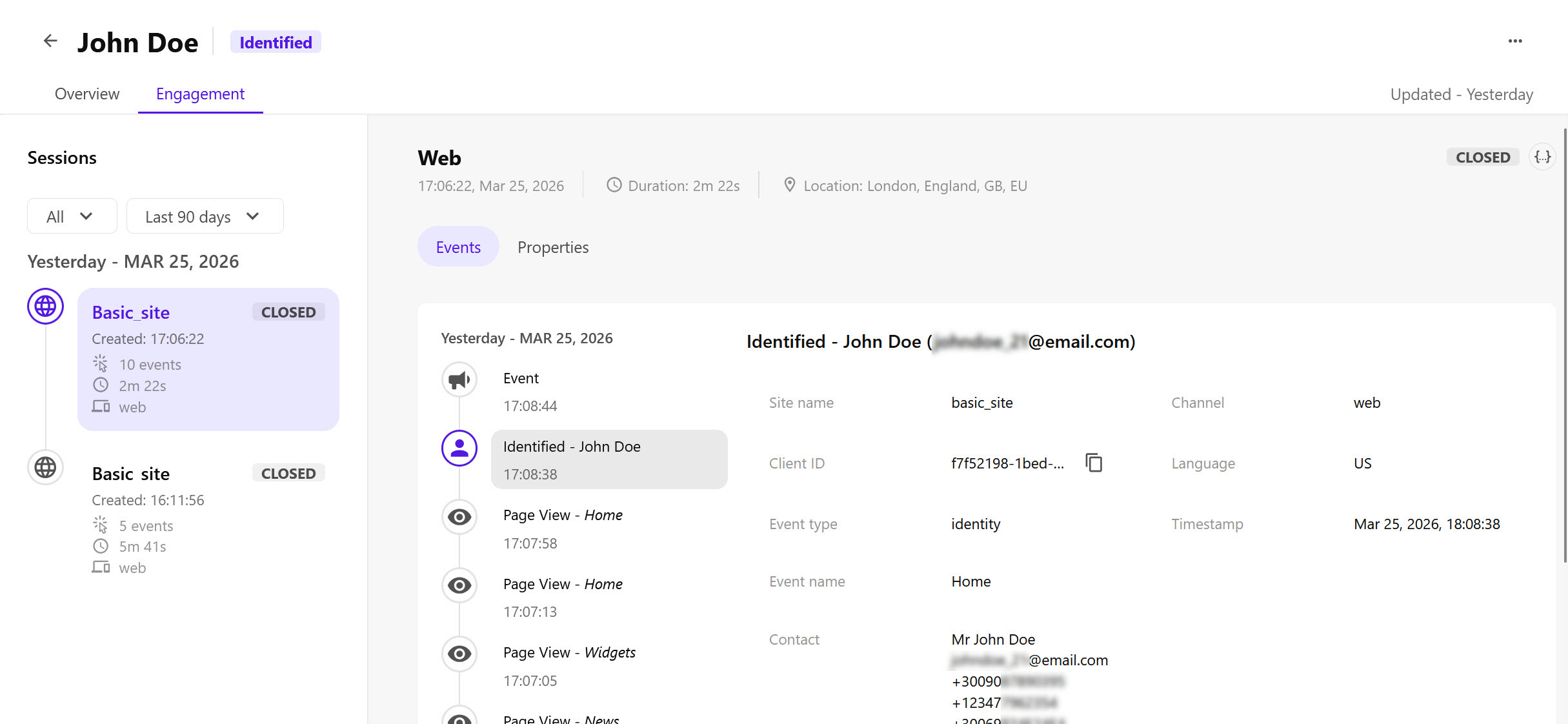
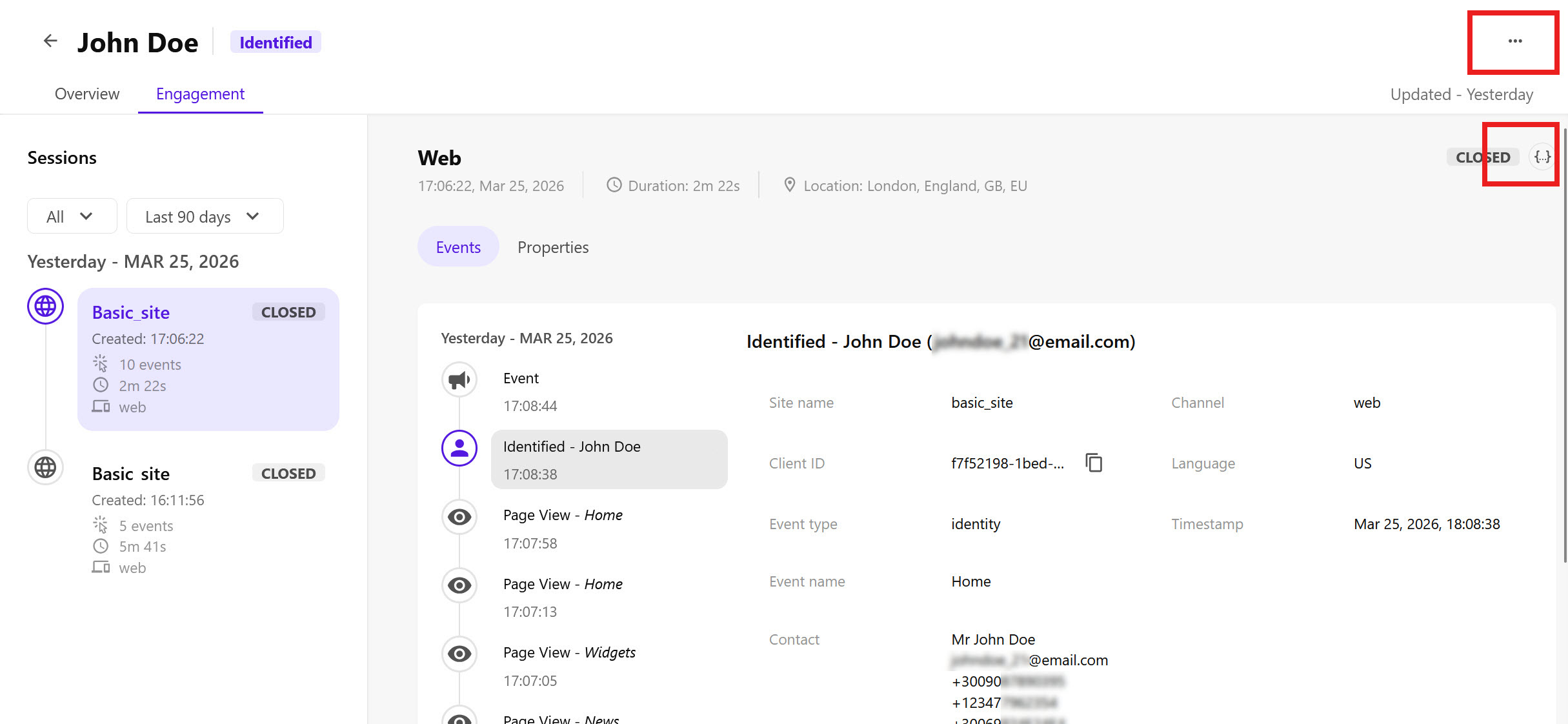
The profile Engagement tab displays detailed session and event information.
To view engagement details:
-
In SitecoreAI > Performance > Profiles, click a profile you want to view details for.
-
Click the Engagement tab. The following appears:
-
Sessions timeline - appears in the left-hand Sessions section.
The sessions timeline displays a maximum of 40 sessions that occurred within the past 90 days, starting with the most recent session.
For each session in the timeline, you can view the site and channelchannel the session occurred in, the session duration, the number of events captured during the session, and whether the session is still open or closed.
-
Session details - appears in the main content area.
For the session selected in the timeline, the main content area displays the channel the session occurred in, the date and time the session occurred, the session duration, and the session's geographical location. In addition, the session's events and properties appear.
-
Filter the sessions timeline
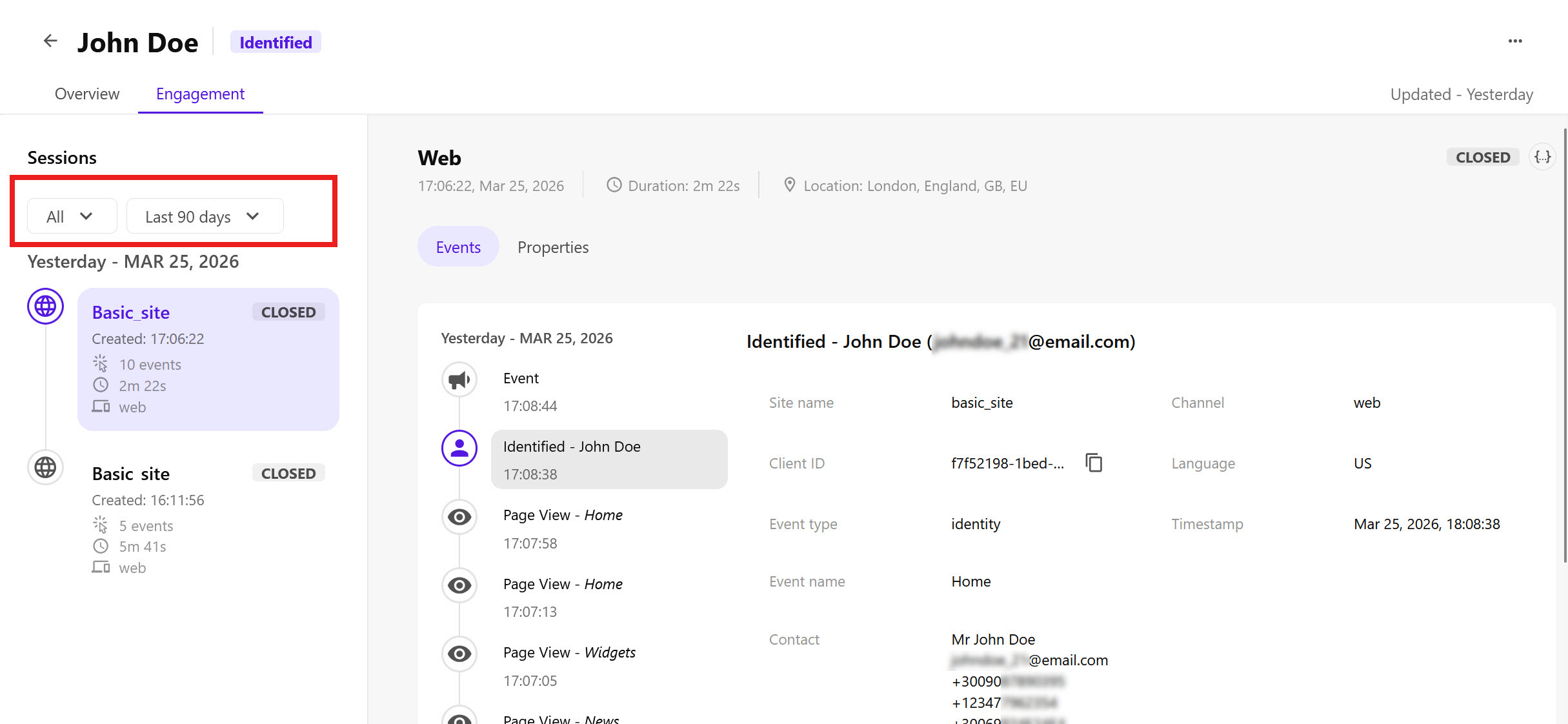
You can filter the sessions timeline by channel or date, or both.
To filter the sessions timeline:
-
On the Engagement tab, in the left-hand Sessions section, click the drop-down list you want to filter sessions by:
-
All - filter sessions by channel, which is the platform or pathway that the site visitor used to connect with your brand. The available options are:
-
Web
-
Email
-
SMS
-
Mobile Web
-
Mobile App
-
Call Center
-
Airport Kiosk
-
-
Last 90 days - filter sessions by date. The available options are:
-
Last 60 minutes
-
Last 1 day
-
Last 7 days
-
Last 30 days
-
Last 90 days
Alternatively, click the calendar to specify a custom date range.
-
-
View session events and properties
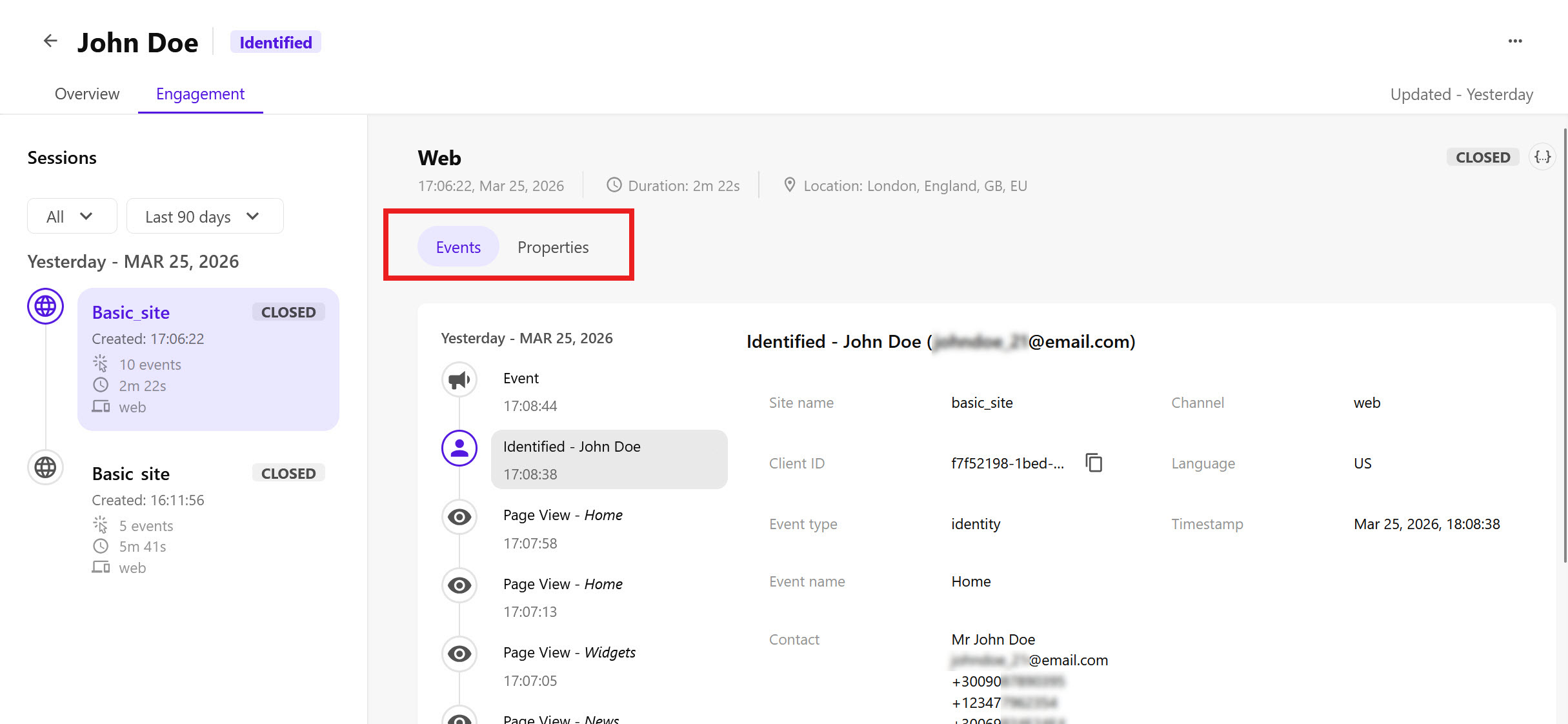
The main content area displays details about the session that is selected in the timeline, such as the sessions' events and properties. The main content area displays a maximum of 100 events per session.
To view the session's events and properties:
-
On the Engagement tab, in the left-hand Sessions section, click the session you want to view details for.
-
In the main content area, click the Events tab to view the following information about session events:
-
Events timeline - displays a maximum of 100 events that occurred within the session, starting with the most recent event. These can be
VIEW,IDENTITY, or any other events that are captured on your site. -
Event details - appears to the right of the events timeline.
The event details depend on what data was captured, but in general, all events display the following information:
-
The event type and name.
-
The site, language, and channel the event was captured in.
-
The event timestamp.
-
The client IDclient ID associated with the event.
NoteYou can copy the client ID and use it to search profiles.
-
-
-
In the main content area, click the Properties tab to view the following session properties:
-
Overview section - the number of events, the UTM campaign that the session belongs to, and the device used in the session.
-
UTM - the five Urchin Tracking Module parameters:
-
Campaign - a product promotion or strategic campaign.
-
Content - the element the site visitor clicked that brought them to the site, such as a banner ad or a text link.
-
Medium - the type of link used, for example, pay-per-click or email.
-
Source - the page that sent the traffic.
-
Term - search terms the site visitor searched for.
-
-
Properties - more information about the session, such as the session ID, session status (open or closed), and the name of the first and last page visited during the session.
-
Use inspect mode
Inspect mode lets you view the underlying JSON data for profiles and sessions. Viewing the JSON data is especially useful for developers when they are setting up and testing event capturing.
To inspect a profile:
-
In SitecoreAI > Performance > Profiles, click a profile you want to inspect.
-
In the upper-right area of the screen, click
 > Inspect. The JSON object representing the profile appears. The object contains all the information about the profile that the user interface displays.Tip
You can open the JSON search interface by clicking inside the object and then pressing Ctrl+F.
Optionally, to display the details in a tabular format instead of JSON, click Table view.
You can also inspect the JSON data for an individual session. Note that this data is part of the JSON object that appears when you inspect the profile.
To inspect a session:
-
In SitecoreAI > Performance > Profiles, click a profile you want to inspect.
-
Click the Engagement tab, and then click the session you want to inspect.
-
In the main content area, to the right of the session status, click
 . The JSON object representing the session appears. The object contains all the information about the session that the user interface displays.Tip
You can open the JSON search interface by clicking inside the object and then pressing Ctrl+F.
Optionally, to display the details in a tabular format instead of JSON, click Table view.