Visualize components in the Design studio
The Design studio serves as a centralized interface where you can view all the components across your organization.
You can visualize a component and its various variants side by side, and test configurations of the components’ fields, while seeing the changes in real-time. In addition, because the Design studio also displays content from data sources , you can use the interface to test the back end.
To open the Design studio:
- In the navigation header, click Design.
When visualizing a component in the Design studio, it renders according to how its fields were configured, using this priority order:
-
The field's standard value as it is saved in the Content Editor.
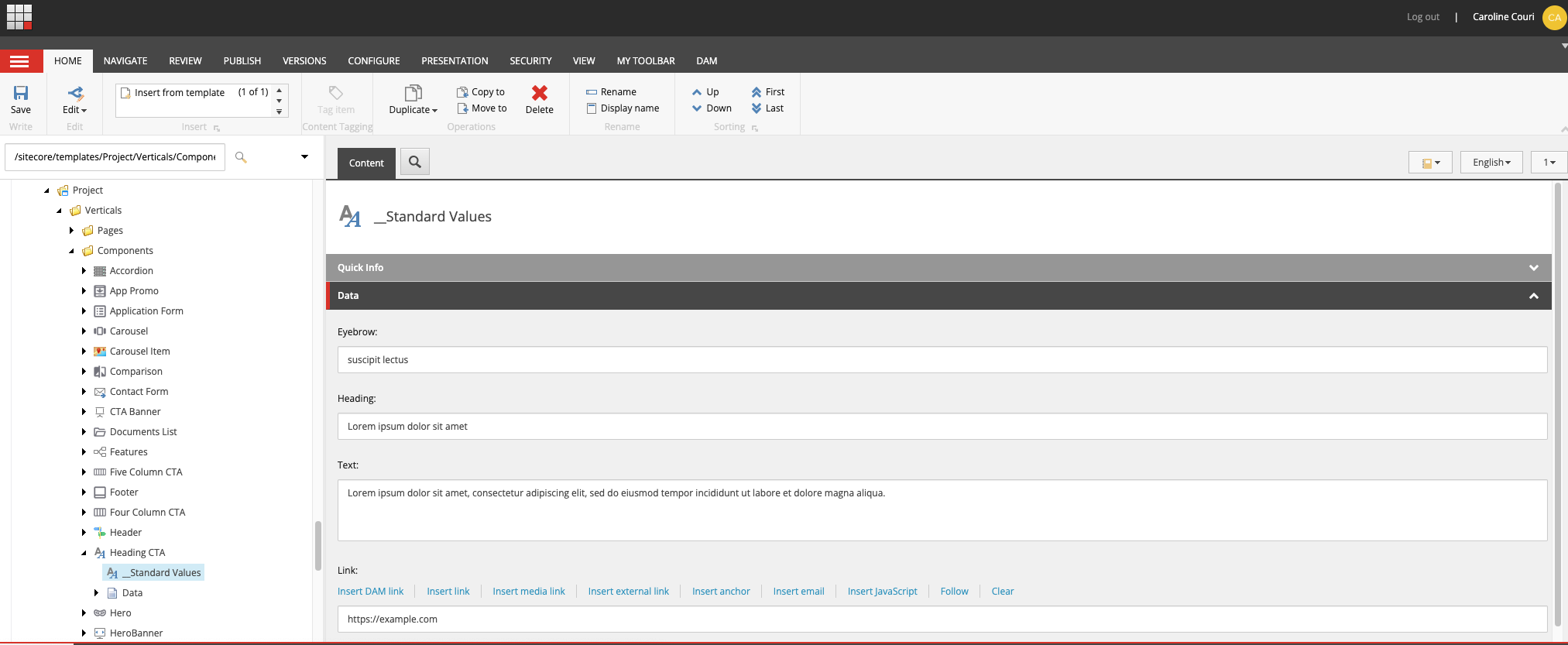
-
The field value configured for the component in the right-hand panel Content tab of the Studio. Edit these values to test your component and its variant in the Design studio.
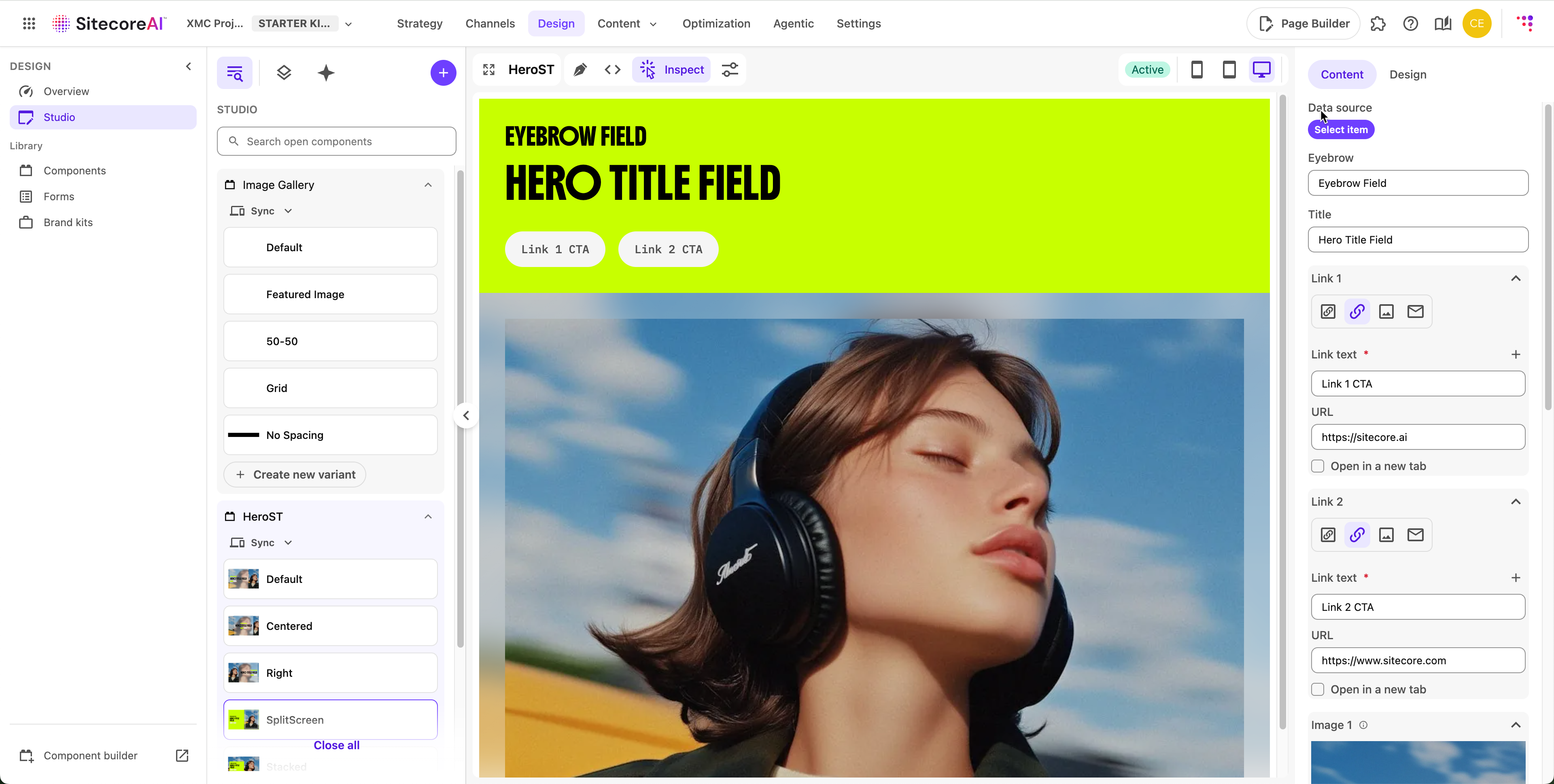
These configurations cannot be saved for use when adding the component on a page in the Page builder.
- If the field has no standard value or a configured value, the field will render with the visualization value saved for visualization purposes in the Design studio, or the visualization data sources saved in a dedicated folder in the Content Editor.
Visualization values and data sources are saved only for use in the Design studio.
Customize the visualization values
Customizing visualization values is available for Admin or Advanced users roles.
Components are built based on templates, and contain fields. Based on the template used to build the component, some of these fields are given standard values, for example, a text, a specific image, or a date. Other fields are left empty, and are configured in the Page builder after the component has been inserted in a page.
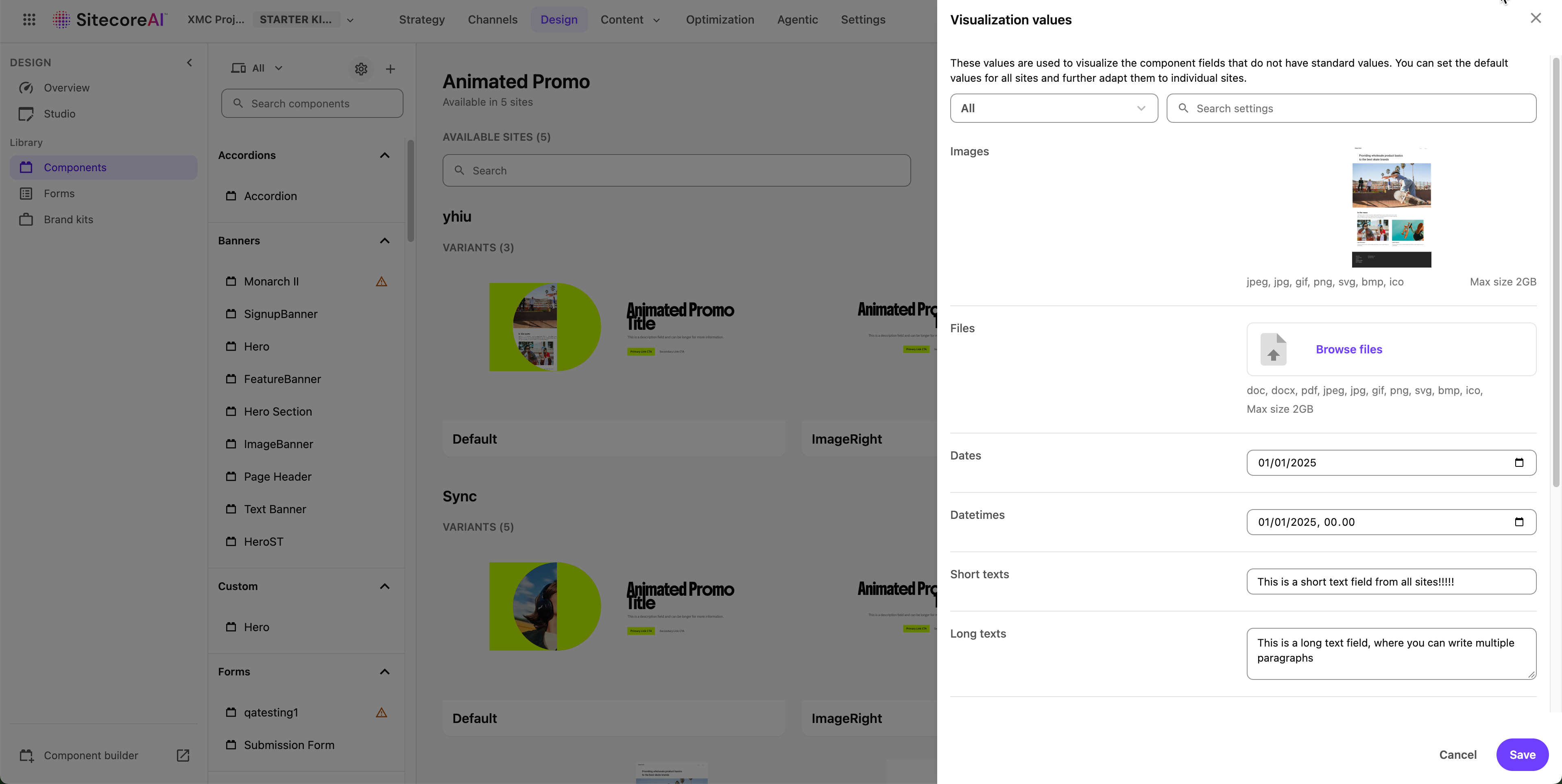
The Design studio has, by default, set up visualization values. These values are not saved with the component and will not be visible or available when using the component in a page, but they are used as placeholders for visualization purposes in the Design studio. However, an admin or advanced users can customize the visualization values to fit your brand and to give you a better sense of how your components will look when in use.
To customize the visualization values:
-
In the navigation menu, click Design. Then, in the left sidebar, select Components.
-
In the top-left corner of the left-hand panel, click Settings .
-
In the Visualization values panel, browse the list of fields and edit the visualization values as needed.
-
Click Save.
Update visualization data sources
Some components can only be visualized when connected to a data source. To be able to visualize these components, the Design studio uses visualization data sources that are generated when Design studio is launched in the environment for the first time, and saved as content items in a single folder.
These visualization data sources will be populated with your visualization values: this means that if you have previously updated the visualization values to fit your brand, the visualization data sources generated will reuse these changes so the components rendering is as close to your brand as possible.
You can also update existing visualization data sources manually in the source folder in the Content Editor. However, if you update the visualization values, the new data sources generated will overwrite your manual changes.