Manage knowledge documents
- References to SitecoreAI DAM in this topic also apply to Sitecore Content Hub.
- Before you can work with SitecoreAI DAM content in Scrunch Knowledge Studio:
- Make sure your SitecoreAI DAM environment is connected to Scrunch. The connection is live if the Scrunch Knowledge Studio page displays SitecoreAI DAM ACTIVE under the page title.
- In Scrunch, you need Editor permission to work with sources and documents, and Knowledge Studio must be enabled. It is enabled if Knowledge Studio appears in the Brand Settings section. If it doesn't appear, contact Scrunch Support.
Use Knowledge Studio to convert SitecoreAI DAM source documents into knowledge documents that AI tools can use as a trusted source of truth.
Generate a knowledge document
Generating a knowledge document from SitecoreAI DAM source documents is the first step to grounding AI tools in your trusted DAM content. Generating and regenerating a knowledge document uses large language models.
To generate a knowledge document from SitecoreAI DAM source documents:
-
In Scrunch, in Brand Settings, click Knowledge Studio > New document.
-
Enter a descriptive name, such as SitecoreAI DAM assets, and then click Continue.
-
In the source picker modal, select at least one document where the Provider is SitecoreAI DAM.
- Structured content, such as blog posts, articles, and pages, has the Content label.
- Files such as PDF files and Microsoft Word documents have the Asset label.
-
Click Generate Knowledge Document and wait for the generation to finish. Do not navigate away from the page. When the process completes, the generated document appears in draft status.
Review
Knowledge Studio users can now edit the draft and add comments to it. In addition, Scrunch agents automatically review the document and add necessary comments:
- The Scrunch Compliance Agent flags sensitive and internal-facing content.
- The Scrunch Fact Check Agent flags factual errors.
- The Scrunch Conflict Agent flags conflicting information.
You must resolve all comments from Knowledge Studio users and Scrunch agents before you can approve the document.
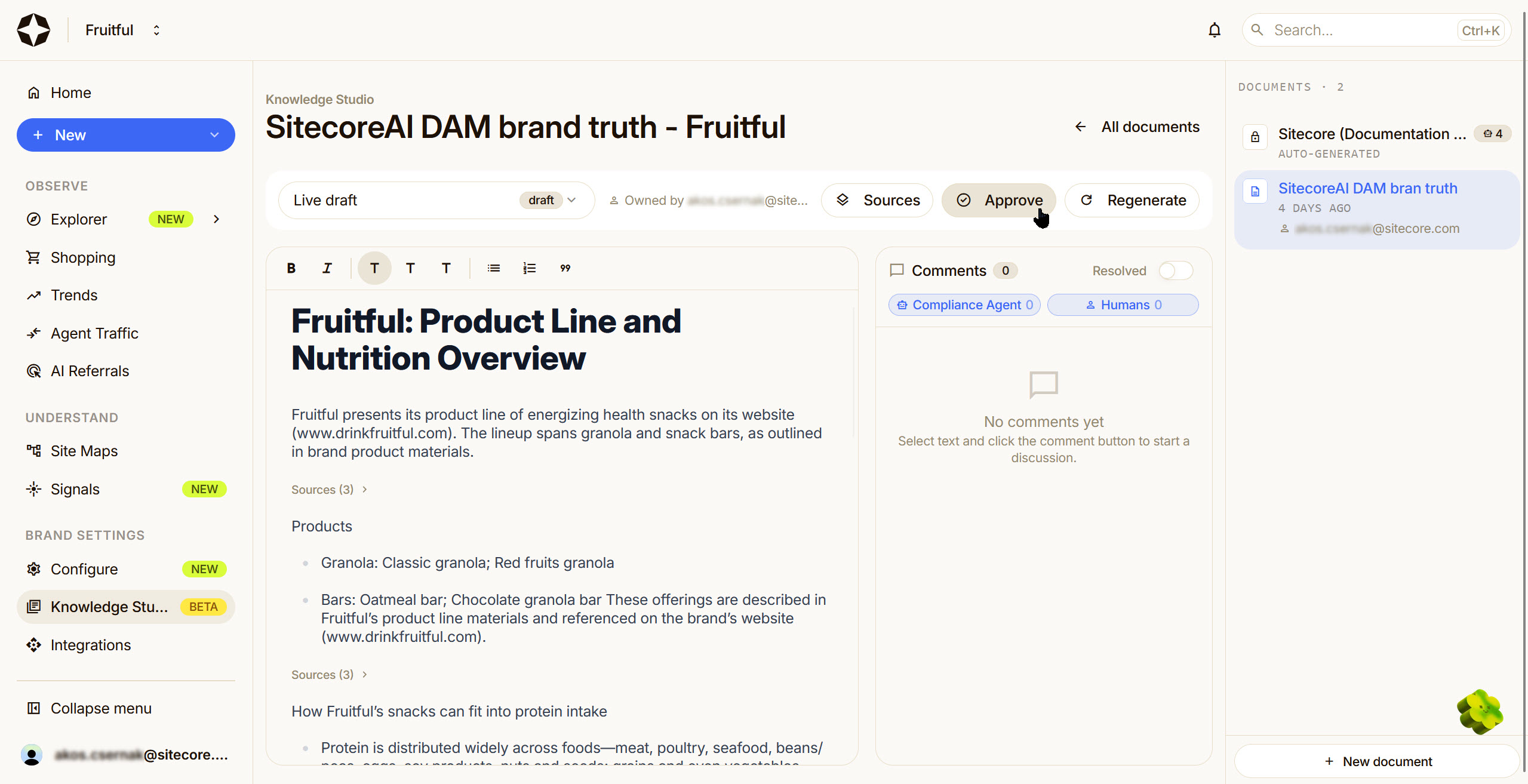
Approve
After resolving all comments and making any necessary edits, you can approve the knowledge document. Approving the document means the following:
- The knowledge document becomes available as an input option when generating AI-optimized content. The document won't be used automatically. Scrunch users can select it when needed.
- The information in the knowledge document, including any sensitive or confidential information, may be reflected in AI-generated content visible to your website's visitors. Double-check the document before approving it.
- Any previous approvals are superseded. Only one version of the knowledge document can be approved at a time.
To approve a knowledge document:
- In Knowledge Studio, for the document you want to approve, resolve all comments, if any.
- Click Approve.
- Enter the email address associated with your Scrunch user account to confirm approval.
- Click Approve document.
After approving the document, Knowledge Studio creates a new draft version so you can continue working on the document. However, you can no longer edit the approved version of the document.
After a knowledge document is approved, you can use the approved content in other areas of Scrunch. For example, to close content gaps or to add additional context when doing content optimizations.
Refresh sources
After adding, updating, or removing content from SitecoreAI DAM, follow best practice by refreshing sources in Scrunch. This is to make sure Scrunch is working with the latest DAM content.
To refresh sources in Scrunch:
- In Knowledge Studio, open a document.
- Click Sources > Refresh. Scrunch retrieves all updates to the DAM content.
For information about how Scrunch retrieves content, see Content retrieval in Knowledge Studio.
Regenerate the document
You can regenerate a knowledge document to replace the current one with a newly generated version. We recommend regenerating the document after adding or removing SitecoreAI DAM source documents to keep the knowledge document up to date with your DAM content.
Because large language models are non-deterministic, the newly generated document may differ in structure and content from the current version. Knowledge Studio saves the current version, and you can request a rollback if needed.
To regenerate a document:
- In Knowledge Studio, open the document you want to work with.
- Click Regenerate, then confirm your choice.