Add rich text to a page
This topic explains how to configure components previously built with Content Editor. To learn about components prototyped with Components instead, visit the Components documentation.
Using a Rich Text component lets you easily add, inline edit, and format text on a webpage. Rich Text components are initially built in the Content Editor, and are available for use in the left-hand pane of Page builder, on the Components tab. Rich Text components display text and tables as they will appear on your live website.
Don't add JavaScript snippets to a rich text editor field, or you might trigger a Sorry, you have been blocked error that prevents malicious scripts from running. Instead, add JavaScript elements to your front-end application.
This doesn't apply to Google Tag Manager scripts: you can safely add these to rich text fields and they will function correctly.
To add a Rich Text component to a page:
- In the Page builder Editor mode, in the left-hand pane, on the Site tree tab, click the page you want to add a component to.
- On the Components tab, scroll down to find the Rich Text component icon.
- Click and drag the icon onto a placeholder on the canvas of the page.
- Enter the text you want to add to the page, or add a table or a media file to the component.

Using the CKEditor toolbar, you can apply the following options to the contents of a Rich Text component:
| Icon | Label | Description |
|---|---|---|
| Bold | Make the selected text bold. | |
| Italic | Italicize the selected text. | |
| Underline | Underline the selected text. | |
| Strikethrough | Strike the selected text. | |
| Block quote | Include block quotations or pull quotes in your content. | |
| Superscript | Convert the selected text to (x). | |
| Subscript | Convert the selected text to (x). | |
 | Font color | Change the color of the font. Includes a color picker. |
 | Font background color | Change the color of the background of the font. Includes a color picker. |
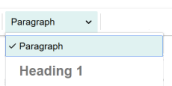 | Heading | Select a predefined paragraph style to apply custom styling and semantic values to the content. |
| Text alignment | Align left, align right, align center, or justify. | |
| Bulleted list | Add a bulleted list. | |
| Numbered list | Add a numbered list. Note You can start a numbered list from any value. To do this, expand the numbered list type in the rich text editor’s toolbar, select list properties, and enter the chosen start value. | |
 | Horizontal line | Add a horizontal line. |
| Decrease or Increase indent | Increase or decrease the indentation of a paragraph. | |
| Link | Create or edit a hyperlink. You can also use this to link to an email address or to an anchor on the page. Note CKEditor automatically recognizes email links, so you don't need to specify the link type to prompt the device’s email client when clicked. | |
| Select media | Insert a media file. | |
| Table | Add a table. | |
 | Remove format | Remove formatting from the selected text. |
 | Edit format code | Open the source code editor. You can also paste iFrame tags into the HTML editor to embed an iFrame in the field. |
| Reset field value | Erase all text in the field. | |
| Insert internal link | Create a hyperlink to an internal page, chosen from the site tree. | |
| Add phone number | Create a hyperlink to a phone number, prompting the device's phone client when clicked. |
The rich text editor supports keyboard shortcuts.
The features available in the toolbar depends on the CKEditor profile that was assigned to the site.
Link to an anchor on the page
You can use the Link feature to create anchor links that navigate to a specific element on the same page. You can do this in two steps: first, by creating an anchor link that the site visitor can click, and then by setting the anchor ID on the target element you want to navigate the site visitor to.
To create an anchor link:
- Select the text you want to turn into an anchor link.
- In the CKEditor toolbar, click the Link icon.
- In the Link URL field, enter a hash symbol
#immediately followed by the ID of the target element. Example:#my-section - Confirm the link.
To set the anchor ID:
- Click the target element on the page, such as another Rich Text field or a Text field.
- In the CKEditor toolbar, click the Edit source code button.
- In the source code modal, add an
idattribute to the target element, and set its value to the ID of the target element. Do not include the hash symbol. Example:<h2 id="my-section"> - Click Save, and then click Preview to test the anchor link.