Sites performance dashboard
The Sites performance dashboard provides key metrics that help you track user activity, identify trends, and understand how effectively your content and campaigns perform. Monitoring site performance helps you see how visitors navigate your site and where improvements may enhance their experience.
How site analytics are generated
The Sites dashboard displays performance data after you create an analytics identifier and assign it to your website from the Settings tab. You can assign the same identifier to multiple sites to consolidate data, or to multiple languages of the same site to aggregate or separate analytics calculations.
The analytics identifier enables the system to track user interactions across your site and generate the analytics that are displayed on the Sites dashboard.
Open the dashboard
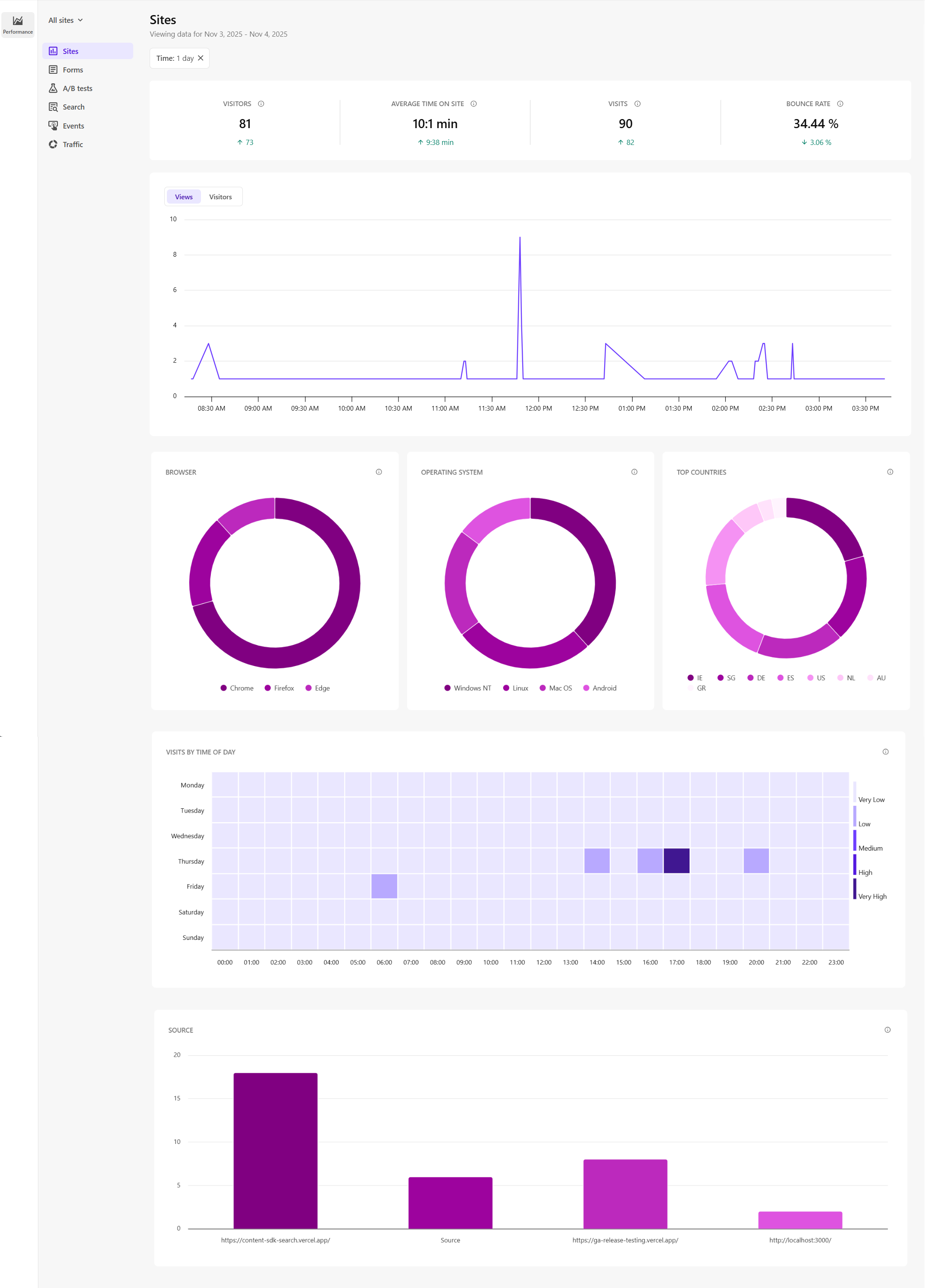
To open the Sites dashboard, in the navigation menu, click Performance. Then, select Sites.
Filter events data
Use filters to narrow down the data displayed on the Sites dashboard:
- Site - select a specific site from the All sites drop-down list to view data for that site. By default, data from all sites is shown.
- Time - choose a time frame such as such as 1 hour, 1 day, 1 week, 1 month, or specify a custom date range up to the previous two months. The default view shows data from the previous day. .
The dashboard automatically refreshes every minute to reflect real-time activity.
Site metrics
The Sites performance dashboard includes metrics that help you track traffic, engagement, and audience behavior:
The dashboard displays totals and trends so you can compare results with the previous period. Trend indicators help highlight these changes.
-
A green upward arrow represents an increase.
-
A red downward arrow represents a decrease.
For example, a red value under Average time on site means a decrease in visit duration.
-
Key performance indicators - these are the primary metrics used to measure site activity and engagement:

-
Visitors - the number of individuals who visited your site one or more times during the selected time period.
-
Average time on site - the average amount of time in minutes:seconds visitors spend on the site.
-
Visits - the total number of active visits to your site during the selected time period.
NoteA visit includes all actions taken from when a visitor enters the site until they leave. A visit ends when the visitor closes the browser or after a set period of inactivity.
-
Bounce rate - the percentage of visits that included only a single page view.
-
-
Views/Visitors (graph) - the number of active and closed views or visitors during the selected time range, along with a trend comparison to the previous period.
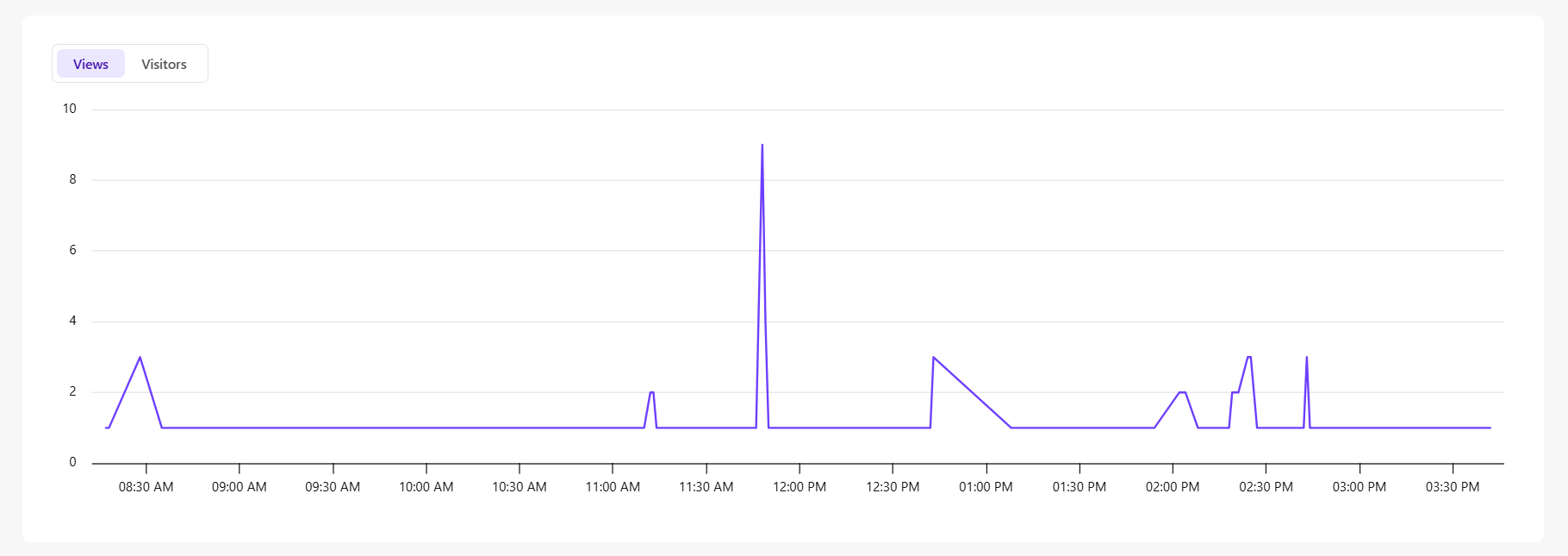
- Use the tabs to switch between Views and Visitors.
- Hover over a data point to see details.
- This time series includes active and closed visits over time. It’s not possible to sum these values for a total number of visits, as visits lasting more than an hour would be double-counted.
-
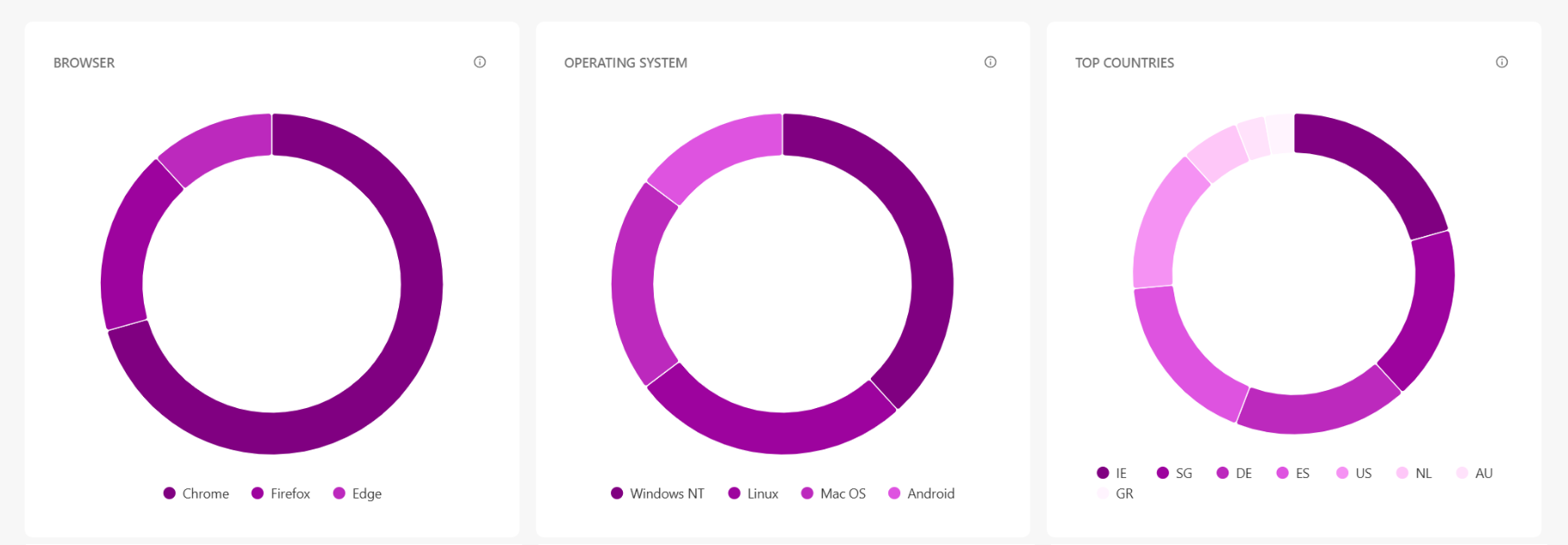
Browser (pie chart) - the top five browsers used to access your site and their proportion.
-
Operating system (pie chart) - the operating systems that were used to access your site.
-
Top countries (pie chart) - the top five countries from which a visit originated and their proportion.
NoteCountry data is based on IP addresses and may be inaccurate when visitors use VPNs.
-
Visits by time of day (heatmap) - the sum of closed visits (no longer active) per hour and day of the week displayed as a heatmap.
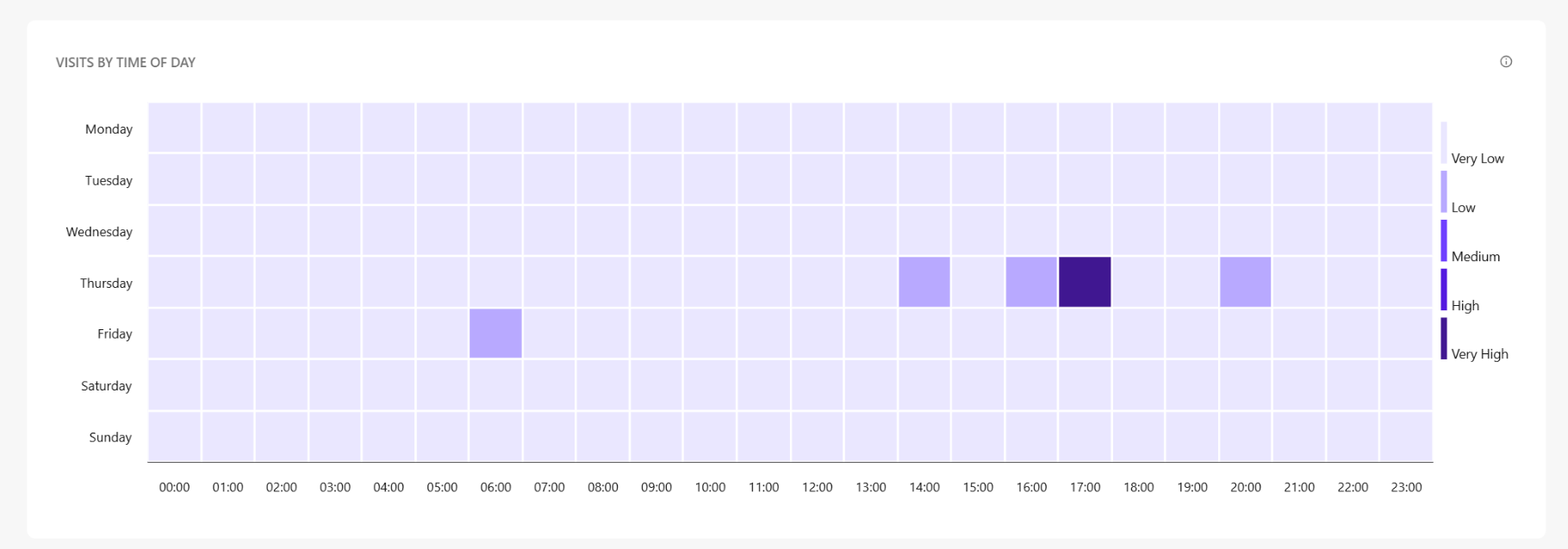
- Hover over a square to see specific data.
- Darker colors represent higher visit counts.
- The heatmap includes only sessions that closed within the selected time period.
-
Source (graph) - the percentage of visits by source.
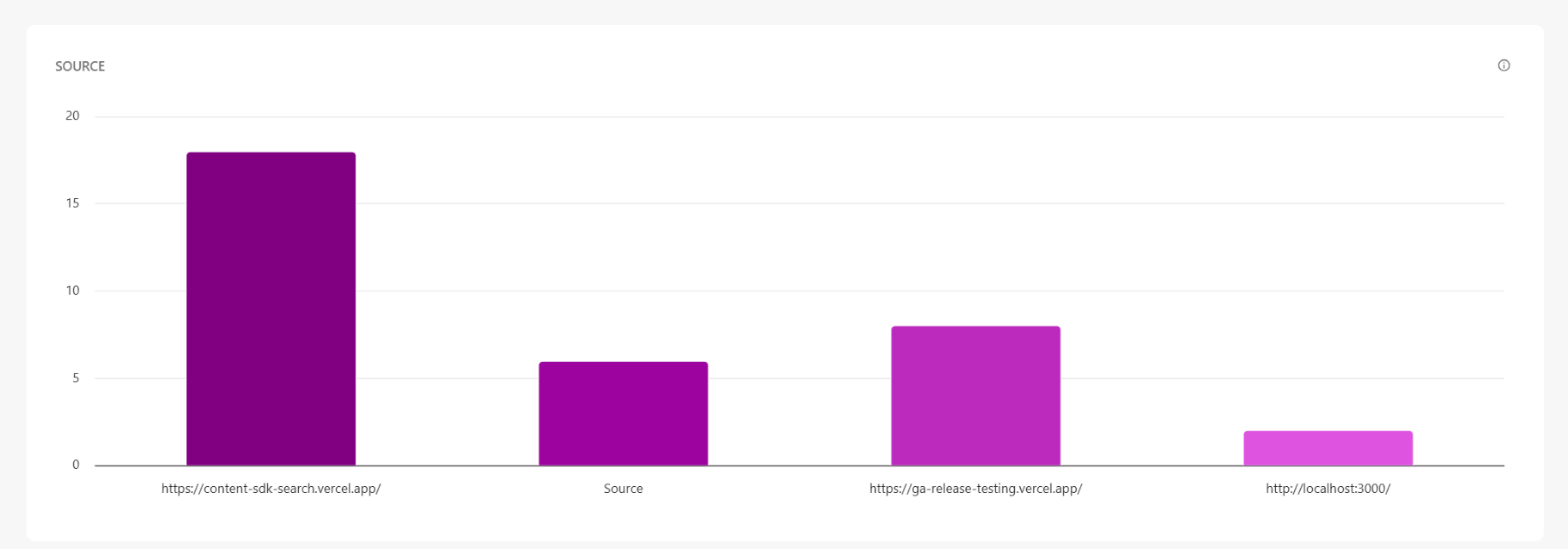
The source is determined by referrer data—the last web address a visitor accessed before arriving on your site (for example, google.com if they came from a Google search.
Interpreting dashboard values
Site metrics gain value when reviewed over time or compared across different sites or traffic sources. The table below outlines common signals and recommended next steps.
| Metric | Signals to investigate | Recommended steps |
|---|---|---|
| Visitors | Decreasing visitors could indicate reduced brand awareness, lower campaign reach, or SEO challenges. | Review campaign performance, search visibility, and links directing users to your site. |
| Average time on site | A drop in time on site could indicate content is not engaging or users are not finding what they expect. | Improve content relevance, strengthen navigation, and reduce content clutter. |
| Visits | Fewer visits could indicate less repeat interest or reduced session engagement. | Encourage return visits with updated content, personalization, and retention campaigns. |
| Bounce rate | An increasing bounce rate could indicate irrelevant content, slow load times, or poor first impression. | Optimize page speed, improve landing copy, and ensure content matches search intent. |
| Views/Visitors (graph) | Spikes or drops over time could indicate the influence of releases, campaigns, outages, or tracking issues. | Validate against deployment logs, campaign dates, or any downtime. |
| Browser | Low performance in a specific browser could indicate compatibility issues. | Test pages, forms, and UI components across browsers. |
| Operating system | Low performance in a specific OS could indicate compatibility issues. | Test pages, forms, and UI components across operating systems. |
| Top countries | Traffic shifts by region could indicate local campaigns or unexpected sources. | Check localization, translation, and geo-targeted campaigns. |
| Visits by time of day (graph) | Low activity during certain hours could indicate missed timing for content or promotions. | Align campaign launches and content publishing with peak times. |
| Source (graph) | Changes by source could indicate SEO decline, paid campaign impact, or referral performance shifts. | Review paid and organic efforts, improve referrer partnerships, and optimize search strategy. |