Search dashboard
The Search dashboard shows how visitors use search across your site. It highlights search activity, popular search terms, engagement rates, and search quality metrics such as click-through rate (CTR), null searches, and ignored searches.
These insights help you understand what users are trying to find, whether they are finding relevant content, and where the search journey may need improvement.
How search analytics are generated
You start seeing data in the Search dashboard when your site has both of the following in place:
-
search index that stores and returns searchable content, and
-
a search component that allows visitors to perform searches and interact with results.
When visitors use search, each interaction is tracked as an event. Examples include entering a keyword, applying filters, or clicking a result. These events are grouped into sessions. A session begins when a page loads and ends when the tab is closed or when there is no activity for more than 30 minutes.
Grouping events into sessions provides a clearer view of how people search during a single visit and enables the system to generate the key performance indicators (KPIs) shown in the Search dashboard.
Open the dashboard
You must have both a search index and a search component before the data appears in the dashboard.
To open the Search dashboard, in the navigation menu, click Performance, then select Search.
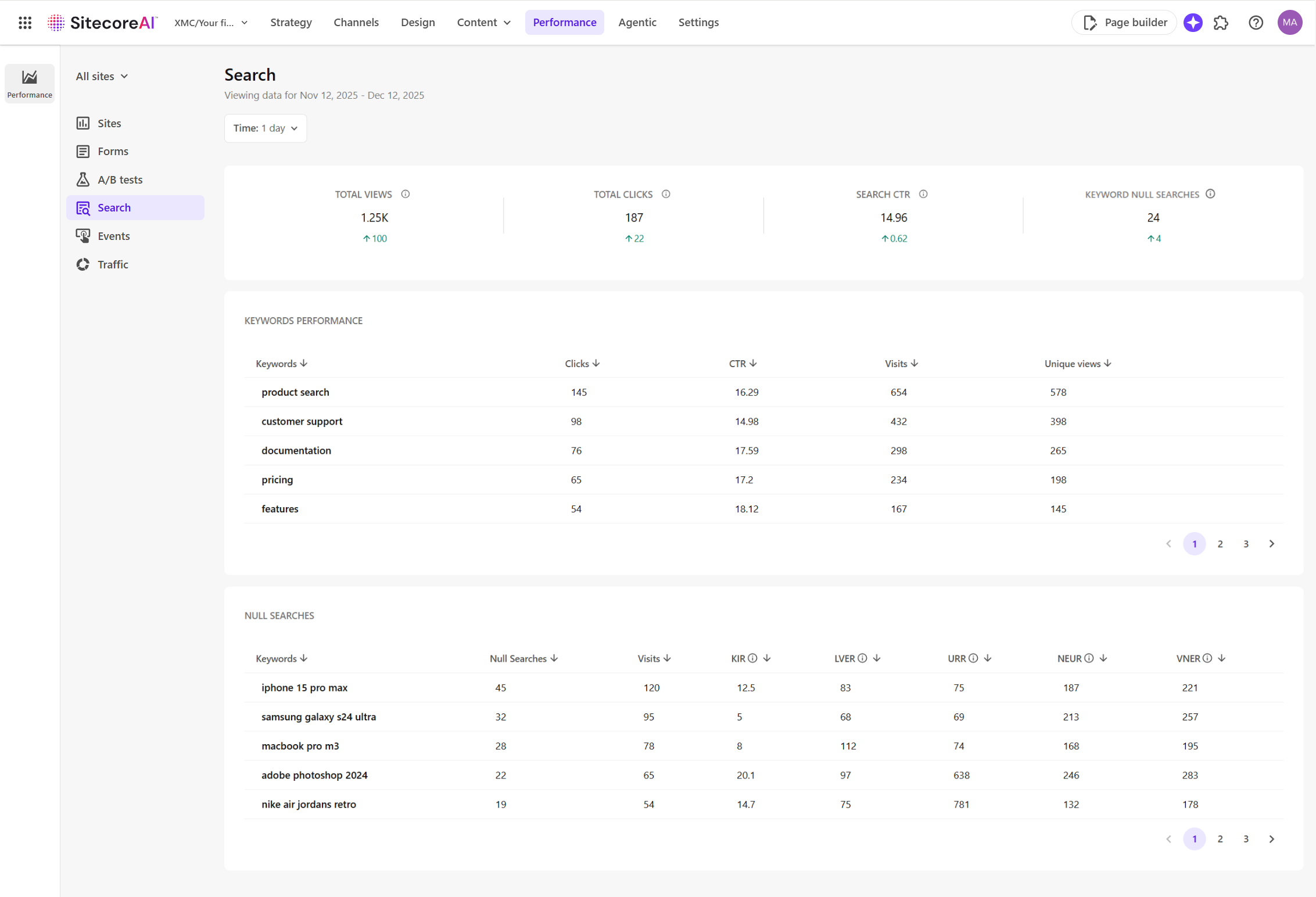
Filter search data
Use filters to narrow down the data displayed on the Search dashboard:
-
Site - select a specific site from the All sites drop-down list to view search data for that site. By default, data from all sites is shown.
-
Time - choose a time frame such as such as 1 hour, 1 day, 1 week, 1 month, or specify a custom date range up to the previous two months. The default view shows data from the previous day.
Search metrics
The Search dashboard summarizes search activity, keyword performance, and user engagement for the selected period.
The dashboard displays totals and trends so you can compare results with the previous period. Trend indicators help highlight these changes.
-
A green upward arrow represents an increase.
-
A red downward arrow represents a decrease.
For example, a red value under Total clicks signals reduced engagement.
-
Key performance indicators - these are the primary metrics used to measure search activity and interaction:

-
Total views - the total number of times search results were displayed to users.
-
Total clicks - the total number of times users clicked a search result.
-
Search CTR - the percentage of search result views that resulted in a click (click-through rate (CTR)).
-
Keyword null searches - the number of searches that returned no results.
-
-
Keyword performance (table) - shows how individual search terms contribute to search activity. It includes metrics for the current period, the previous period, and overall trends.

-
Keyword - the search term entered by users.
-
Clicks - the total number of clicks associated with the keyword.
-
Click through rate (CTR) - the number of unique clicks divided by the number of unique views for the keyword.
-
Visits - the total number of visits in which the keyword was used.
-
Unique views - the total number of unique views for search results related to the keyword.
-
-
Null searches (table) - these metrics list keywords that returned no results within the selected period.

-
Keywords - the search term entered by users that resulted in no matches.
-
Null searches - the number of times the keyword returned no results.
-
Visits - the total number of visits in which the null search occurred.
-
Keyword ignored rate (KIR) - the percentage of searches where users saw results but did not click.
-
Low-value exposure rate (LVER) - the number of times a keyword appears in search results without meaningful interaction.
-
Unique reach ratio (URR) - the ratio of unique users who triggered a keyword compared to total search volume.
-
Non-engaged user rate (NEUR) - the percentage of users who viewed results for a keyword but did not engage across one or more sessions.
-
Visit non-engagement rate (VNER) - the percentage of visits where a search occurred but did not lead to further interaction.
-
To sort a column in any of the Search dashboard tables, click the arrows in the column heading.
Interpreting dashboard values
Search metrics gain real value when you track how they change over time or how they relate to other metrics. The table below outlines what these shifts may indicate and recommended actions.
|
Metric |
Signals to investigate |
Recommended steps |
|---|---|---|
|
Total views |
Fewer views over time could indicate visitors are not seeing the search results. |
Review where search appears on the page and whether filters limit visibility. |
|
Total clicks |
Low clicks relative to views could indicate results are not appealing. |
Improve titles, summaries, or the relevance of top results. |
|
Search CTR |
A declining CTR could mean results are not matching what users expect. |
Adjust ranking or promote the most relevant matches. |
|
Keyword null searches |
More searches returning no results could indicate missing content. |
Add content, synonyms, or update search terms. |
|
Clicks (for keywords) |
Low clicks for a popular topic could mean users are not finding what they expect. |
Refine naming, summaries, or landing content. |
|
CTR (for keywords) |
Low CTR could mean result options are unclear or not engaging. |
Improve labels or preview text. |
|
Visits (for keywords) |
Repeated searches for the same topic could indicate unanswered questions. |
Create clearer or more complete content. |
|
Unique views (for keywords) |
Fewer unique views over time could mean the content is harder to find. |
Review tagging, navigation, or filters. |
|
Null searches |
Frequent no-result searches suggest missing content. |
Add synonyms or content that supports these topics. |
|
Visits (for null searches) |
Users retrying searches could indicate frustration or confusion. |
Suggest alternatives or guide users to related content. |
|
KIR |
High values could indicate users scroll results but do not click |
Improve relevance or remove outdated items. |
|
LVER |
High values could indicate results appear often without action. |
Strengthen content or change ranking. |
|
URR |
High values could indicate more users are searching for a topic. |
Consider creating new or expanded content. |
|
NEUR |
High values could indicate users see results but do not engage across multiple sessions. |
Update content clarity or improve accuracy. |
|
VNER |
High values could indicate search ends without further actions. |
Add clearer calls to action or related links. |