Add a deliverable to a campaign
A deliverable is used to divide a campaign into manageable and actionable tasks. It represents a specific, tangible outcome, such as creating a new social media campaign or designing a landing page, with a defined role in the marketing funnel.
You can add a deliverable to a campaign manually or you can use AI to generate it.
Add a deliverable manually
To add a deliverable to a campaign manually:
-
In the navigation menu, click Strategy. Then, in the left sidebar, select Campaigns.
-
On the Campaigns page, click the name of the campaign that you want to add a deliverable to.
-
On the Overview page, open the Deliverables tab, then the List tab.
-
Click Add deliverable.
-
In the Deliverable details pane, in the Deliverable name field, enter a descriptive name for the deliverable, up to 255 characters.
-
In the Due date field, select the due date from the calendar. The system calculates and displays the remaining days to complete the deliverable in the Days remaining field.
-
In Funnel stage, select the deliverable's role in the marketing funnel:
-
Top (or awareness stage) - introduce your brand to a broad audience.
-
Middle (or consideration stage) - nurture customer interest and guide them toward a decision.
-
Bottom (or conversion stage) - drive prospects to take action, such as purchases or sign-ups.
-
-
In Funnel tactics, select a predefined tactic, such as Email and Billboards, or enter a custom funnel tactic. Make sure this tactic aligns with the selected funnel stage.
-
Optionally, in the Label field, enter or select up to five tags to categorize the deliverable.
-
Click Create.
You've now successfully added a deliverable to the campaign. Repeat this process to add more deliverables as needed or add tasks to split the deliverable into actionable items.
Add a deliverable using AI
You can add a deliverable using AI in two ways:
-
On the List tab, based on the entered campaign's name and description.
-
On the Funnel tab, based on gaps in the marketing funnel.
Add a deliverable from the List tab
To add a deliverable from the List tab:
-
In the navigation menu, click Strategy. Then, in the left sidebar, select Campaigns.
-
On the Campaigns page, click the name of the campaign that you want to add a deliverable to.
-
On the Overview page, open the Deliverables tab, then the List tab.
-
Click Start with AI if this is the first time adding a deliverable. Otherwise, click Suggest deliverables.
-
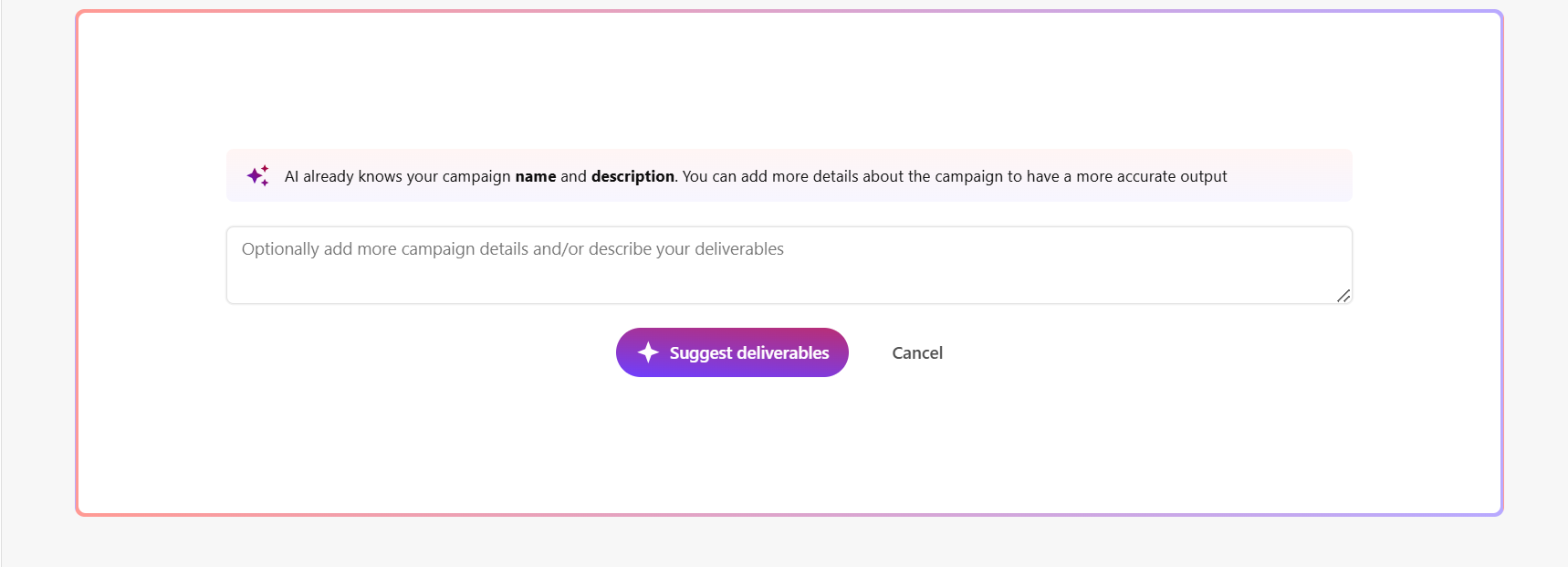
Optionally, you can enter a prompt to guide the AI, for example, specify the type of deliverables you need, the preferred format, or a category like social media, web, or print.
TipAI knows your campaign name and description and uses them as context when generating suggestions.
 Note
NotePrompts should focus on describing the deliverables you want AI to generate.
-
Click Suggest deliverables. AI generates suggestions based on your campaign name, description, and any prompt you provide.
-
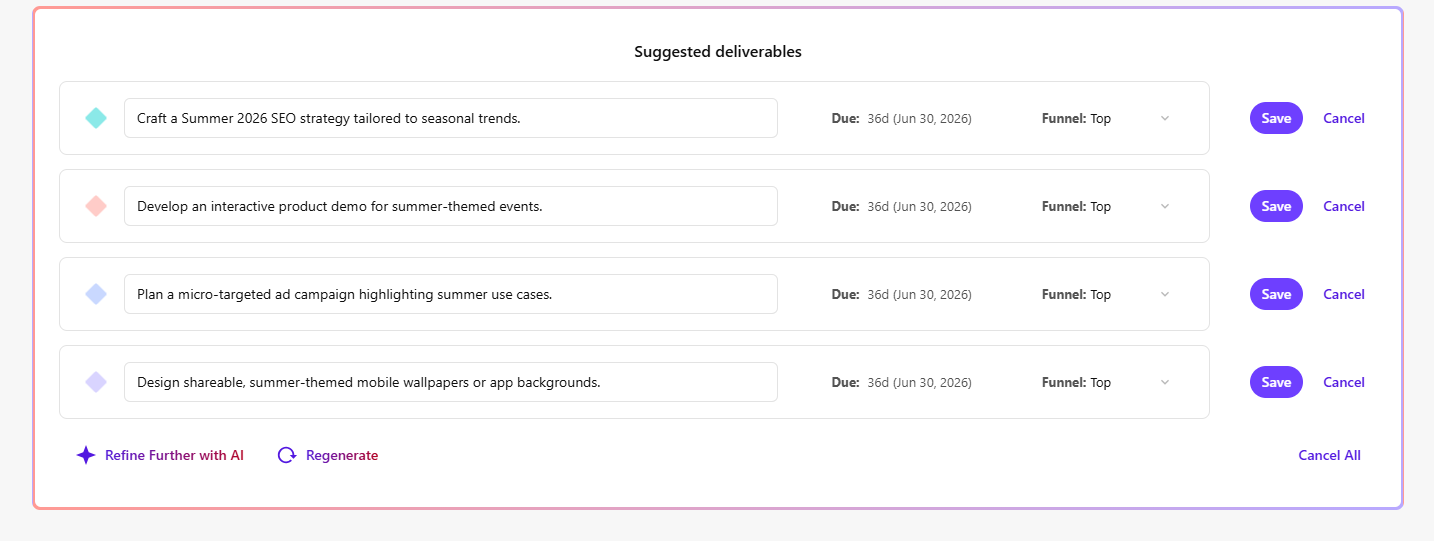
To add a suggested deliverable to your campaign, click Save next to the one you want to keep. The deliverable is added to the campaign.
-
Optionally, you can use the following options to refine or refresh the suggestions:
-
Refine Further with AI - add a new prompt with more specific instructions. This builds on the current suggestions using your new input.
-
Regenerate - get a completely new set of deliverables based on your campaign name, description, and prompts.
-
-
To view or edit the details generated by AI, on the List tab, click the horizontal ellipsis icon
 > Edit deliverable details, and make your changes.
 -
Click Save.
Add a deliverable on the Funnel tab
You must have at least one deliverable in your campaign before AI can generate deliverable suggestions.
To add a deliverable on the Funnel tab:
-
In the navigation menu, click Strategy. Then, in the left sidebar, select Campaigns.
-
On the Campaigns page, click the name of the campaign that you want to add a deliverable to.
-
On the Overview page, open the Deliverables tab, then the Funnel tab.
-
Click Suggest deliverable.
The AI will generate a suggested deliverable appropriate for the funnel stage.
-
To accept a suggestion, click Keep next to the deliverable you want to save. The deliverable is added to the corresponding funnel stage column.
-
To view or edit the details generated by AI, on the List tab, click the horizontal ellipsis icon
> Edit deliverable details, and make your changes. -
Click Save.