Add a task to a deliverable
A task is an actionable step required to complete a deliverable. Tasks help define individual responsibilities, timelines, and the actions needed to achieve an overall campaign goal. You can attach relevant files to a task for reference.
You can add a task to a deliverable manually or you can use AI to generate it.
Add a task manually
To add a task to a deliverable manually:
-
In the navigation menu, click Strategy. Then, in the left sidebar, select Campaigns.
-
On the Campaigns page, click the name of the campaign that you want to add a task to.
-
On the Overview page, open the Deliverables tab, then the List tab.
-
Find the deliverable that you want to add a task to, then click Add task.
-
Enter a task name up to 255 characters and then click Save. The new task is added under the deliverable.
-
To add details to the task, click the task name and in the task pane, edit the following details:
-
Labels - to categorize the task, click Add labels to enter or select up to five tags.
-
Status - to set the task status, in the drop-down list, select Not started, In progress, or Done.
-
Date - to set the task’s timeline, select the start and end dates, then click Save. The system calculates the remaining days until the task is due, displaying them in parentheses. For example, 4d for four days.
-
Assignee - to search and select the name of the team member responsible for the task, click Add Assignee.
-
Priority - to select the task's priority level, in the drop-down list, select: High, Medium, or Low. It is set to Medium by default.
-
Task description - in the provided field, enter the task details, instructions, or any relevant information about the task, then click Save.
-
Asset - to add any files or references to the task, click Add asset. Supported formats include DOCX, PDF, PNG, and JPG. To delete an asset, click Delete
 .
. -
Dependencies - click Add dependency to select a task within the same campaign that must be completed before this one, then click
 to save. To add another dependency, click Add.
 -
Comments - to add a comment to the task, enter a comment in the field. Optionally, you can tag a team member using the @ mention. To submit your comment, click Send
 . Tagged members will receive a notification in the platform.
-
-
When you're happy with the changes, click
 to close the task pane or click anywhere outside it to return to the campaign details page.
You've now successfully added a task to the deliverable. Repeat this process to add more tasks to the deliverable as needed.
Add a task using AI
To add a task to a deliverable using AI:
-
In the navigation menu, click Strategy. Then, in the left sidebar, select Campaigns.
-
On the Campaigns page, click the name of the campaign that you want to add a task to.
-
On the Overview page, open the Deliverables tab, then the List tab.
-
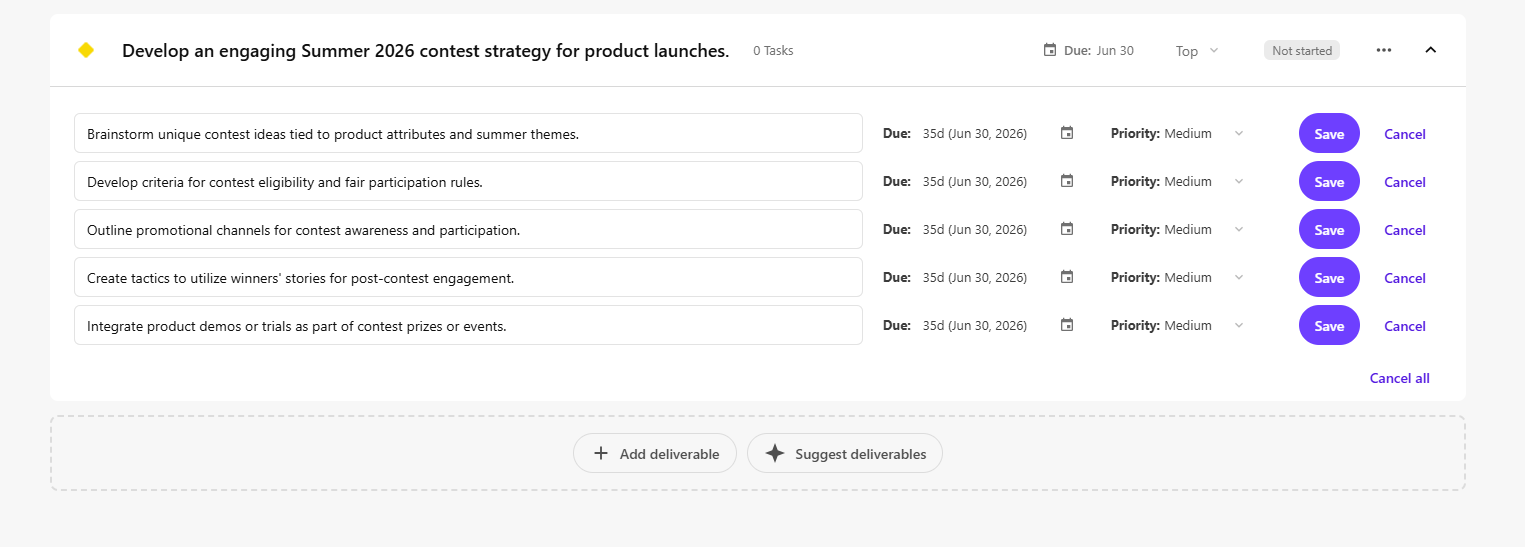
Find the deliverable that you want to add a task to, then click Suggest tasks.
AI will generate suggested tasks on the page.
-
To accept a suggestion, click Save next to the task you want to keep. The task is added to the deliverable.
-
To view or edit the details generated by AI, click the name of the task and make your changes.
-
When you're happy with the changes, click
to close the task pane or click anywhere outside it to return to the campaign details page.