Optimize content for AEO
Make sure your SitecoreAI CMS environment is connected to Scrunch. The connection is live if the AEO opportunities tab appears on your site's Channels page in SitecoreAI.
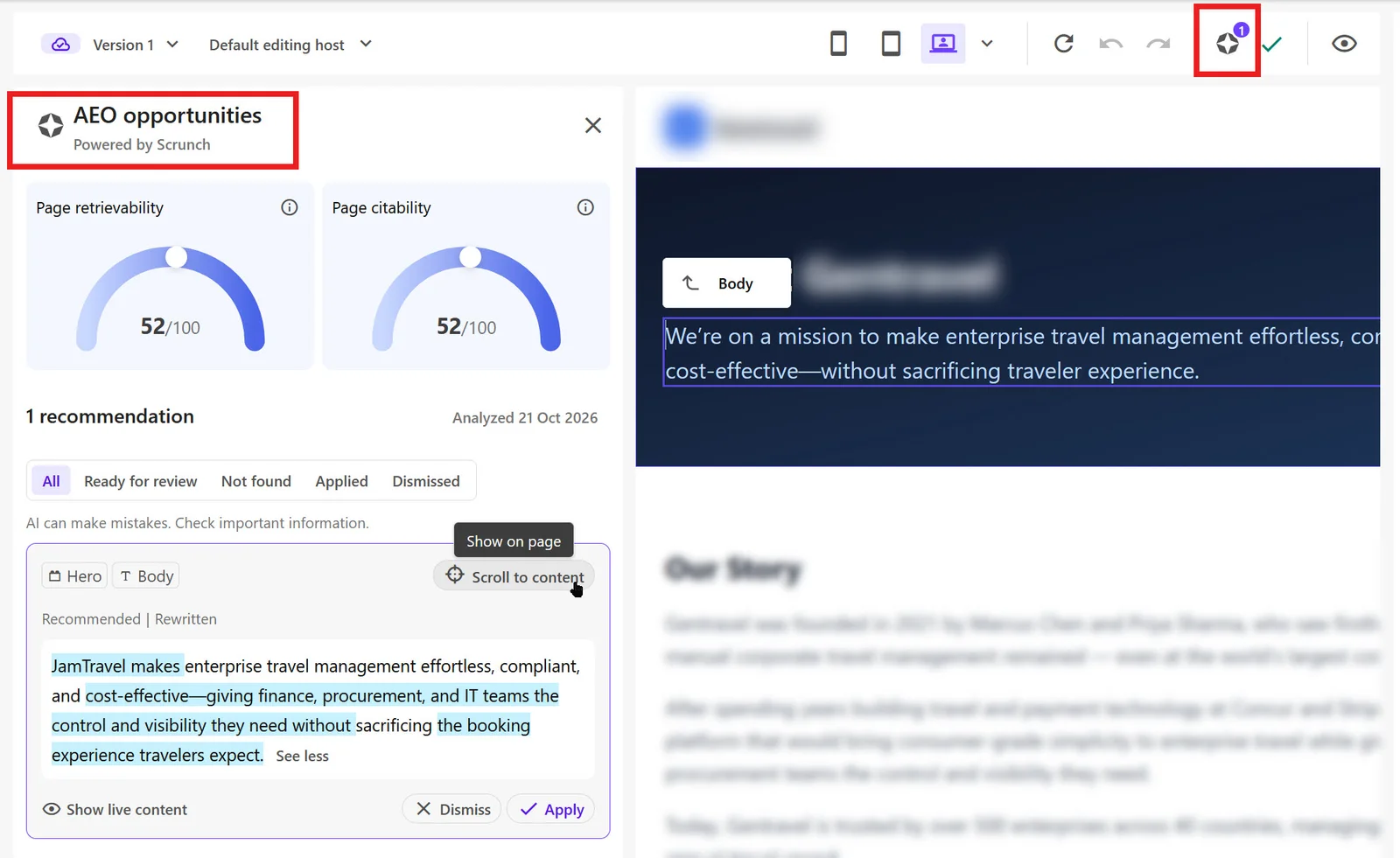
Use AEO opportunities in the Page Builder to review Scrunch's answer engine optimization (AEO) recommendations for the page you're editing. You can apply recommendations, make manual edits, or dismiss recommendations you don't plan to use.
For more information, see AEO opportunities.
Understand AI discoverability scores
The AEO opportunities panel shows two scores, each out of 100:
- Page citability - indicates how likely AI tools are to cite the page as a source.
- Page retrievability - indicates how easily AI tools can discover, understand, and extract information from the page.
Recommendations
Recommendations can include:
- A label that identifies the type of suggested change.
- Labels that identify the component and field the recommendation applies to.
- The recommended replacement text.
- The content from the published page Scrunch analyzed.
- Apply and Dismiss options.
Optimize a page for AEO
To view recommendations in the Page Builder, set your site's Target hostname to its public hostname.
To review and apply recommendations:
-
In the Page Builder, open the recommendations in one of the following ways:
- In the top-right corner of the local toolbar, click the AEO opportunities icon powered by Scrunch.
- In the Sitemap, locate the page, click > AEO opportunities.
-
In the AEO opportunities panel, review the recommendations. If Scroll to content is available, click it to locate the field in the page canvas.
If no recommendations appear, see No signals, opportunities, or recommendations.
NoteThe Not found filter shows recommendations that SitecoreAI can't apply automatically. If you can locate and edit the relevant content, make the change manually. For causes and next steps, see Unmatched recommendations.
CautionAI-generated recommendations can contain inaccuracies. Review each recommendation carefully before applying it.
-
If Apply is available, click it to apply the recommendation automatically. To dismiss a recommendation, click Dismiss.
When you apply a recommendation automatically, SitecoreAI:
- Highlights the relevant field in the canvas.
- Creates a new version of the content item.
- Updates the content with the recommended text.
-
Optionally, make additional edits to the content.
-
If the page is part of a workflow, move it through the required workflow states.
-
You must publish the page with related items to make the optimized content available on your website.
For information about expected results after publishing, see No immediate change in AI visibility.