View signals
Make sure your SitecoreAI CMS environment is connected to Scrunch. The connection is live if a Signals widget appears on your site's Strategy page in SitecoreAI.
Signals highlight meaningful changes in your brand's visibility across AI platforms. Use the Signals page to review the changes that matter the most and narrow the list by status, time period, competitor, or topic.
Find signals
To view signals for your site:
- In SitecoreAI, click Strategy, then scroll to the Signals widget.
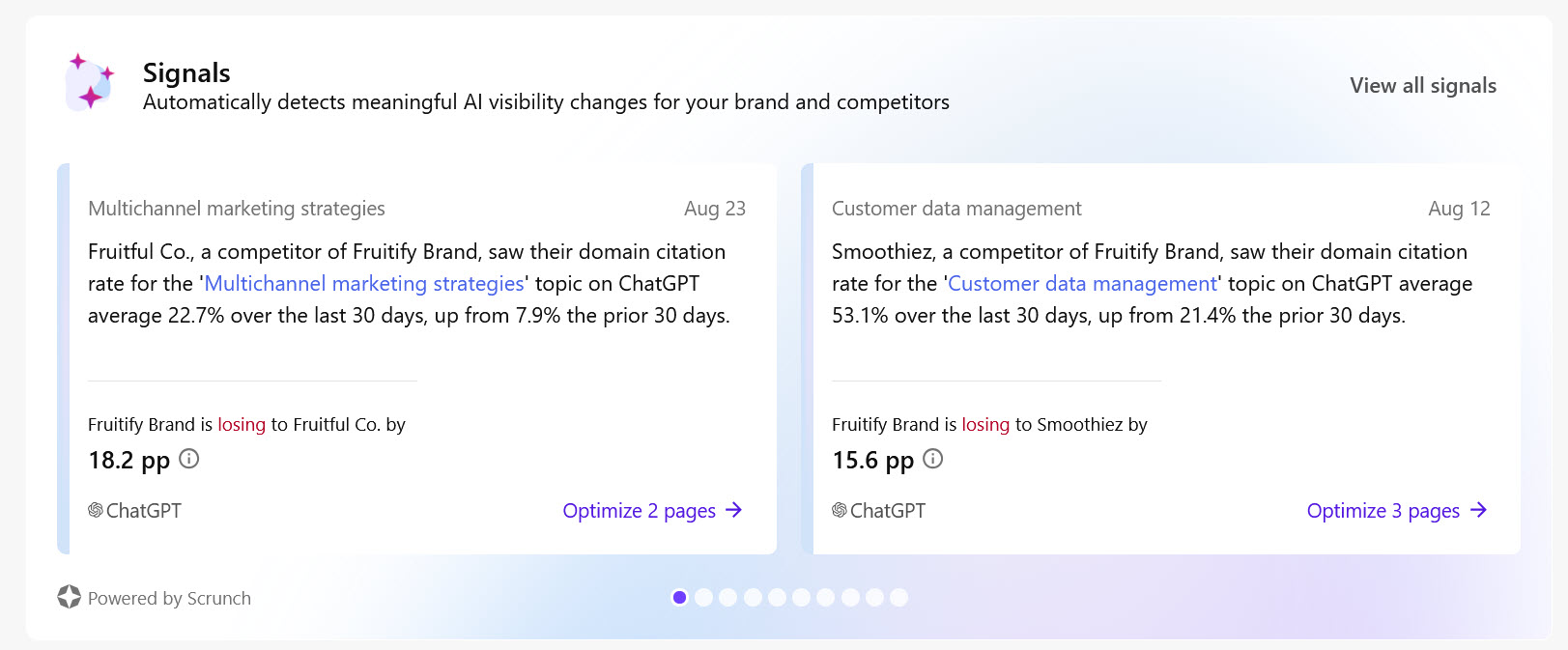
- Click View all signals. The Signals page opens with the list of available signals.
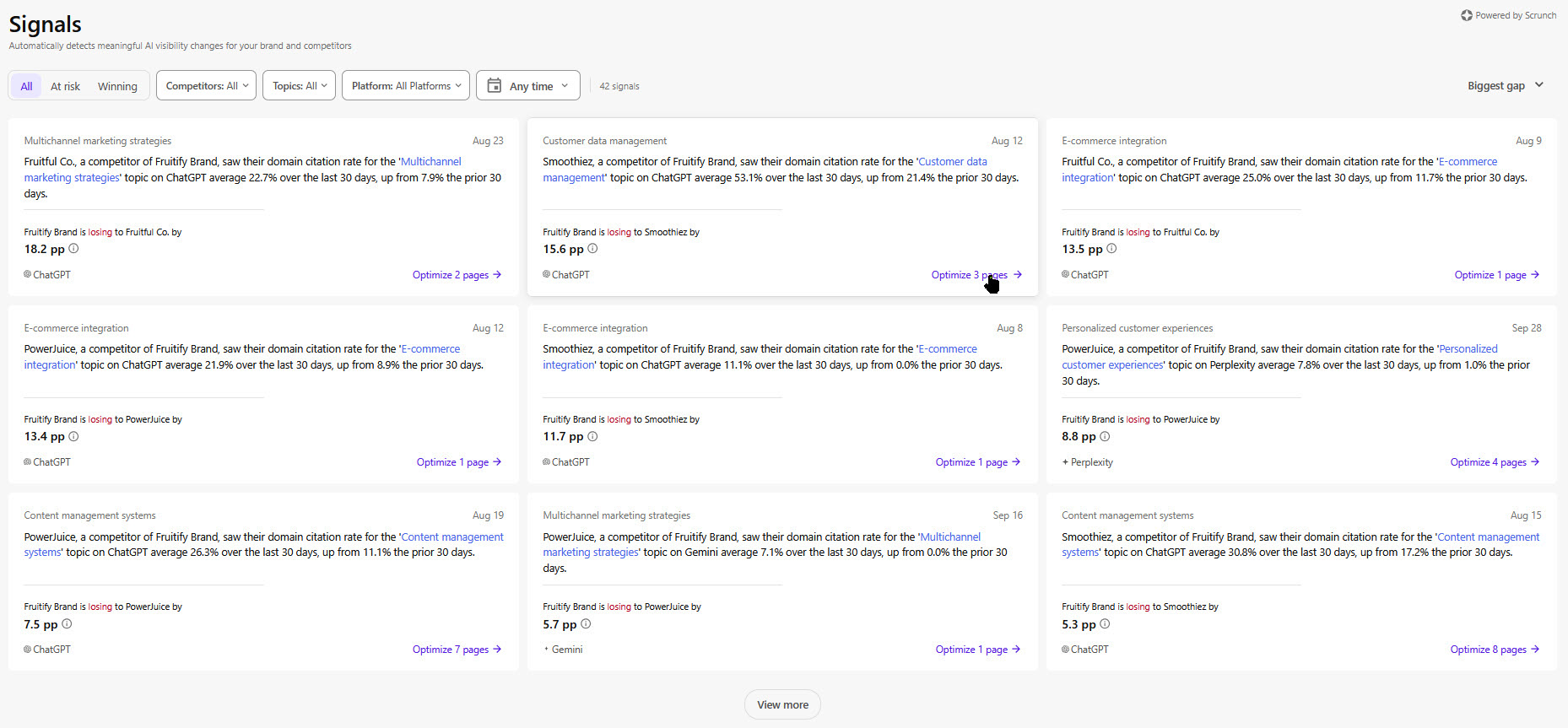
Each signal card summarizes a detected change, including the following details:
- Headline - a summary of what changed, including the AI platform and the magnitude of the shift.
- Topic - the topic the signal belongs to.
- Date - when the change was detected.
- Opportunities - the number of pages with available content updates.
- AI platform - which AI tool the change was observed on.
- pp change - how much the metric shifted, in percentage points.
When you find a signal you want to investigate further, click Optimize page(s) . Alternatively, to load more signals, click View more at the bottom of the page.
Sort signals
By default, signals are ordered by Biggest gap. You can choose any of the following sort orders:
- Biggest gap - signals where metrics fell the most appear first. This is useful for spotting sharp percentage-point declines, regardless of topic importance.
- Most recent - signals detected most recently appear first. This is useful for staying on top of the latest changes.
Confidence is assessed separately, so a signal lower in the list can still be a high-confidence one.
Filter signals
Use the tabs to filter what signals you see on the Signals page:
- All - view all signals.
- At risk - view only the signals where your brand is falling behind and you can take action.
- Winning - view only the signals where your brand is outperforming competitors. Winning signals don't require action, but you can still view the signal details.
You can use the following filters to further narrow the list of signals:
- Competitors - filter signals by the competitors defined for your brand in Scrunch.
- Topics - filter signals by semantically related user prompts or strategic themes.
- Platform - filter signals by the AI tool, such as ChatGPT, Claude, Gemini, or Google AI Overviews.
- Any time - filter signals to view only the ones from the past 2 days, 7 days, or 4 weeks.
Not every Scrunch signal appears in SitecoreAI. Signals are pre-filtered to those with specific pages associated with the change, so the All tab may show fewer signals than expected.
Why you might not see signals
If the Signals page shows no signals, or fewer than you expect, one of the following is usually why:
- Scrunch hasn't analyzed your brand yet. Check back after Scrunch's next run.
- Scrunch returned no signals for your brand in this period.
- Scrunch returned signals, but none of them met the criteria to appear in SitecoreAI, such as having a specific page associated with the change.
These are expected states, not errors. No action is required other than checking back later.