- Custom agents
Create a standard agent
Agentic studio includes prebuilt agents that automate common marketing tasks. For more specialized needs, you can create a custom agent tailored to your use case.
A standard agent (or prompt agent) is a flexible, conversational type of custom agent. It determines how to perform tasks based on your instructions and the tools, context, and skills available to it. Prompt agents are best suited for dynamic or less structured scenarios where a fixed workflow is not required. Use a prompt agent when you need a simple, chat-style experience that can adapt to different requests.
If your use case requires structured, repeatable, or multi-step execution, consider creating a workflow agent instead.
If you only need to make minor changes to an existing agent, consider duplicating it, adjusting its configuration, or reusing its exported JSON instead of creating a new agent from scratch.
- Make sure you have a Builder license. This is required to create custom agents in Agentic studio.
- Define what the agent should do and what the user should be able to achieve with it.
To create a prompt agent:
-
In the navigation menu, click Agentic and then, in the left sidebar, click Agents.
-
On the Agents page, click Create > Prompt agent.
-
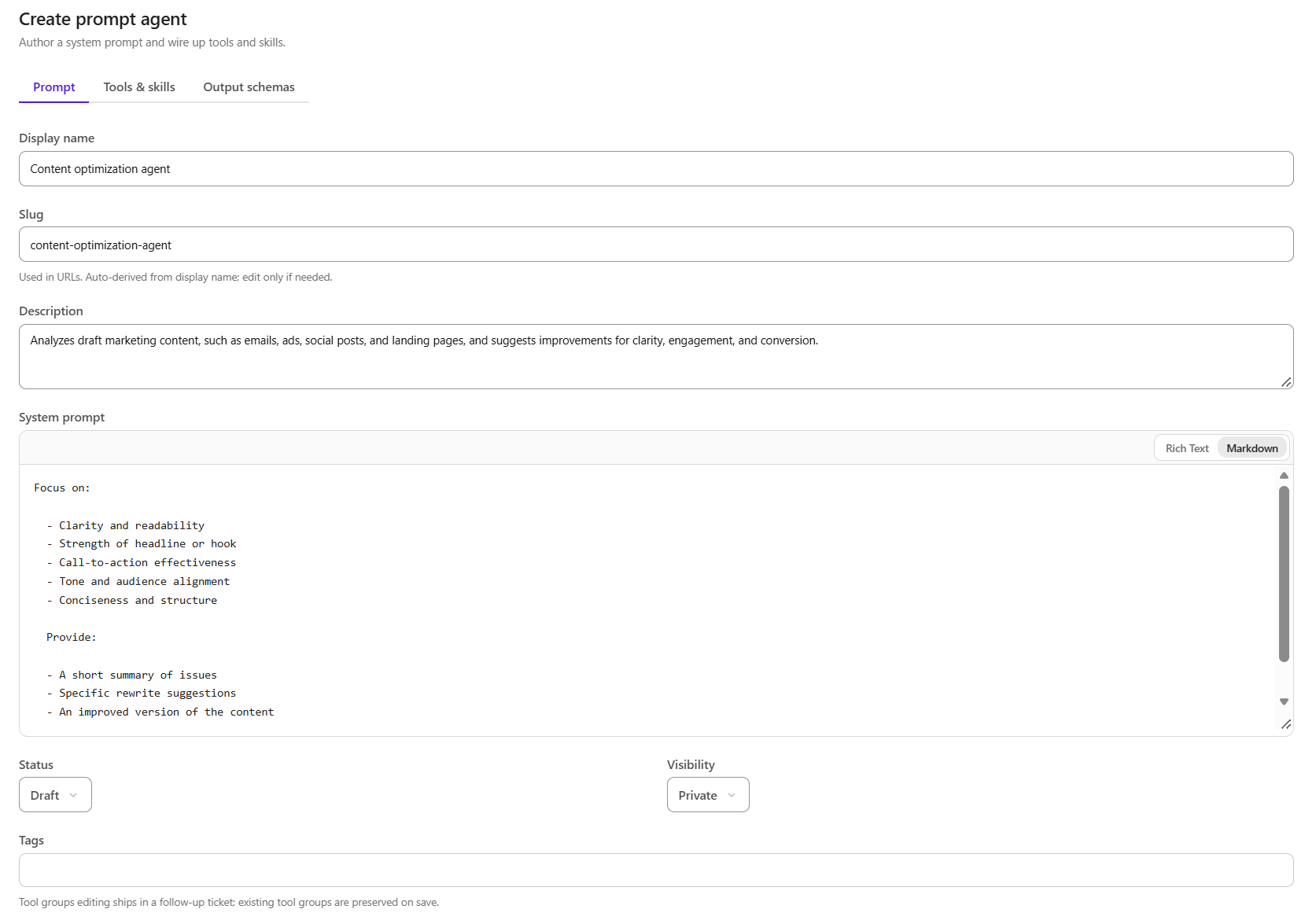
On the Create prompt agent page, on the Prompt tab, configure the following:
- Display name - enter a clear, descriptive name for the agent.
- Slug - review the slug generated from the display name.
- Description - add a brief summary of what the agent does.
- System prompt - define the agent's behavior, instructions, constraints, and expected response style.
- Status - select Draft, Published, Deprecated, or Archived.
- Tags - add tags to help identify and organize the agent.
-
To configure the agent's capabilities, select the Tools & skills tab.
-
In the Chat workspace files section, choose the level of access the agent has to files in the chat workspace:
- Off - the agent cannot access files in the chat workspace.
- Read-only - the agent can list, read, and search workspace files.
- Read and write - the agent can also create, edit, and delete files. File changes require approval.
-
In the Skills section, select any available skills that the agent can use when needed.
ImportantIf you want to ensure the agent uses a specific skill, state this explicitly in the system prompt. For example: Use the Competitive Analysis skill to analyze the user-provided site.
-
In the MCP section, select the connected MCPs that the agent can use. Only MCPs enabled by an admin in Tools are available for selection. Available MCPs can include:
- Sitecore Documentation MCP - access official Sitecore documentation.
- Marketer MCP - perform SitecoreAI actions for managing sites, pages, content, and more through the Sitecore Marketer MCP.
-
In the Tools section, select the tools that the agent can use when generating a response. The agent determines when to use them. Only tools enabled by an Admin in Tools are available for selection.
-
To configure the agent response, select the Output schemas tab.
-
In the Primary output section, configure how responses are returned:
- Click Add to create a new schema.
- Use the search field to select an existing schema. Available schemas are those created and enabled in Schemas.
-
Click Create prompt agent.
The prompt agent is saved and opens on its run page, where you can provide input and run the agent.
Example: Content optimization agent
The following example shows a simple prompt agent configuration.
Agent configuration
-
Display name - Content optimization agent
-
Description - Analyzes draft marketing content, such as emails, ads, social posts, and landing pages, and suggests improvements for clarity, engagement, and conversion.
-
System prompt - You are a marketing copy expert focused on improving content performance. Analyze the provided content and suggest specific improvements.
Focus on:
- Clarity and readability
- Strength of headline or hook
- Call-to-action effectiveness
- Tone and audience alignment
- Conciseness and structure
Provide:
- A short summary of issues
- Specific rewrite suggestions
- An improved version of the content
Avoid generic advice. Be specific and actionable. Do not change the core message unless necessary.
-
Chat workspace files - Read-only
-
Skills - None selected
-
MCP - None selected
-
Tools - Context Retrieval, Artifacts
-
Primary output - No schema selected
Test the agent
After creating the agent, run it using the following sample prompt:
Prompt - Analyze this draft content.
You can paste the content directly or upload a draft file.
Review the output. If the result is not satisfactory, update the system prompt, tools, skills, or output configuration, and then test the agent again.