- Custom agents
Create a workflow agent
Agentic studio includes prebuilt agents that automate common marketing tasks. For more specialized needs, you can create a custom agent tailored to your use case.
A workflow agent is a type of custom agent designed for structured, repeatable, multi-step processes. It is best suited for predefined workflows with consistent outcomes.
Use a workflow agent when you need to define a clear sequence of steps, approvals, or structured outputs. For chat-style and task-driven use cases, create a standard agent instead.
If you only need to make minor changes to an existing agent, consider duplicating it, adjusting its configuration, or reusing its exported JSON instead of creating a new agent from scratch.
This walkthrough describes how to:
- Create a custom agent
- Define the overview
- Configure parameters
- Define a schema
- Define an HTML template
- Build and test the agent workflow
-
Ensure you have a Builder license. This license is required to create custom agents in Agentic studio.
-
Review agent configuration tabs and best practices for writing prompts.
-
Define what the agent should do and what the user wants to achieve to guide configuration decisions.
Create a custom agent
Start by creating the agent on the Agents page.
- In the navigation menu, click Agentic and then, in the left sidebar, click Agents.
- On the Agents page, click Create.
- In the Create Agent dialog, select Workflow.
The workflow editor opens with the following tabs: Overview, Parameters, Schemas, HTML Templates, Workflow. Each tab controls a different part of how the agent behaves, what inputs it accepts, and what it produces.
Define the overview
Use the Overview tab to define what the agent is, what it does, and what inputs users must provide. These settings shape the run experience and determine what information is available to the agent.
-
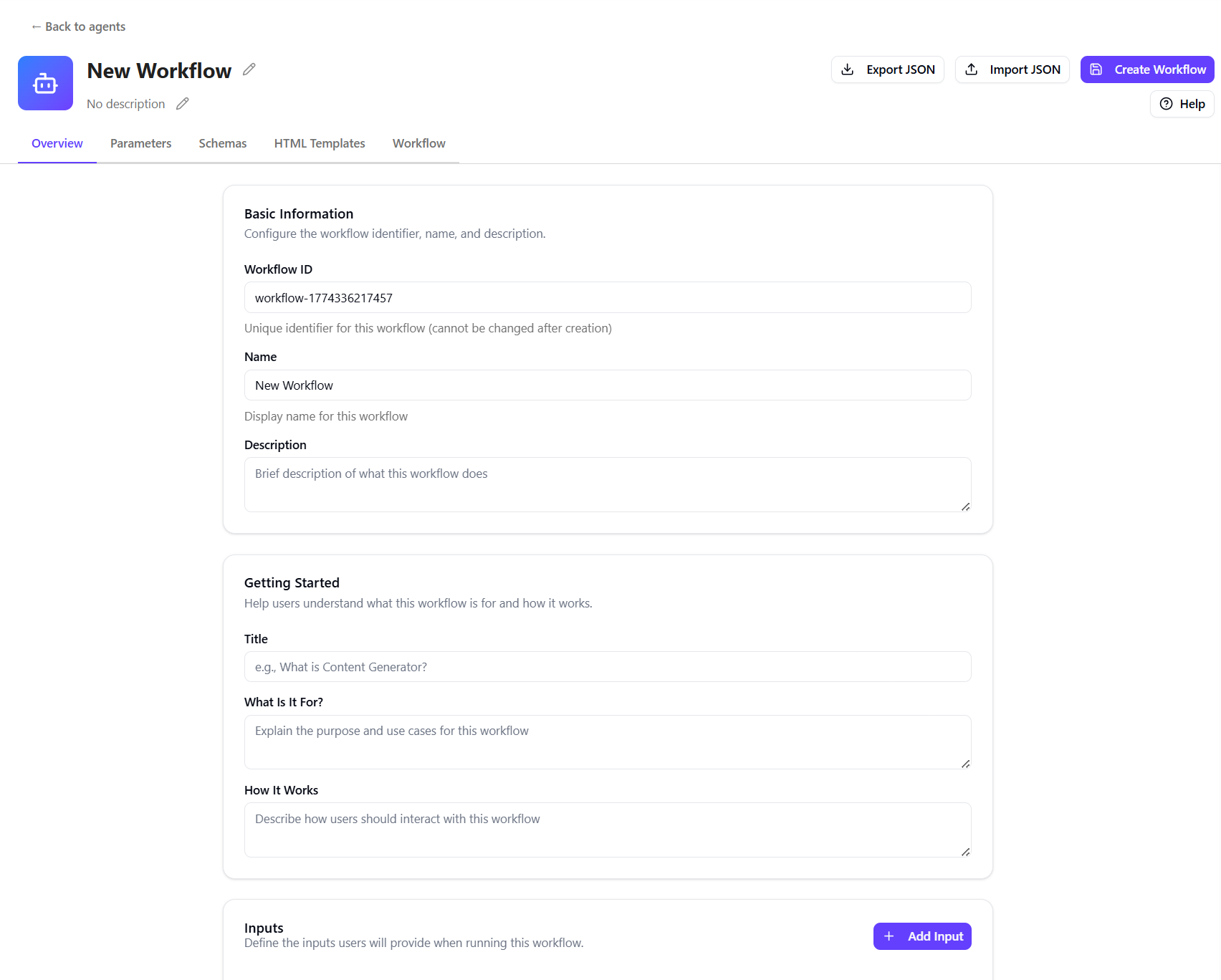
On the Overview tab, in the Basic Information section, provide the following:
- Name - a clear, descriptive agent name.
- Description - a short summary of what the agent does.
-
In the Getting Started section, provide the content that appears on the agent run page:
- Title - a short heading.
- What is it for - the agent's purpose.
- How it works - how inputs are used and what the agent generates.
-
In the Inputs section, click Add Input to define required user inputs:
- Type - the input type, such as Prompt.
- Label - the field name shown to users.
- Description - guidance for what uses should enter.
- Placeholder text - example content displayed in the field.
- Required - whether the input is mandatory.
- Min Lines - the minimum number of input lines.
-
Click Create Workflow to save your changes.
Configure parameters
If needed in your use case, define categories and options on the Parameters tab to influence how the agent generates content. Parameters allow users to select options such as language, audience, or region, helping the agent adapt its output based on those selections.
To configure parameters:
-
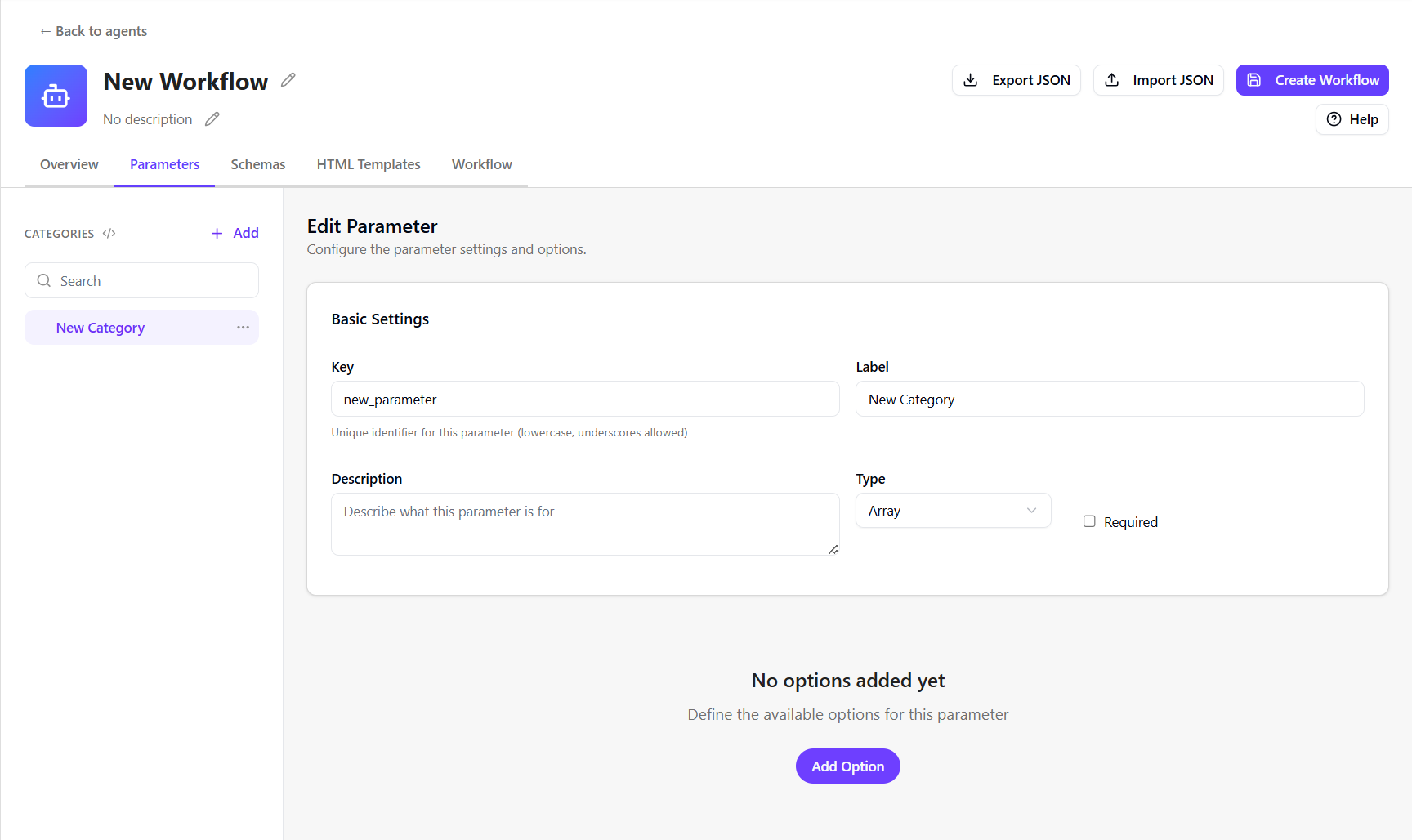
To add a category, on the Parameters tab, click Add.
-
In the Basic Settings section, define:
- Key - unique identifier (lowercase with underscores).
- Label - category display name.
- Description - describes the purpose of this parameter.
- Type - the input type, such as Array.
- Required - whether the category is mandatory to run the agent.
-
To define category options, click Add Option to define the options under the new parameter.
Example: After adding a target audience parameter, you might create options such as Sales, Marketing, C-Suite, and so on.
-
Edit each option and provide the following:
- Basic Settings
- Label - display name for the category option.
- Value - unique identifier (lowercase with hyphens).
- Content Metadata & Guidelines
- Context - describe when to use the option.
- Tone of voice - communication style guidance.
- Best practices - recommendations for generation.
- Dos and Don’ts - add rules or restrictions.
- Schema - format the response using a selected schema. Available schemas include those created in Settings or defined in the Schemas tab or from a CMS schema defined for a SitecoreAI site or collection.
- HTML template - select a HTML template for displaying output. Available templates include those created in Settings or defined in the HTML Templates tab.
- Basic Settings
-
Repeat as needed for additional categories or options.
-
Click Update Workflow to save your changes.
Define a schema
If you need to enforce a structured output, use the Schemas tab to define a JSON schema. Schemas ensure the agent produces consistent, structured output that can be validated and reused.
To define a schema:
-
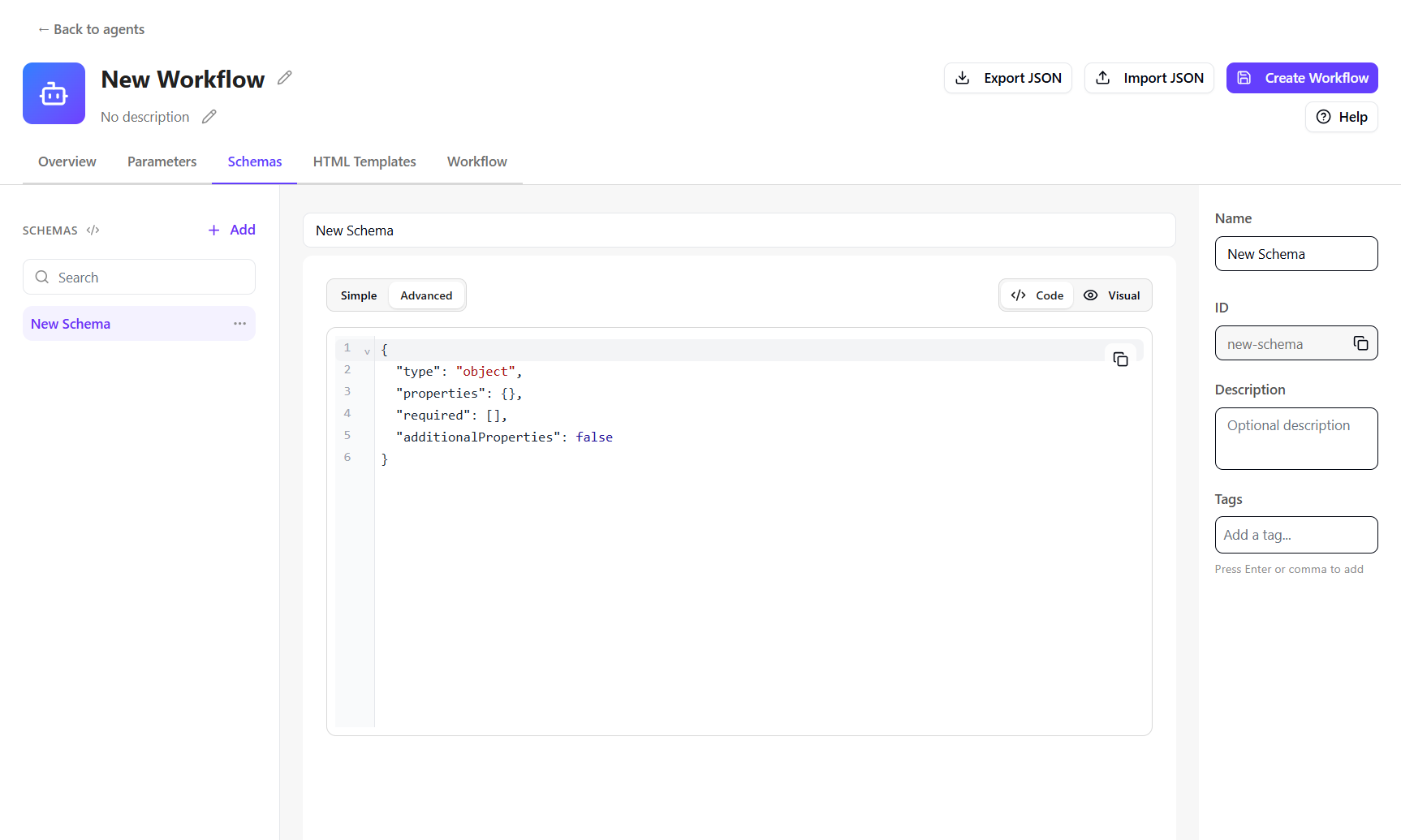
On the Schemas tab, click Add.
-
In the right pane, provide the following:
- Name - the schema name.
- Description (optional) - what the schema is used for.
-
Define the JSON structure for the output. You can use Simple mode or Advanced mode to define the schema manually using either the Code or Visual editor.
You can define the structure by:
- Specifying required fields to ensure essential content is always included.
- Defining data types (for example,
string,array, orobject). - Adding descriptions to guide how agents generate content.
- Configuring validation rules to control output quality.
-
Click Update Workflow to save your changes.
Define an HTML template
If you define a schema, you will typically also define a corresponding template. Use the HTML Templates tab to define how the agent’s output is displayed. Templates use Handlebars syntax to map structured data into a layout.
To define an HTML template:
-
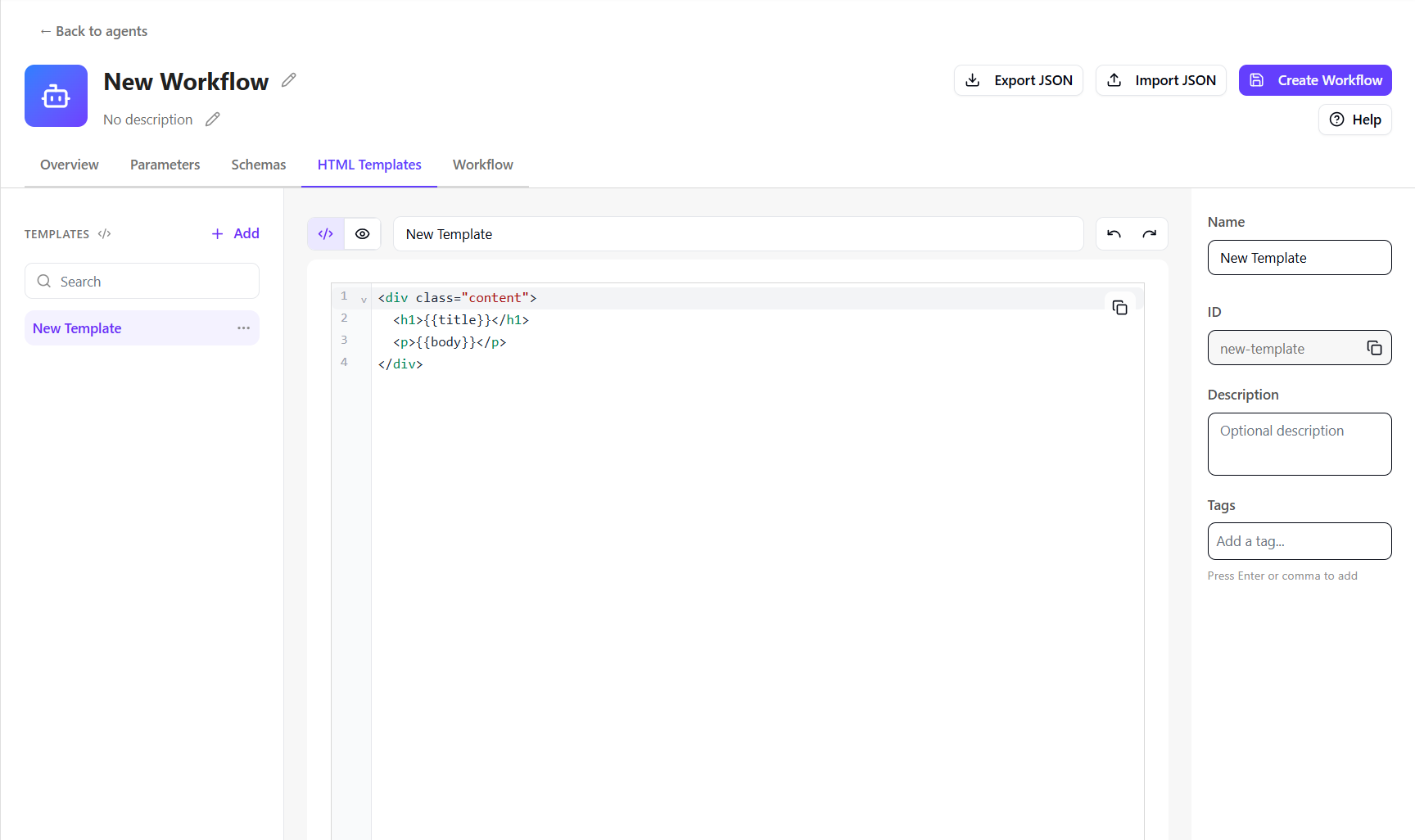
On the HTML Templates tab, click Add.
-
In the right pane, provide the following:
- Name - the template name.
- Description (optional) - what the template is used for.
-
Define the HTML structure using schema fields. Use Handlebars syntax to map values from the schema into the template in the Code editor.
You can define the template by:
- Inserting schema fields into the layout, for example,
{{subject_line}}or{{body}}). - Structure content using HTML elements, such as
<div>,<strong>, or<span> - Apply conditional logic or loops, for example
{{#if}}{{#each}}if needed.
- Inserting schema fields into the layout, for example,
-
Click Visual to preview the template.
-
Click Update Workflow to save your changes.
Build and test the agent workflow
Use the Workflow editor on the Workflow tab to design the sequence of actions the agent executes.
When designing a workflow:
-
Build step by step and keep the flow of data clear between actions.
-
Start with actions that collect or prepare inputs, then connect each step so outputs feed into the next step
-
Use clear names for variables and steps to keep the workflow easy to follow.
-
Test as you build to ensure each step passes the correct data and produces the expected result.
To build the agent workflow:
-
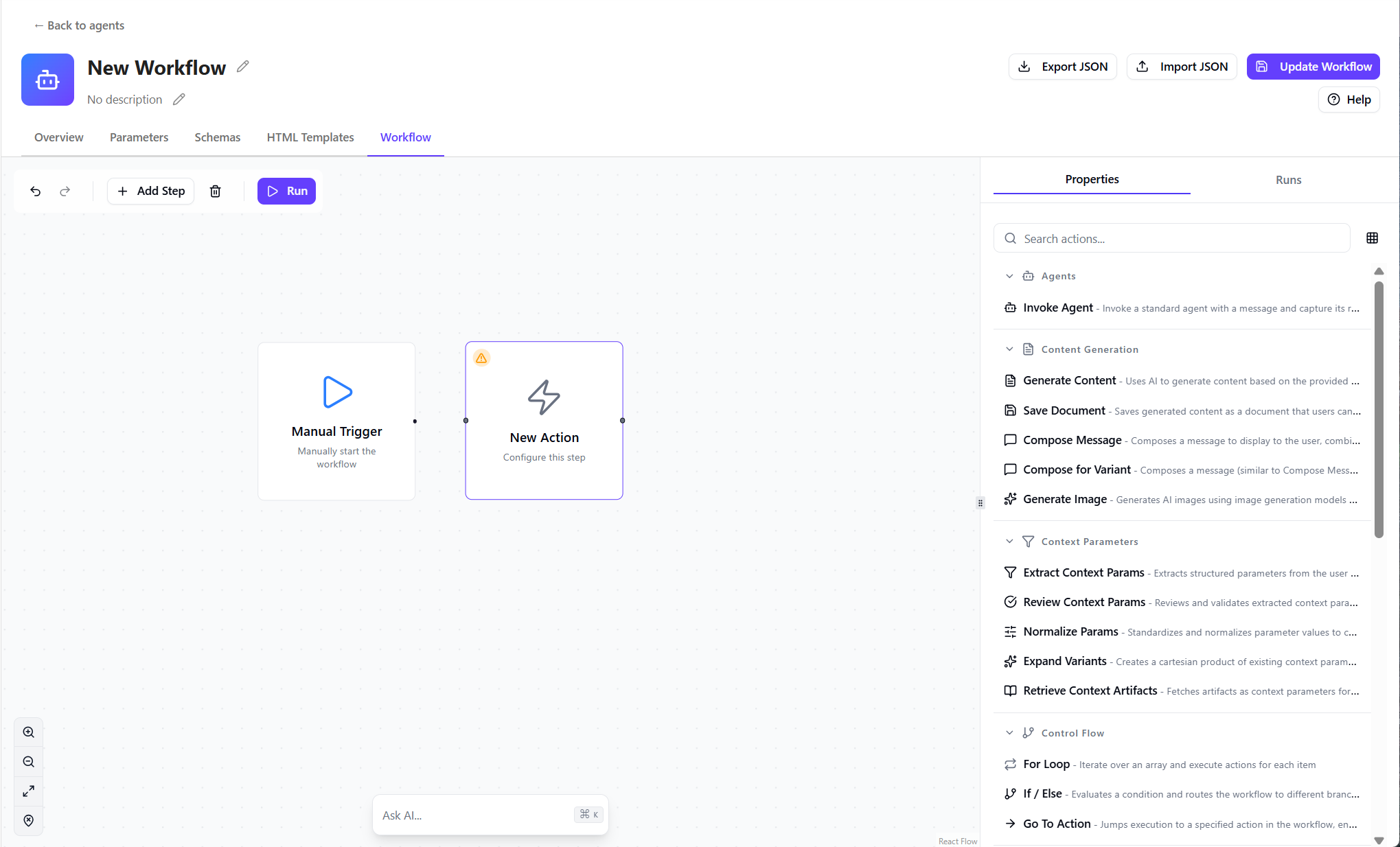
On the Workflow tab, the canvas includes a Manual Trigger action as the starting point.
Click Add Step to add a new action.
-
In the right pane, on the Properties tab, the list of available actions appears. Select an action to add it to the canvas.
TipTo learn more about an action, click it to view its description. You can also see Available actions in the workflow editor.
-
Drag from the dot on one action to the dot on another to connect them into a workflow step. Actions run sequentially based on how they are connected.
-
To configure the action, select an action on the canvas and adjust its settings in the Properties pane.
Depending on the selection, you might need to configure the action's inputs and output variables, system prompts, message templates, linked HTML templates and schemas, and artifact storage options.
-
Repeat the process to build out your workflow as needed.
-
To delete an action or connector, select it on the canvas and press Backspace.
-
Test the workflow by clicking Run on the canvas. Any issues appear on the Runs tab in the right pane to help with debugging.
-
When finished, click Update Workflow to save your changes.
Your agent is then added to the Agents page, where you can run or refine it.
Example: X Single Tweet Generator
This is an example of a workflow agent, including its configuration and JSON.
Agent configuration
-
Agent name - X Single Tweet Generator
-
Description - Generates one concise, high-impact Twitter/X post tailored for sales teams and marketing professionals, and optionally sends it to an API endpoint.
-
Inputs - Content Requirements (Prompt, required) - Describe the tweet you want to generate
-
Parameters - not required for this example.
-
Schemas - Defines a structured output with text and hashtags.
-
HTML template - Displays the tweet content and hashtags in a simple formatted layout.
-
Workflow - the agent performs the following steps:
- Retrieve the Twitter schema and template
- Compose a prompt using the user’s input
- Generate one structured tweet using the schema
- Save the generated tweet as a document
- Send the tweet content to an HTTP endpoint (mock API for testing or real platforms like Twitter/X, Reddit, and others, using API credentials).
-
Agent JSON - Here is the JSON of the example agent for reference. You can import it into the workflow editor to test or explore further:
JSON
Test the agent
After creating the agent, run it using the sample prompt:
Prompt - Tweet about improving cold outreach response rates.
Review the output to ensure the tweet is concise, high-impact, and clearly communicates a practical insight.
If the results are not satisfactory, refine the agent by updating its instructions, tools, skills, or context, and test again.