Swap, move and reorder components in a page
Swap an element with another
In a page, you can swap one component with another. The new component will instantly take the place of the previous one, preserving layout context and minimizing disruption.
To swap a component:
-
In the page builder Editor mode, in the canvas, select the component you want to swap.
-
In the context toolbar, click Swap
 .
.
Move and reorder components in a page
In a page, you can move and reorder elements such as components and containers. For example:
-
You can drag an element to another position on the canvas.
-
You can use the layers visualization in the left-hand pane to reorder components and containers within a component. Visual signs let you know which places these elements are allowed to be dropped into.
-
You can reorder components within a placeholder by using the up and down arrows that appear on the component tab when you select a component.
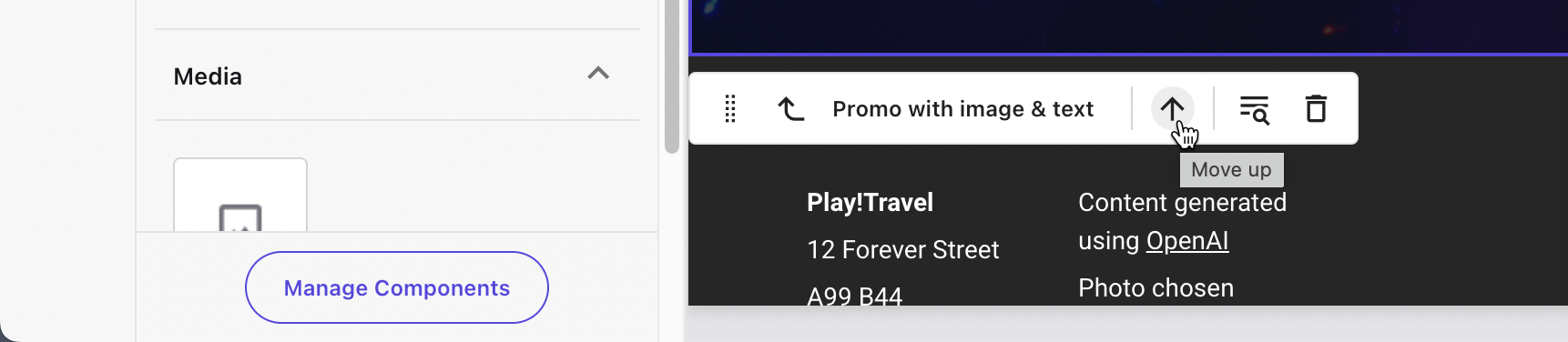
Visual signs let you know where these elements are allowed to be dropped.