Navigating the interface
SitecoreAI is your AI-powered marketing workspace. Its interface is organized around key stages of the digital experience lifecycle—planning, creation, delivery, and optimization—so marketing teams move smoothly between tasks without losing context or momentum.
To access SitecoreAI, log in through the Sitecore Cloud Portal using your organizational credentials.
Workspace layout
Each area in SitecoreAI opens into a dedicated workspace. While the focus differs by area (for example, campaign planning in Strategy), the layout stays consistent so you always know where to look:
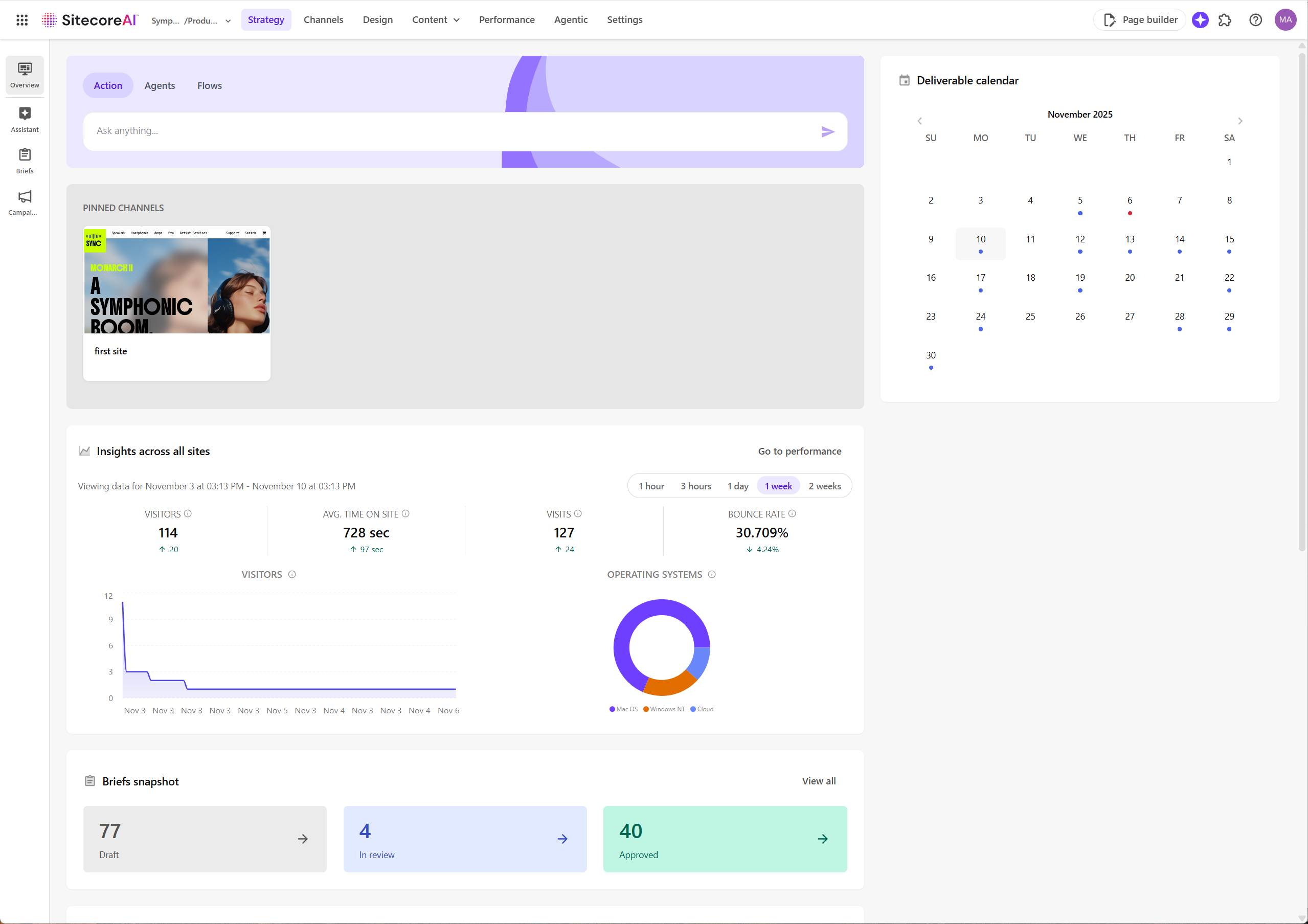
- Navigation menu - move between the main areas such as Strategy, Channels, Design, and more.
- Upper-right corner - open the Page builder, Agentic studio widget, Apps, and notifications from anywhere in the workspace.
- Agentic studio widget - start Actions, Agents, and Flows in Agentic studio to bring AI into your work instantly.
- Left sidebar - find the core tools and features for the area you’re in. For example, under Strategy, you can open Campaigns, Briefs, and more.
- Main workspace - work in the central area where pages and tools open when you select an option from the sidebar. This is where you plan, create, and manage your work.
- Right-hand pane - view additional widgets or apps when available, giving you additional tools, data, or insights to support your work.
This consistent structure helps marketing teams move smoothly through the digital experience lifecycle without interruption.
Main tools in SitecoreAI
The navigation menu gives you quick access to the main tools of the platform, each supporting a stage of the digital experience lifecycle.
Strategy
Move seamlessly across ideation, briefs, campaigns, and execution within a single workspace.
- Get AI support from the Brand Assistant for ideation, brand alignment and AI-generated brief creation.
- Develop and refine briefs to guide campaign execution and convert them quickly into draft campaigns.
- Create and manage campaigns, deliverables, and tasks for different marketing initiatives.
- Access a personalized dashboard to get an overview of your workload and schedules.
Channels
Use Channels to organize and manage sites and site collections.
- Create new sites from scratch or start with templates.
- Organize content and design assets into collections.
- Quickly open a site in the Page builder, access their Sites dashboards or adjust their settings.
- Create variants to personalize a page or perform A/B/n tests of components.
Design
A single, intuitive design workspace where designers, developers, and content authors create, explore, and manage the building blocks of digital experiences.
- Use the Design studio to view and test components for your site.
- Visualize and test components in a centralized workspace.
- Use AI to generate component variants and create on-brand content.
- Create simple, user-friendly forms from scratch or use a ready-made template.
- Use brand kits to make sure AI-generated content aligns to your brand guidelines.
Content
Access all content tools for creating, editing, and managing the content that powers your sites.
- Use Content mode in Page builder to find, edit, and manage content items across all sites.
- Perform advanced content and layout editing, access full item fields, and manage workflows in the Content editor.
- Upload, store, and organize images, videos, and documents in the modern Media library, or in the legacy Media library.
Performance
Use real-time performance dashboards to measure and optimize marketing impact across the platform.
- Get a consolidated view of how your digital experiences perform.
- Track metrics for one site or a group of sites that share the same analytics identifier.
- Monitor user engagement with forms, including views, interactions, submissions, and conversion rates.
- Compare A/B/n test variants to find top performers and make data-driven improvements.
- View profiles to explore and act on site visitor data.
Agentic
Use the Agentic studio to bring human-AI collaboration into everyday marketing work.
- Select and run agents designed for repetitive or routine work.
- Trigger agentic flows to run complex or end-to-end marketing processes.
- Leverage AI-driven market insights with signals to help you decide where to focus next.
- Get a snapshot of your recent AI-driven activities in Overview, view of all agent and flow runs in Spaces, or return to previous chats in Chat.
Settings
Manage platform configuration and governance for each environment.
- Manage user roles, permissions, languages, and locales.
- Set analytics identifiers for tracking and personalization.
- Access all features, including legacy Sitecore tools.
Agentic studio widget
This is your entry point to Agentic studio features throughout SitecoreAI. It lets you collaborate with AI directly in your workflow to plan, create, and optimize marketing work safely and at scale.
You can interact with AI naturally—ask questions, delegate tasks, or start automated processes without leaving your work. Wherever you are in the platform, AI stays close to your daily activities, supporting your decisions and actions.
To use the agentic features, ensure Stream is enabled in the Sitecore Cloud Portal and that you have been added as a Stream user. If Stream isn't enabled yet, click Enable Stream in Cloud Portal and follow the on-screen instructions.
You can access the Agentic studio widget from the main workspace. It appears below the navigation menu.
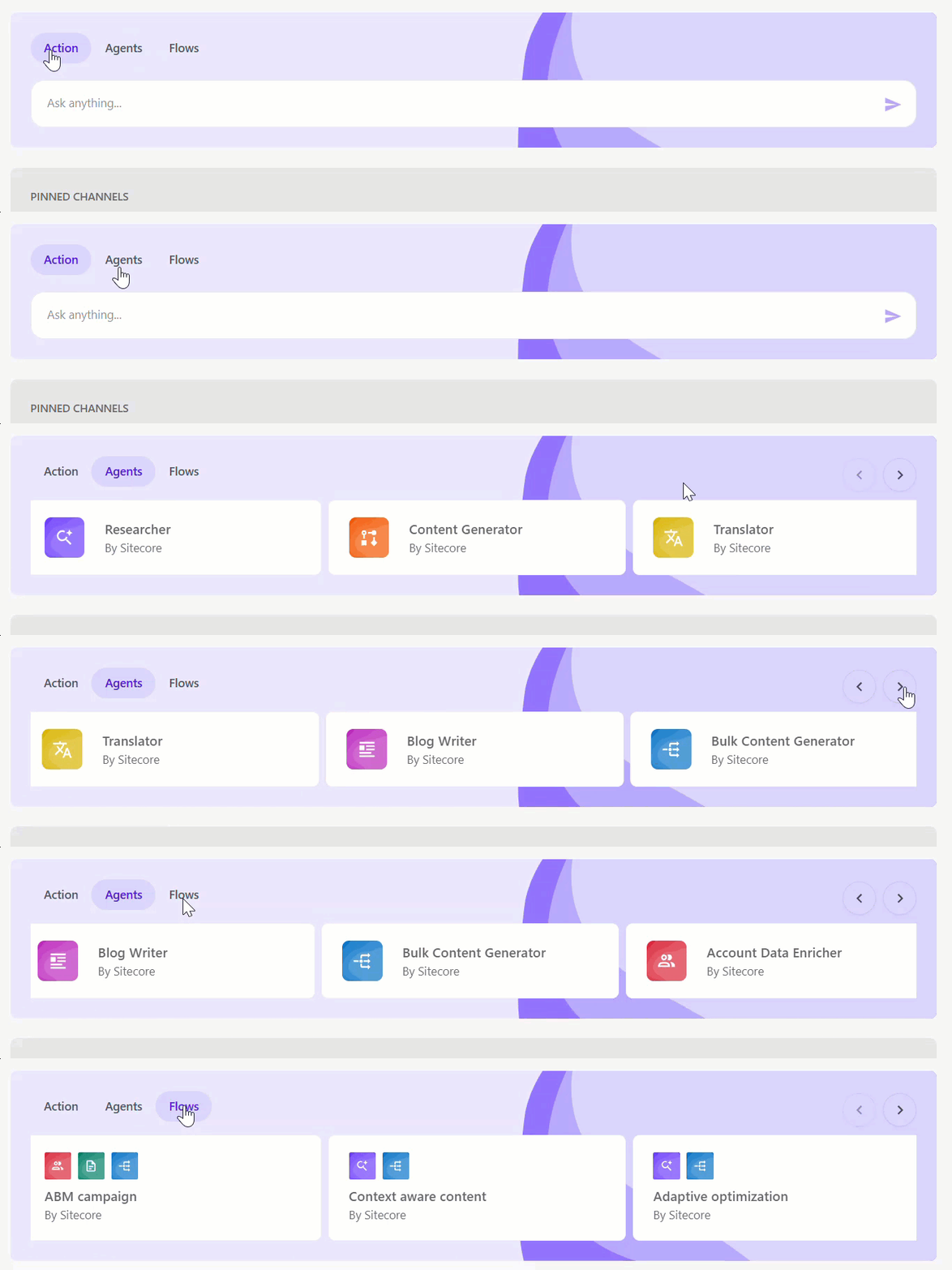
The following Agentic studio features are available:
- Action - chat, reason, make decisions, plan, and act with AI directly in your workflow, aligned with your current task.
- Agents - run specialized agents that can complete routine or goal-based marketing tasks for you.
- Flows - start an existing multi-step workflow for ABM campaign, Context-aware content, or Adaptive optimization. These flows combine agents with human input.
You can also open the Chat interface anywhere in SitecoreAI when you click AI chat in the upper-right corner of the page.