Create a campaign
A campaign represents a key marketing initiative, goal, or activity that your team aims to accomplish, such as product launches, website updates, seasonal promotions, or digital ad strategies.
Creating a campaign is one way to start planning and organizing work. You can also begin with a brief and convert it into a campaign. When a campaign is created first, add or create briefs afterward to capture requirements and creative direction.
To create a campaign, you must have a Stream Admin app role or an Organization Admin or Organization Owner role in Sitecore Cloud Portal.
After you create a campaign, you can define its deliverables to outline the intended outcomes, and each deliverable can be divided into actionable tasks.
To create a campaign:
- In the navigation menu, click Strategy.
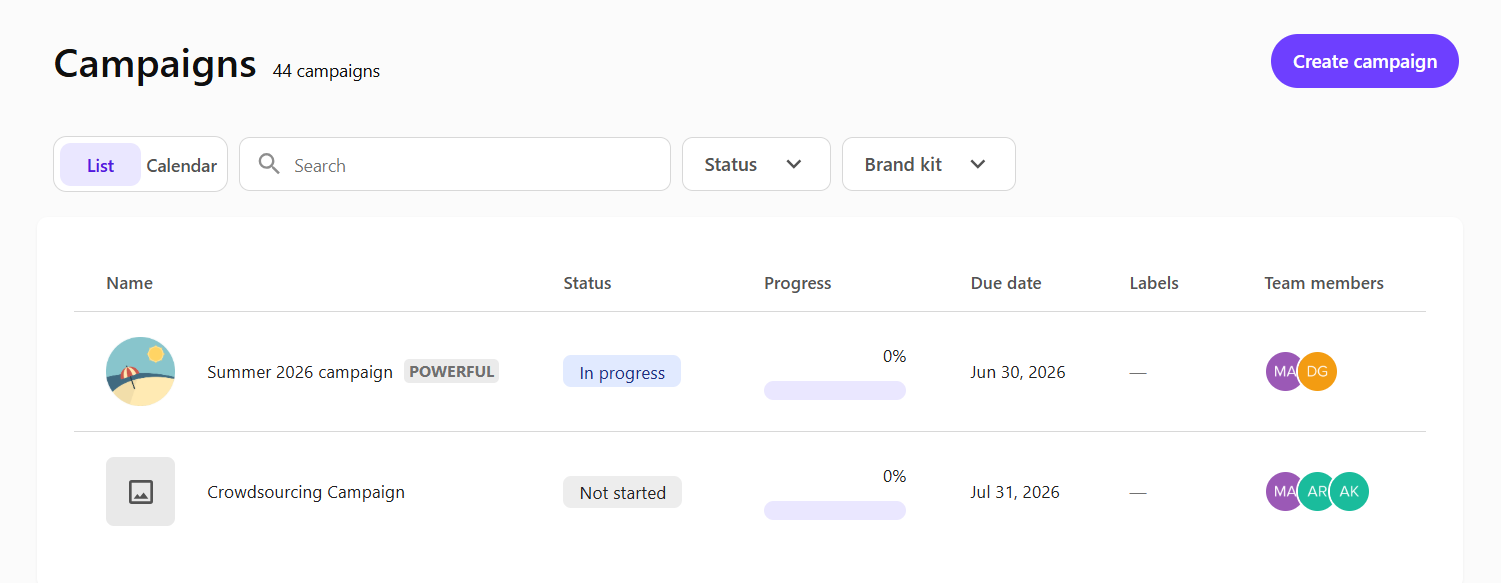
- In the left sidebar, click Campaigns.
- On the Campaigns page, click Create campaign.
 Note
NoteYou can also create a campaign from the calendar.
- In the Create campaign dialog, enter the following:
- Campaign name - enter a descriptive name for the campaign, up to 255 characters.
- Start date and Due date - pick the campaign's start and end dates from the calendar. The system calculates and displays the campaign duration in the Total days field.
- Optionally, you can do the following:
-
In the Campaign description field, enter a short summary of the campaign.
-
In the Labels field, enter or select up to five tags to categorize the campaign.
-
In Brand kit, select a brand kit that you want to link to this campaign.
-
To add a thumbnail image for your campaign, click Upload or drag and drop the image file.
Supported files include
.pjp,.jfif,.jpe,.pjpeg,.jpeg,.jpg,.png,.gif,.webp,.sgvz,.svg,.jpg,.jpeg,.png,.gif,.webp.
-
- Click Create. The campaign overview page opens.
Next steps
After creating your campaign, you can:
- Add briefs by linking an existing brief or creating a new brief.
- Add deliverables to define the outcomes you want to achieve.
- Add tasks, whether associated with a deliverable or a campaign
- Edit the campaign details, or attach relevant campaign resources, if needed.
- View the campaign calendar to track your campaign alongside other marketing activities.