Campaign calendar
The campaign calendar provides a visual way to view and manage campaigns in SitecoreAI. It gives you an overview of campaign timing, duration, overlaps, and gaps.
Use the calendar to plan upcoming activities, review active campaigns, spot scheduling conflicts, and adjust campaign schedules more easily than working from dates in a list.
View the campaign calendar
To view the campaign calendar:
- In the navigation menu, click Strategy.
- In the left sidebar, select Campaigns.
- Switch from List view to Calendar view. The calendar opens to the current month.
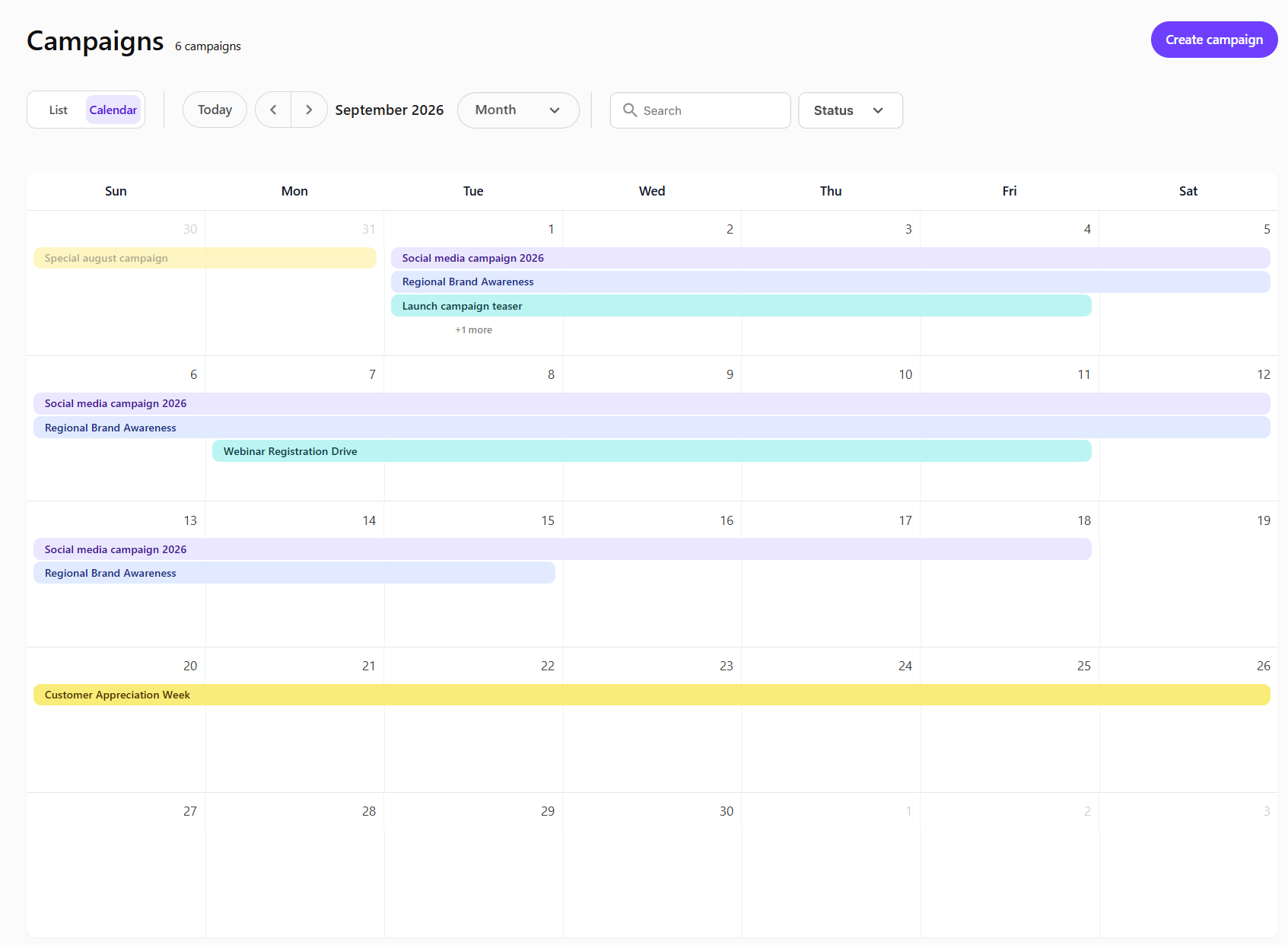
You can:
- Use the navigation arrows to move between periods, one month at a time.
- Click Today to return to the current month.
- Search for a campaign by name.
- Use the view filter to switch between Month, 3 months, 6 months, and Year views. The Year view groups months by quarter.
- In multi-month views, use Group by to group campaigns by status, such as Not started, In progress, or Done.
- Use the Status filter to display only campaigns with a specific status.
- Click a campaign to view its details in the right pane.
In multi-month views, a vertical line marks the current date. Hover over it to view the current week and date.
If more than three campaigns are scheduled on the same date, click the + X more indicator to view the remaining campaigns.
Campaigns scheduled before the current date appear with reduced opacity.
Create a campaign from the calendar
You can click Create campaign or create a campaign directly from the calendar. To create a campaign from the calendar, select Month from the view filter.
To create a campaign:
- For a single-day campaign, double-click a date on the calendar.
- For a campaign that runs for multiple days, click the start date and drag to the end date.

The Create campaign dialog opens with the selected start and end dates already filled in. Enter the remaining campaign details, then create the campaign.
Update campaign dates
You can reschedule a campaign or change its duration directly from the calendar. To update campaign dates from the calendar, select Month from the view filter.
To change the campaign duration, hover over the start or end of the campaign bar until a double-headed arrow appears. Then:
- Drag the left edge to change the start date.
- Drag the right edge to change the end date.
To move the campaign without changing its duration, drag the entire campaign bar to an earlier or later date.
When you finish dragging, the campaign dates update automatically.
View campaign details
Click a campaign on the calendar to open its summary in the right pane.
The summary displays information such as the campaign thumbnail, name, description, duration, and any associated labels or brand kits.
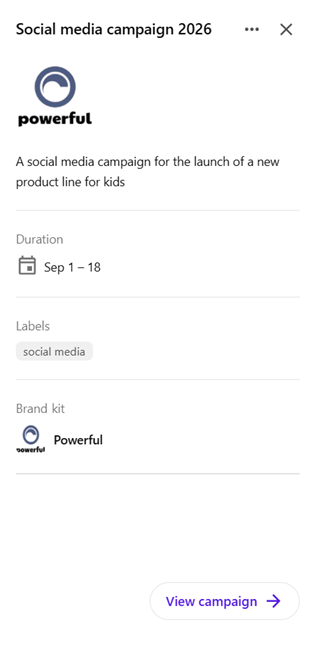
In the right pane, click the horizontal ellipsis icon to:
- Select View details to open the campaign overview page.
- Select Edit details to update the campaign name, thumbnail, description, or duration.
- Select Delete campaign to permanently delete the campaign.
You can also click View campaign at the bottom of the pane to open the campaign overview page.