Create an audience
Feature availability is part of a phased rollout. Your organization may not see this functionality yet. It will become available when your environment is included in the rollout.
Create audiences to define profile groups based on shared profile data, behaviors, or traits.
This topic explains how to create an audience manually in Audience builder. You select profile data attributes and define the rules that determine which profiles belong to the audience.
If you prefer to create the audience you want using AI to help generate the rules, see Create an audience with AI Assistant.
Identify the profile group you want to include in the audience. This helps you choose the right attributes and rules.
Create the audience manually
To create the audience manually:
-
In the navigation menu, click Optimization.
-
In the left sidebar, select Audiences.
-
On the Audiences page, click Create audience.
-
In the Create audience dialog, enter a descriptive name for the audience.
-
Click Create.
Audience builder opens with a new empty audience in Draft status. The Chat tab is displayed in the right pane by default. You can use it at any time to create or refine the audience with AI. For more information, see Create an audience with AI Assistant.
Add the first audience rule
To add the first rule:
-
In the Attributes pane, select an attribute group, such as:
NoteAvailable attribute groups and attributes depend on the profile data available in your SitecoreAI environment.
-
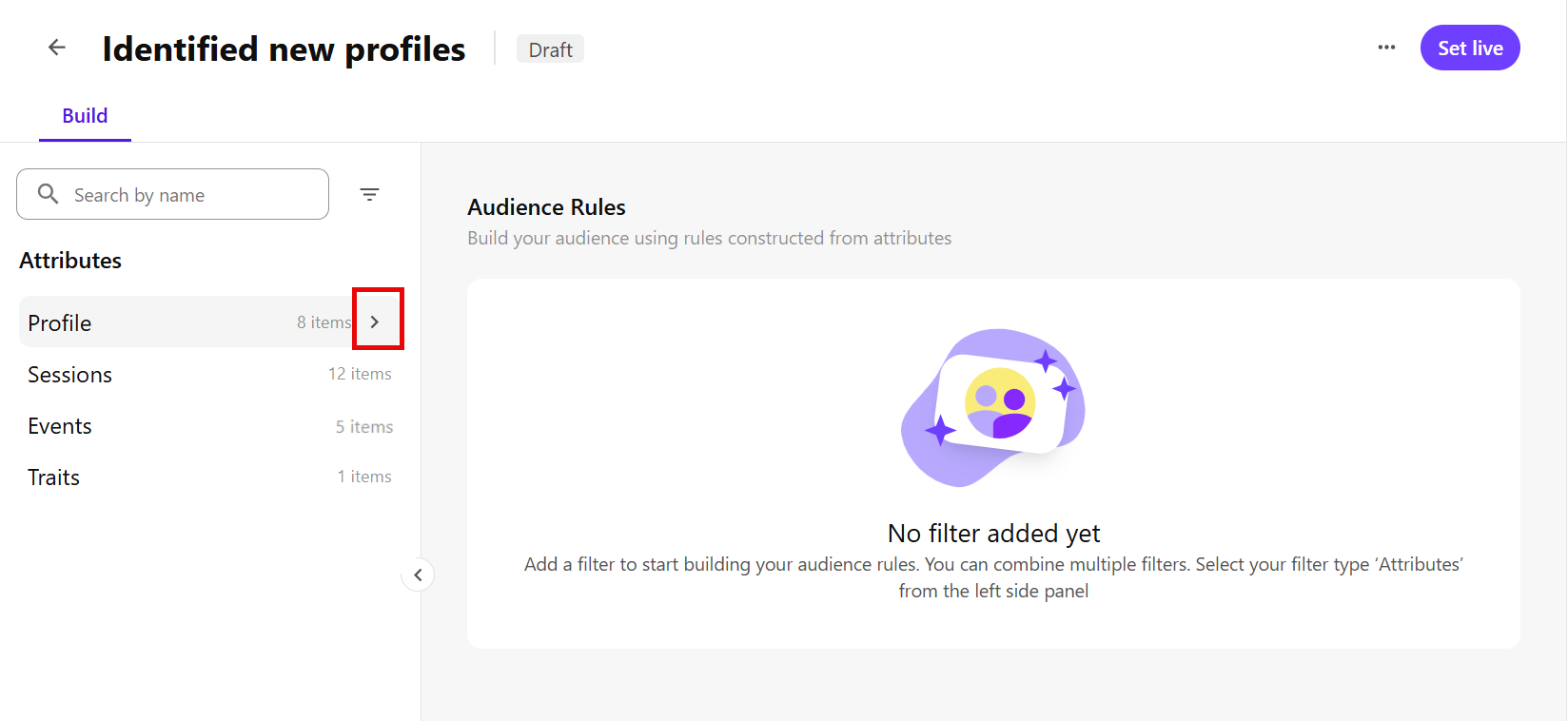
Click the expand icon to expand the group and view its available attributes.
For example, expand Profile to view profile attributes.
-
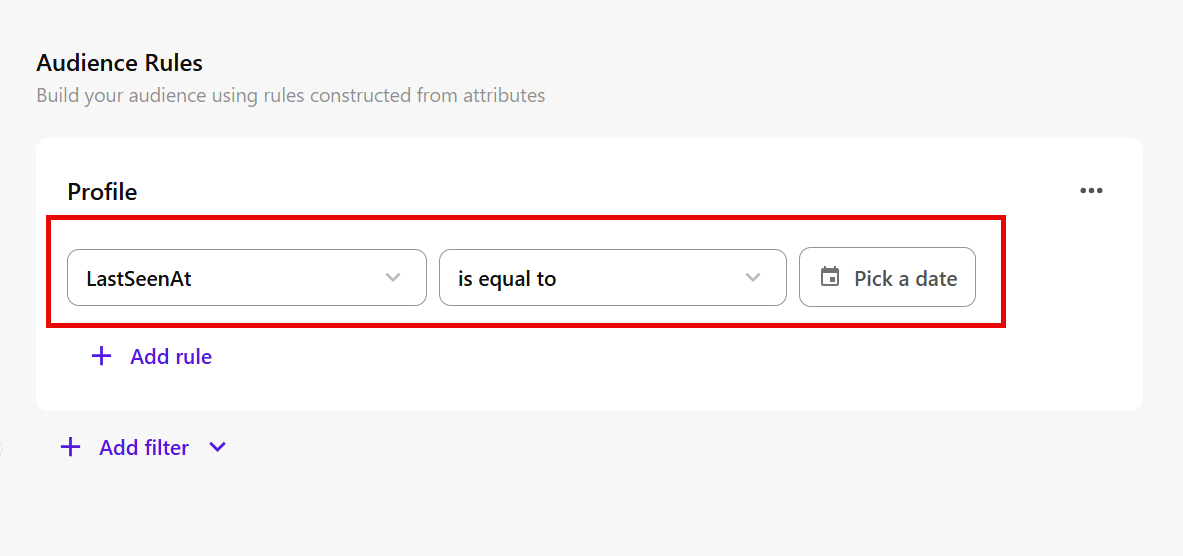
Select an attribute, then click the add icon .
For example, select LastSeenAt to add it as the first rule under the Profile rule group in the Audience Rules workspace.
-
Configure the rule:
-
Select a comparator - choose how the attribute value should be matched, such as is equal to, is in, or contains.
For example, for LastSeenAt, select is equal to.
NoteAvailable comparators depend on the selected field. See Audience rule comparators for more details.
-
Enter or select a value - provide the value profiles must match.
For example, for LastSeenAt, select a date such as April 28, 2026.
-
Set a limit - optionally, for event and session rules, specify how many matching events or sessions are required. See Set a limit for an event or session rule for more details.
-
Add more audience rules
To refine the audience, you can add more rules from the same attribute group or from a different attribute group.
Add more rules from the same attribute group
Use this when you want to add another rule based on an attribute from the same group.
To add more rules from the same attribute group:
-
In the Audience Rules workspace, click Add rule.
For example, under the Profile rule group, click Add rule.
-
Select another attribute.
For example, select Email.
-
Configure the rule by selecting a comparator and entering or selecting a value.
For example, for Email, select contains and enter sitecore.com.
-
Choose how the rule is combined with the existing rules in the group:
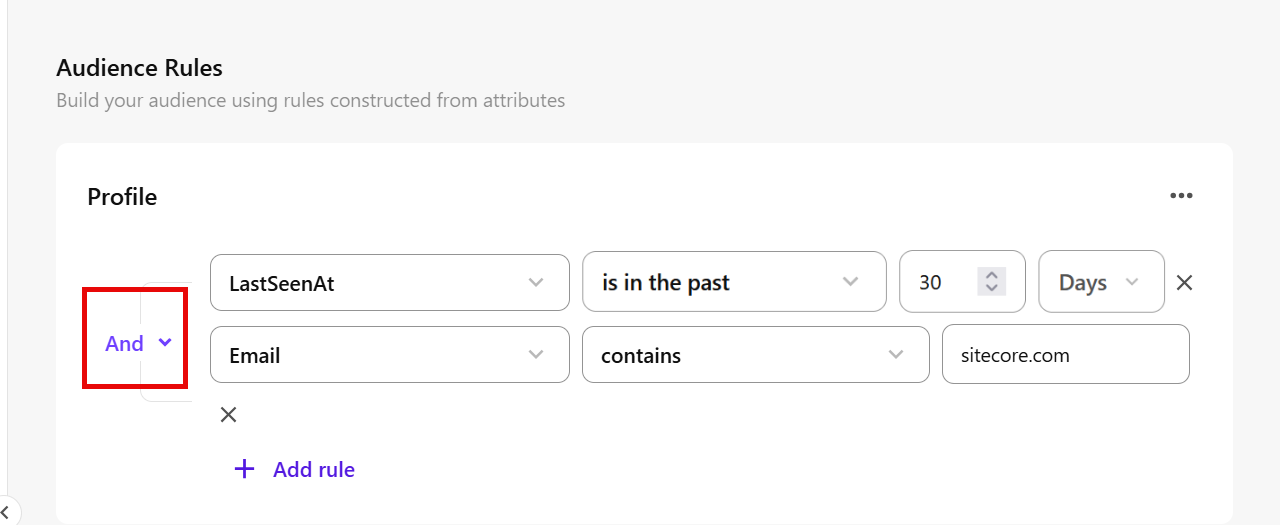
- And - profiles must match all rules in the group.
- Or - profiles must match at least one rule in the group.
- Not - profiles must not match the selected rule.
For example, select And if profiles must match both LastSeenAt and Email to belong to the audience.
-
You can continue adding rules and rule groups until the audience definition matches the profiles you want to include.
Add rules from a different attribute group
Use this when you want to build the audience using attributes from another group.
To add rules from a different attribute group:
-
In the Audience Rules workspace, click Add filter.
-
Select a different attribute group, then select an attribute from that group.
For example, select Sessions, then select Language.
It is added as the first rule under the Sessions rule group in the Audience Rules workspace.
-
Configure the rule by selecting a comparator and entering or selecting a value.
For example, for Language, select is equal to and enter EN.
-
Choose how the new rule group is combined with the existing group:
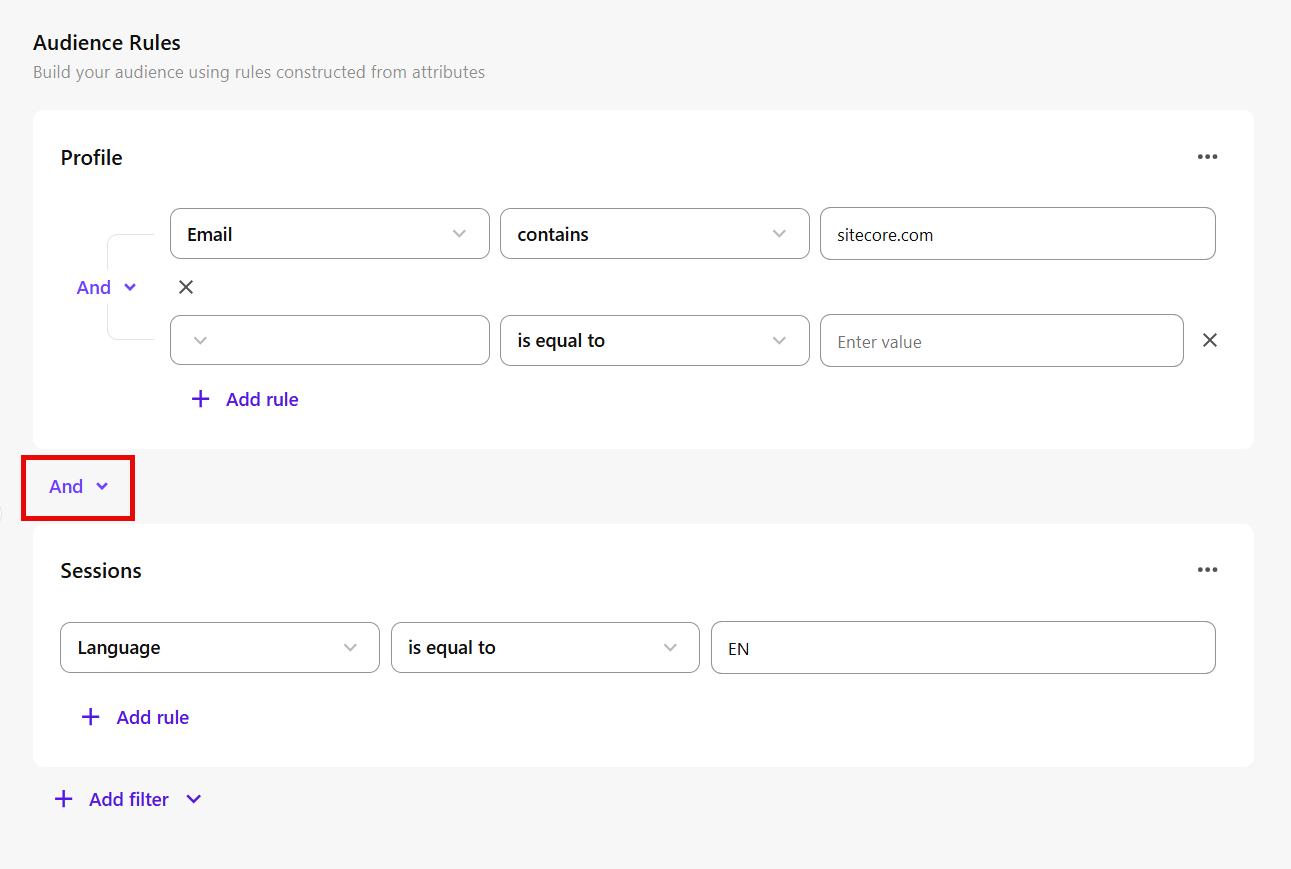
- And - profiles must match the rules in all groups.
- Or - profiles must match the rules in at least one group.
For example, select And if profiles must match both the Profile rules and Sessions rules to belong to the audience.
-
You can continue adding rules and rule groups until the audience captures all the profile attributes and rules you want to target.
Refine the audience with AI Assistant
After you build the audience manually, you can optionally use AI Assistant to help refine or modify the existing rules.
To refine the audience with AI Assistant:
-
In the audience details pane on the right, click the Chat tab.
-
Enter a prompt describing how you want to change the audience.
For example:
Limit this audience to identified profiles from Europe who submitted a form within the last 3 months.
-
Submit the prompt.
AI Assistant analyzes your existing audience and updates the rules using the relevant attributes and conditions.
-
Review the updated rules in the Audience Rules workspace to make sure they represent the audience you intended.
-
If needed, continue using the Chat pane to refine the rules further.
You can also continue editing the generated rules manually in the Audience Rules workspace.
Next steps
After you review and finalize the audience rules, you can:
- Calculate the estimated audience size to check how many profiles are likely to match.
- Set the audience live so SitecoreAI can evaluate profiles against the rules and save audience membership on matching profiles.