Edit, delete, or reorder audience rules
Feature availability is part of a phased rollout. Your organization may not see this functionality yet. It will become available when your environment is included in the rollout.
Use Audience builder to update an audience when the profiles you want to include change.
You can edit audience rules manually or use AI Assistant to help modify or refine them. You can also reorder rule groups, delete rules, or delete an audience you no longer need.
Edit audience rules
You can edit audience rules while the audience is in Draft status.
To edit audience rules:
- In the navigation menu, click Optimization.
- In the left sidebar, select Audiences.
- On the Audiences page, open the audience you want to edit.
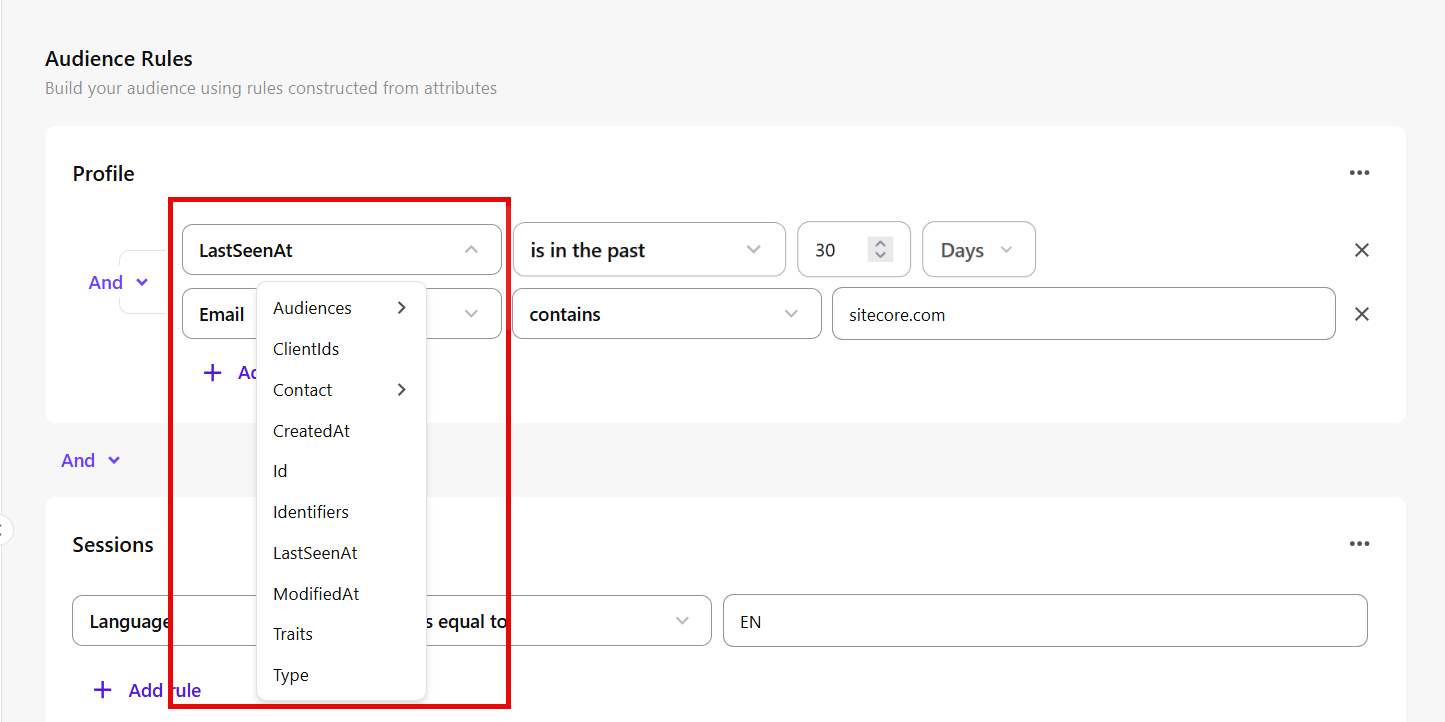
- In Audience builder, in the Audience Rules workspace, update the audience as needed. You can:
-
edit attributes, comparators, or values in existing rules by selecting a new option or entering a new value.
-
Set a limit for an event or session rule for event and session rules, to specify how many matching events or sessions are required.
-
Refine audience rules with AI Assistant
You can also use AI Assistant to help modify or refine the existing audience rules.
To refine the rules with AI Assistant:
-
In the navigation menu, click Optimization.
-
In the left sidebar, select Audiences.
-
On the Audiences page, open the audience you want to edit.
-
In the audience details pane, click the Chat tab.
-
Enter a prompt describing the change you want to make.
For example:
Limit this audience to profiles from Europe who submitted a form within the last 3 months.
-
Submit the prompt.
AI Assistant analyzes the existing audience and updates the rules using the relevant attributes and conditions.
-
Review the updated rules in the Audience Rules workspace.
You can continue refining the audience with AI Assistant or edit the updated rules manually.
Reorder a rule group
Reorder rule groups when the order of rule evaluation matters. SitecoreAI calculates audience rules in a specific order, and changing the order can affect which profiles are included in the audience.
SitecoreAI evaluates audience rules in this order:
- Rules within the same rule group.
- Rule groups that are combined using And.
- Any remaining audience rules and rule groups, in the order they appear in Audience builder.
To reorder a rule group:
- In the navigation menu, click Optimization.
- In the left sidebar, select Audiences.
- On the Audiences page, open the audience you want to edit.
- In Audience builder, in the Audience Rules workspace, locate the rule group you want to move.
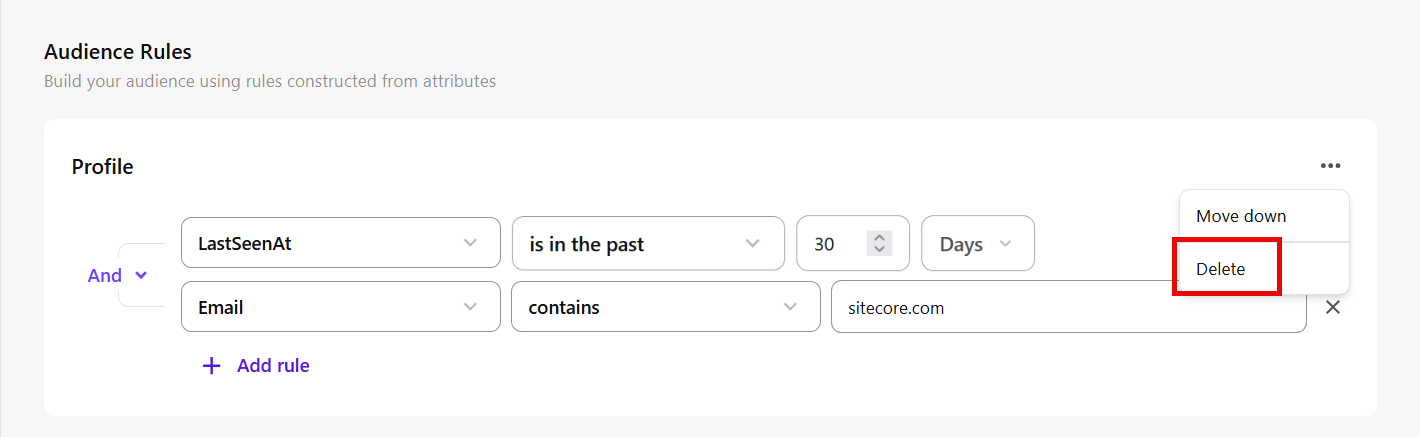
- Click the horizontal ellipsis icon in the top-right corner of the rule group, then click Move down or Move up.
Delete a rule group
Delete a rule group when you no longer need the rules in that group.
Deleting a rule group permanently removes the group and all rules in it. This action cannot be undone.
To delete a rule group:
-
In the navigation menu, click Optimization.
-
In the left sidebar, select Audiences.
-
On the Audiences page, open the audience you want to edit.
-
In Audience builder, in the Audience Rules workspace, locate the rule group you want to delete.
-
Click the horizontal ellipsis icon in the top-right corner of the rule group, then click Delete.
Delete an audience rule
Delete an individual rule when you no longer need it.
Deleting an audience rule permanently removes it from the audience. This action cannot be undone.
To delete an audience rule:
- In the navigation menu, click Optimization.
- In the left sidebar, select Audiences.
- On the Audiences page, open the audience you want to edit.
- In Audience builder, in the Audience Rules workspace, locate the rule you want to delete.
- Click the delete icon next to the rule.
Delete an audience
Delete an audience when you no longer want to use it or make it available in SitecoreAI.
Deleting an audience permanently removes it. This action cannot be undone.
To delete an audience:
- In the navigation menu, click Optimization.
- In the left sidebar, select Audiences.
- On the Audiences page, open the audience you want to delete.
- In Audience builder, at the top-right corner of the page, click the horizontal ellipsis icon , then click Delete.