Add a page to a campaign
You can add a page to a campaign in SitecoreAI by creating a new page or linking an existing one. This helps you organize and manage campaign-related pages in one place.
If you want to define a specific campaign outcome and track related tasks, you can also add a deliverable to the campaign.
Create a new page
To create a new page in a campaign:
- In the navigation menu, click Strategy.
- In the left sidebar, click Campaigns.
- On the Campaigns page, click the name of the campaign you want to add a page to.
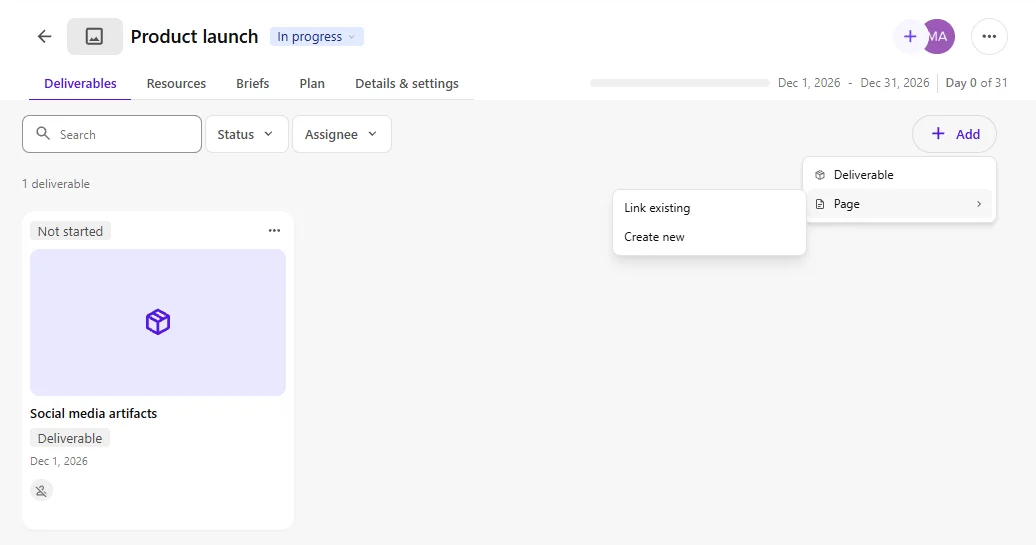
- On the Deliverables tab, click Add.
- Select Page > Create new.
- In the Create a new page dialog, select the following:
- Collection - select an existing site collection.
- Site - select the site where you want to create the page.
- Language - select the language for the new page.
- Parent page - select a parent page if you want to create a subpage.
- Template - select a page template, such as Article Page and Landing Page.
- In the Page name field, enter a name for the new page.
- Click Create. The new page is added to the campaign and appears on the Deliverables tab.
Add an existing page
To link an existing page to a campaign:
- In the navigation menu, click Strategy.
- In the left sidebar, click Campaigns.
- On the Campaigns page, click the name of the campaign you want to link a page to.
- On the Deliverables tab, click Add.
- Select Page > Link existing.
- In the Link a page dialog, select the following:
- Collection - select the site collection containing the page.
- Site - select the site containing the page.
- Language - select the language version of the page you want to link.
- In the Page name field, enter the name of the new page.
- Click Link. The existing page is linked to the campaign and appears on the Deliverables tab.
Next steps
After adding a page to a campaign, you can:
- Open the Page builder to edit the page.
- Click next to the page and select Unlink to remove its association with the campaign.
If you have suggestions for improving this article, let us know!