Add a public link
Feature availability is part of a phased rollout. Your organization might not see this functionality yet. It will become available when your environment is included in the rollout. In the meantime, use the Media Library.
A media item on the SitecoreAI Media page can have one of two states:
-
Public - the media item has a valid public link and can be shared with collaborators or publicly. Public media items are identified with the icon
 . When you delete the public link for a media item, the icon is removed.
 -
Private - the media item has no public link and is only available to authenticated users.
When you add media in the SitecoreAI Page Builder, media items must be public. You can add private media items to the Media page by clicking Content > Media in the navigation bar and uploading your media.
In the following example, the first image has a public link while the others are private.
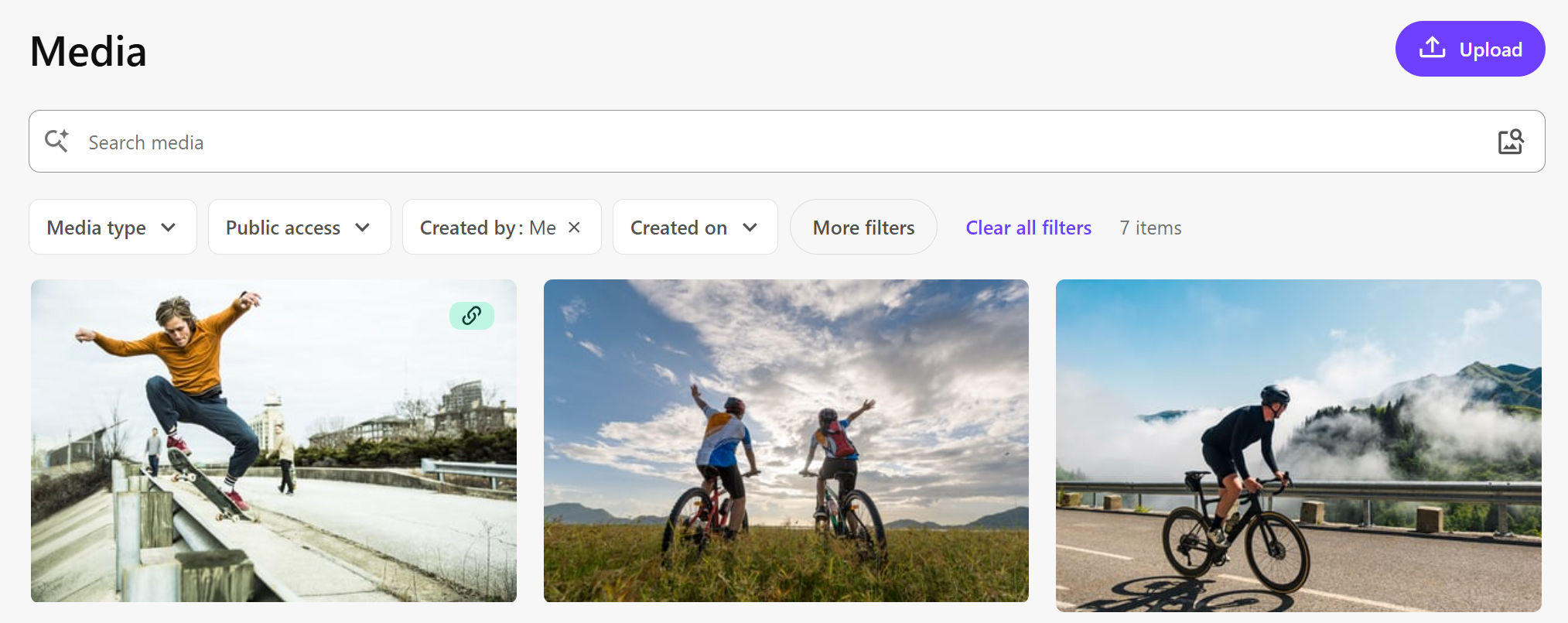
To make an image public, add a public link and set the availability window that determines when the link is active.
You can only have one public link per media item. When a media item has a public link, it cannot be deleted.
To add a public link:
-
On the menu bar, click Content >
 Media.
 -
On the Media page, click the media item for which you want a public link.
-
In the media details dialog, in the Delivery section, click
 Add public link.
 -
In the Add public link dialog, specify media availability by doing one of the following:
-
If you want the media item to be available until manually removed, click No end date.
-
If you want the media item to only be available up to a specific date, click Specific end date and select a date and time.
-
-
Click Add public link. This creates a public link that you can share with others.