Search for media items
Feature availability is part of a phased rollout. Your organization might not see this functionality yet. It will become available when your environment is included in the rollout. In the meantime, use the Media Library.
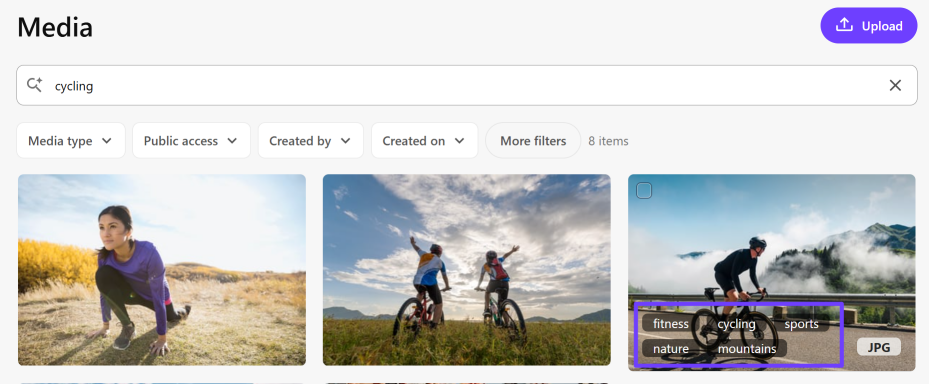
There are several ways you can search for media items on the SitecoreAI Media page. You can search by keyword or phrase, by metadata tag, and by uploading a reference image. AI-powered search not only returns exact matches but also related or similar media items.
Search results are ordered by relevance. Relevance is determined using a combination of visual analysis and metadata. You can use the filters at the top of the Media page to further filter search results.
When you click in the Search media field, your recent searches and last viewed media items are displays. To reuse a search term or phrase or to reopen a media item, click a recent search or a viewed item.
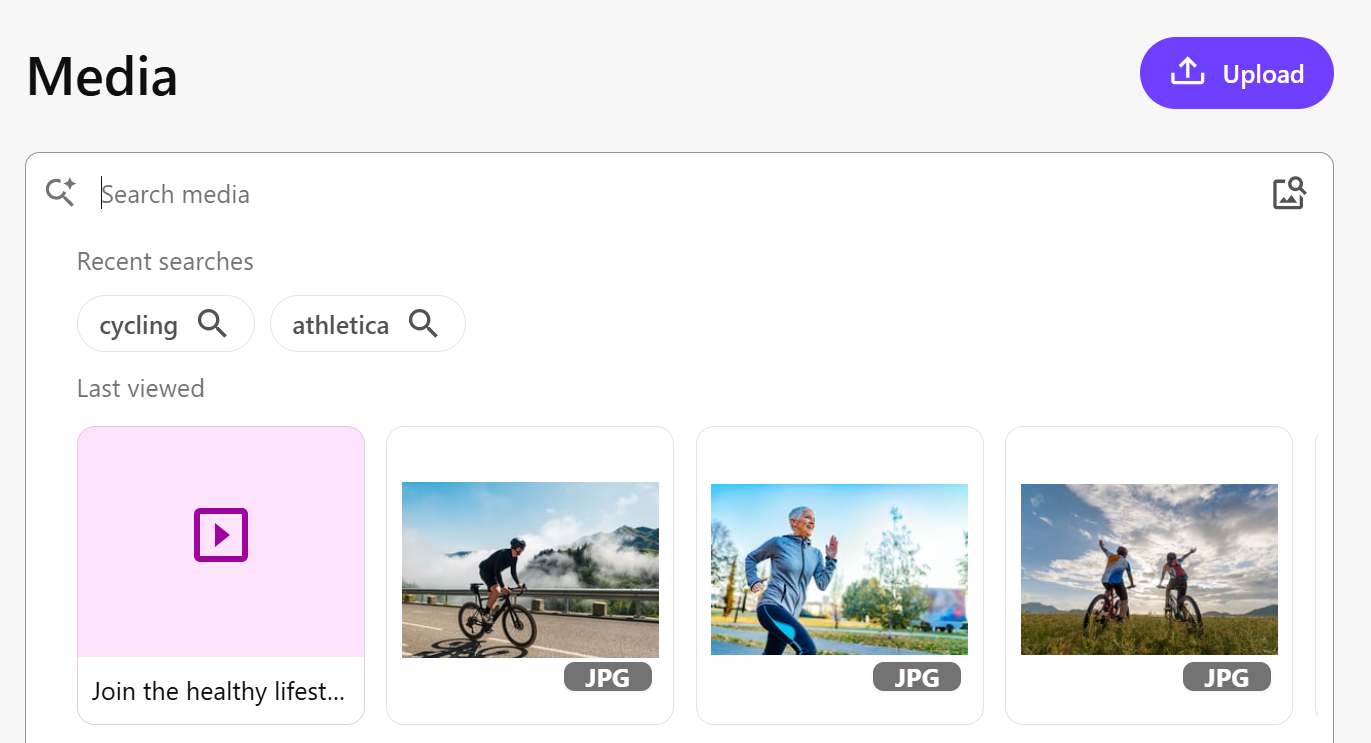
Search using a keyword or phrase
Using the search field at the top of the Media page, you can perform a search by entering a keyword or phrase and pressing Enter. This initiates a search whereby SitecoreAI:
-
Examines media metadata, including the name, description, tags, and alt text.
-
Searches for each term separately, and not as a phrase. The order of the search terms is not considered. For example, a search for apple pie and pie apple brings up the same results.
-
Does not consider case so, for example, search results for apple, APPLE, Apple, and aPpLe would be the same.
Operators and wildcards are not supported.
Search using tags
When you upload media files, relevant tags are automatically added as metadata. You can use these tags to search for similar media items. To do so, hover over a media item to display the assigned tags and then click the tag you want to use in your search. You can only add one tag to the search field in this way.
Search using a visually similar image
Being able to search for visually similar images is useful, for example, if:
-
You're working on a new campaign and want to find similar images to one used in an existing campaign.
-
You've seen an image and you want to find something similar in the SitecoreAI DAM.
The search criteria for visually similar images can be determined by:
-
A reference image - find images that are visually similar to an image of your choosing.
-
A text description - find images by describing in words what you are looking for.
If you are seeing a lot of returned results that are not relevant, upload more media files. Having a wide variety and a large number of media helps visual search return more valid results. For guidance, see Best practices when using visual search.
To search using a visually similar image:
-
On the menu bar, click Content >
 Media.
 -
On the Media page, to upload a reference image and search for images that are visually similar, in the Search media field, click Search using an image
 , navigate to the folder where the image is saved, select it, and then click Open.
AI-assisted visual search supports .jpg, .jpeg, and .png images up to 20 MB.