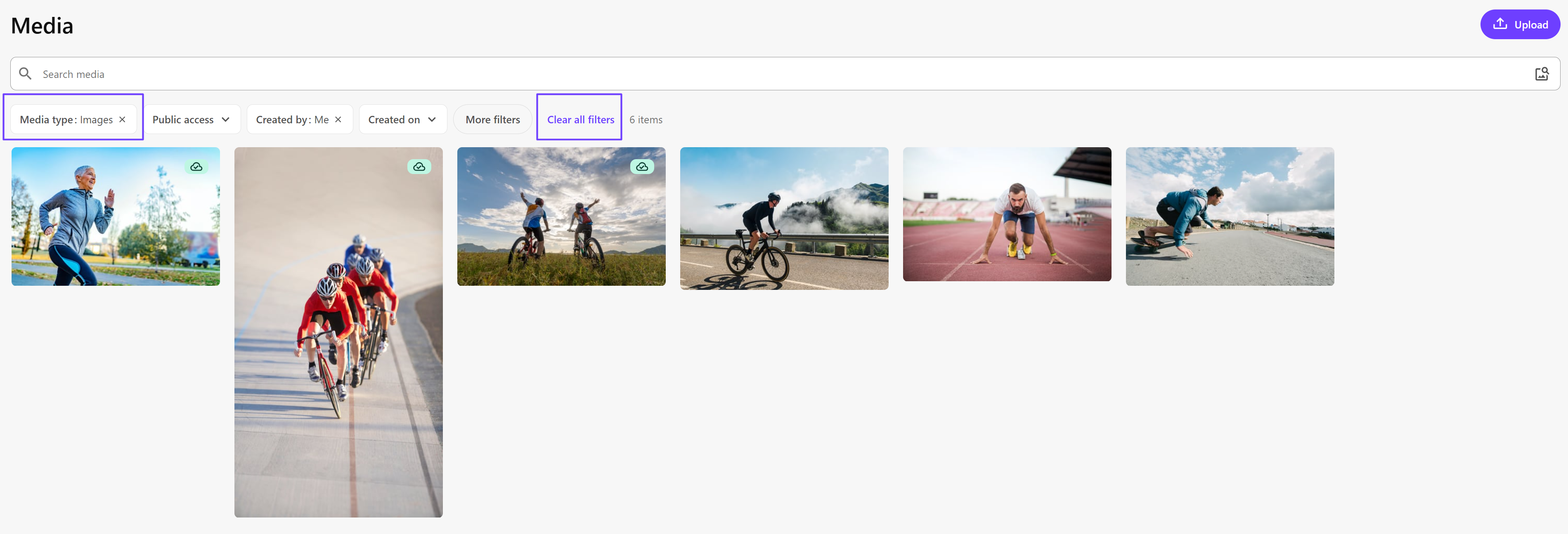
Filter media items
Feature availability is part of a phased rollout. Your organization might not see this functionality yet. It will become available when your environment is included in the rollout. In the meantime, use the Media Library.
You can use filters to limit the number of items displayed according to specific conditions. If more than one type of filter is applied, such as a public access filter and a media type filter, results only include items that match both filter types. To access a filter, click the drop-down list. The following filters are available:
-
Media type - lets you select the type of media item you want to display.
-
Public access - lets you decide whether you want to include private media items (those without a public link) or whether you want search results to include public media items, which are visible to the public and have a generated public link.
-
Created by - lets you display media items created by the current user or other users. Enter a user name in the search box to find a particular user.
-
Created on - lets you display media based on the date when the media item was created. Use one of the date options (Today, This week, This month, This year) or click Pick a date to use the date picker.
-
Last updated by - lets you display media items last updated by the current user or other users. Enter a user name in the search box to find a particular user.
-
Last updated on - lets you display media based on the date when the media item was last updated. Use one of the date options (Today, This week, This month, This year) or click Pick a date to use the date picker.
You can change which filters are visible on the Media page by clicking More filters and then clicking a particular filter. Visible filters have a checkmark beside them while hidden filters do not. Click Clear filters to remove all the filters you have selected or, to remove an individual filter, click the check mark next to a filter you want to remove.