Edit a media item
Feature availability is part of a phased rollout. Your organization might not see this functionality yet. It will become available when your environment is included in the rollout. In the meantime, use the Media Library.
You can edit a media item to add various image attributes, including:
-
Tags to improve the searchability of the item.
-
Alt text to improve accessibility and SEO.
-
Description to provide more detailed information about the item.
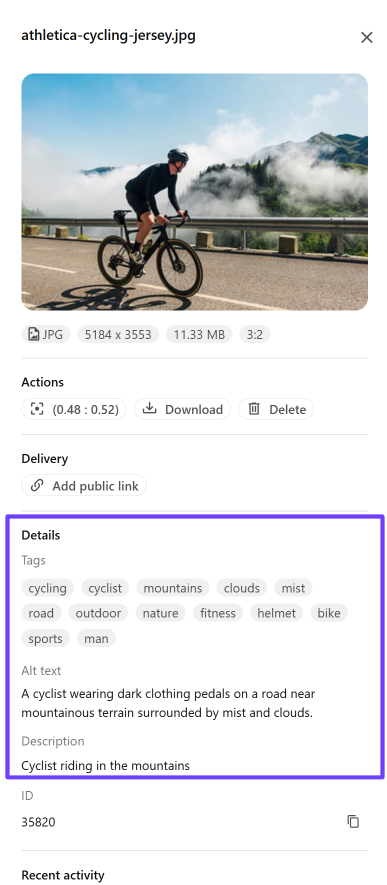
To edit a media item:
-
On the menu bar, click Content >
 Media.
 -
On the Media page, click the media item you want to edit to view its details.
-
In the media details dialog, click in the field you want to update and make your changes:
-
To remove a public link, in the Delivery section, click the X next to the public link.
-
To change the public link expiration date, click in the Expiration date field and, from the date picker, click a new date.
-
To add a new tag, in the Details section, click in the Tags field, type a new tag, and then click
 New tag or press Enter.
 -
To search for a proposed tag, in the Details section, click in the Search tags field under Tags, type the first letters of the tag and then select one from the drop-down list.
-
To remove a tag, in the Details section, click the X next to the tag.
-