Add brand context
Add brand context to quickly generate structured information about your brand from either a brand website URL or an existing SitecoreAI site.
SitecoreAI analyzes the source and organizes the resulting brand information into generated folders and editable Markdown files. You can then review and refine this information before using it with Agentic studio chats and agents.
To add brand context, you must have an Organization Admin or Organization Owner role in Sitecore Cloud Portal.
To add brand context:
-
In the top-right corner of the page, click Brand Context .
-
Depending on whether brand context has already been added to your SitecoreAI organization, do one of the following:
- If no brand context has been added yet, in the dialog, click Get started.
- If one or more brand contexts have already been added, the Brand context page opens. Click Add brand context.
-
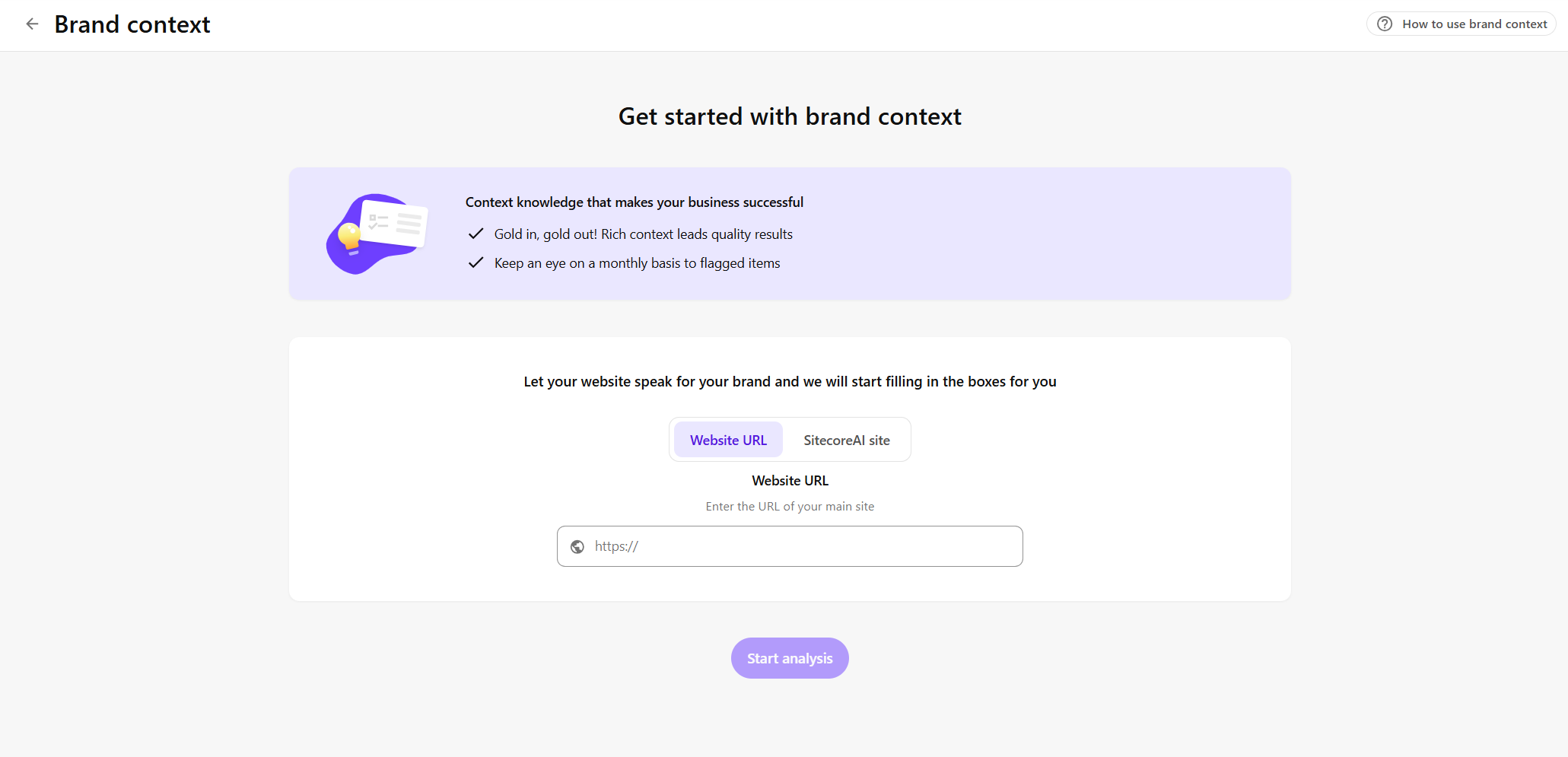
On the Get started with brand context page, choose one of the following sources:
-
To add brand context from a website, on the Website URL tab, enter the URL of your company or brand website.
-
To add brand context from an existing SitecoreAI site, on the SitecoreAI site tab, select a site from the drop-down list.
NoteEach source can be analyzed for brand context only once. If the selected source has already been used, select a different source.
-
-
Click Start analysis. SitecoreAI starts analyzing the selected source. This can take up to 10 minutes. You are redirected to the Brand context page, where the status is shown as In progress. You can leave the page and return later.
-
To check the status, return to the Brand context page. If the brand context analysis fails, the status is shown as Failed. You can either retry the analysis or delete the brand context.
-
When the analysis is complete, the In progress status is removed. Click the brand context to open the file explorer and review the generated folders and files.
Next steps
Generated brand context provides a starting point that you can refine with approved or internal brand information before using it with chats and agents. You can: