Apply brand context in Agentic studio
In Agentic studio, you can apply a brand context to a free-form chat or an agent-driven task. The chat or agent can then use relevant information from across the selected brand context to ground its response and better reflect your brand, audience, products, messaging, and other available context.
You do not need to select individual brand context files or folders. Agentic studio determines which available information is relevant based on your prompt and the task being performed. If the brand context includes AI Discovery data from Scrunch, the chat or agent can also use relevant insights about your brand's AI visibility, audiences, competitors, topics, prompts, and cited sources.
You can also access and use brand context programmatically with Marketer MCP tools or Agent API endpoints.
To apply brand context:
- In SitecoreAI, open the Agentic studio chat interface.
- Start a new chat.
- Optionally, select the agent that you want to run. For example, select Brief Generator.
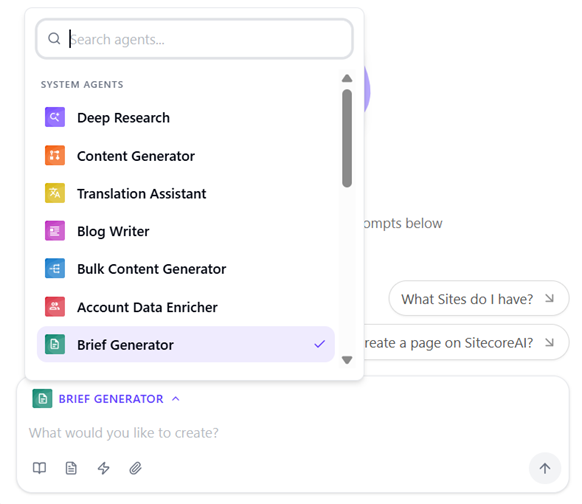
- Click Context .
- On the Brand Context tab, select the brand context that you want to use.
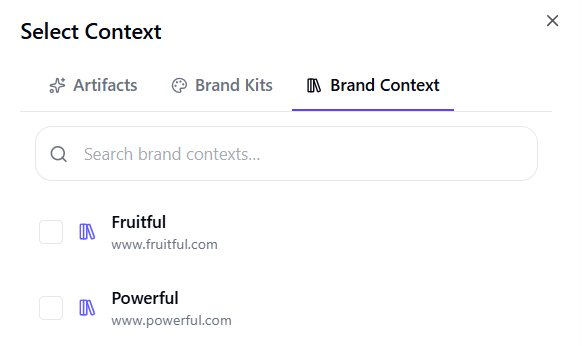
- Enter a prompt describing the result you want. For example:
- Rewrite this message for our CFO persona and keep it aligned with our approved value proposition.
- Review this page for messaging, terminology, and unsupported claims.
- Adapt this campaign for email and social using our channel guidance.
- Create a campaign brief using our target audience, approved messaging, product information, customer evidence, and content guidelines.
- Identify weaknesses in our AI visibility and highlight the areas that need the most attention..
- Show where our brand is underrepresented or missing from AI responses across key topics and prompts.
- Compare our visibility and citation performance with tracked competitors and highlight notable gaps.
- Analyze our citation performance and identify important sources or brand URLs that are gaining or losing visibility.
- If you are using an agent, configure any required parameters, such as target languages or content channels.
- Optionally, provide additional information, such as related items or uploaded files.
- Press Cmd + Enter on macOS or Ctrl + Enter on Windows to submit the prompt.
The chat or agent uses relevant information from the selected brand context when generating its response. Review the result and refine your prompt, parameters, or supporting information as needed.