Brief types
Brief types and their features are only available to users with the Admin role.
In Strategy, administrators create and manage brief types, which are reusable templates for marketing briefs.
Each brief type defines a brief’s structure, including its fields, required information, and guidance. To support different campaign needs, administrators can customize brief types by adding, removing, or reordering fields. This ensures that each brief starts with the right structure.
When marketers create a brief manually, they select a brief type as the starting point, which determines the brief’s layout and required fields.
This helps teams capture key details such as objectives, audiences, requirements, and timelines in a consistent way across campaigns.
Currently, Brand Assistant uses the first brief type created as the default template for AI-powered brief generation. Support for multiple brief types is planned in future enhancements.
Access the Brief types page
To access the Brief types page, in the navigation menu, click Strategy. Then, in the left sidebar, select Settings  .
.
In the left-hand pane, select Brief types.
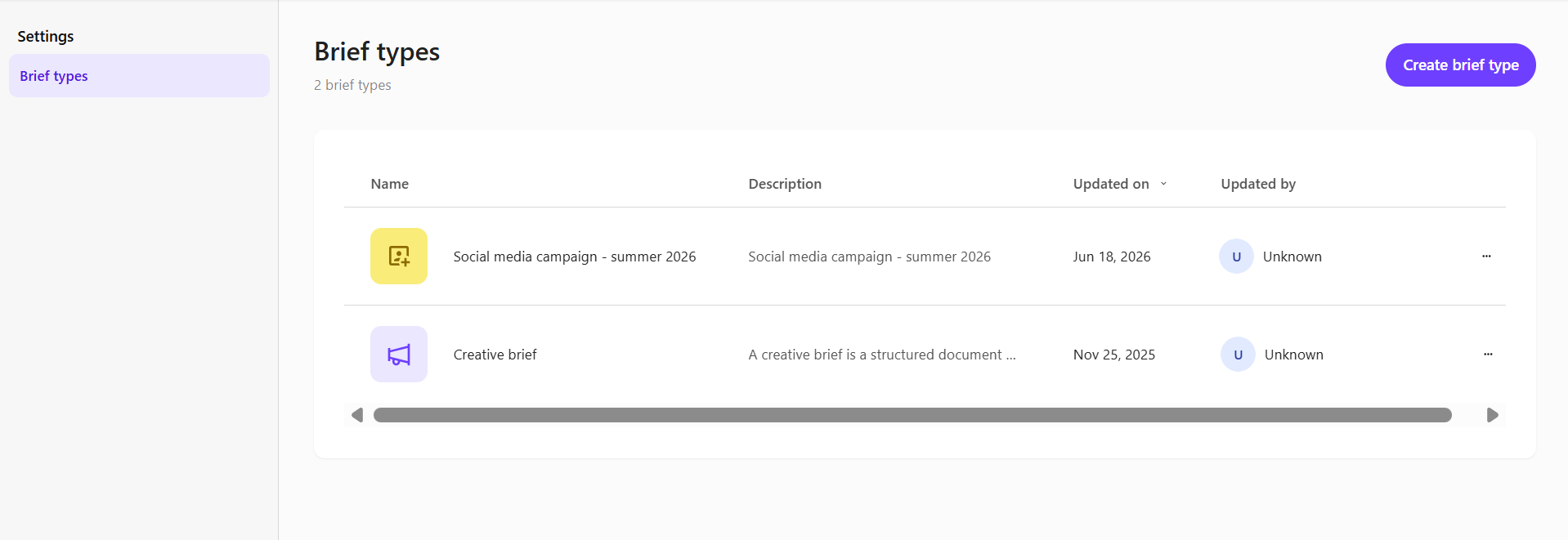
The Brief types page lists all templates in your organization, including their names, description, last updated date, and the user who made the update.
From this page, administrators can:
-
Create a new brief type by clicking Create brief type.
-
Edit an existing brief type and manage its fields.
-
Create a copy of an existing brief type.
-
Delete a brief type that is no longer needed.
Brief type details page overview
Select a brief type from the list to open its details page, where you can review and edit its fields.
When creating a new brief type, you can either start from scratch or use a preset. To begin with a preset, enable Start with a preset of configured field types, which includes predefined fields such as Objectives, Target Audience, and Message.
The following examples show how the brief type appears based on your selection:
-
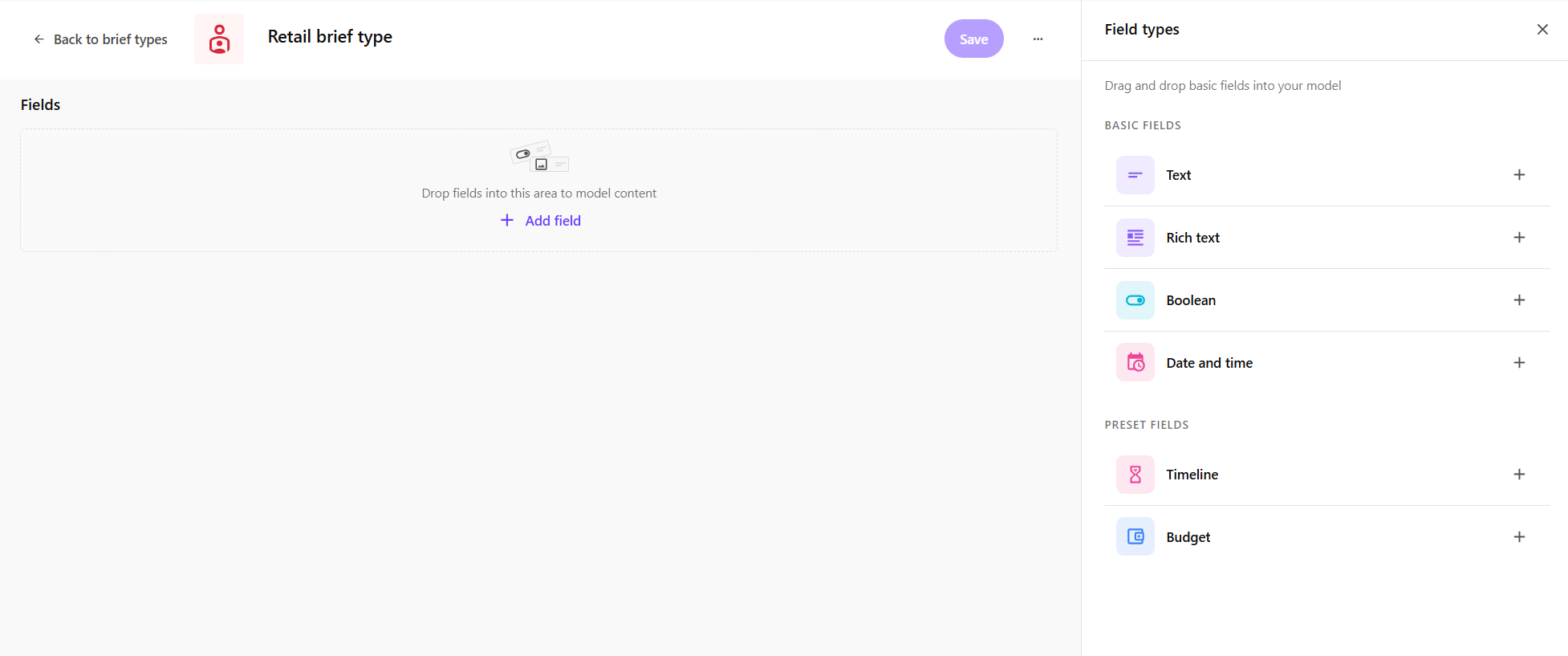
From scratch - opens as an empty template, allowing you to build the structure from the ground up.
-
From a preset - opens with preconfigured fields that you can modify as needed.
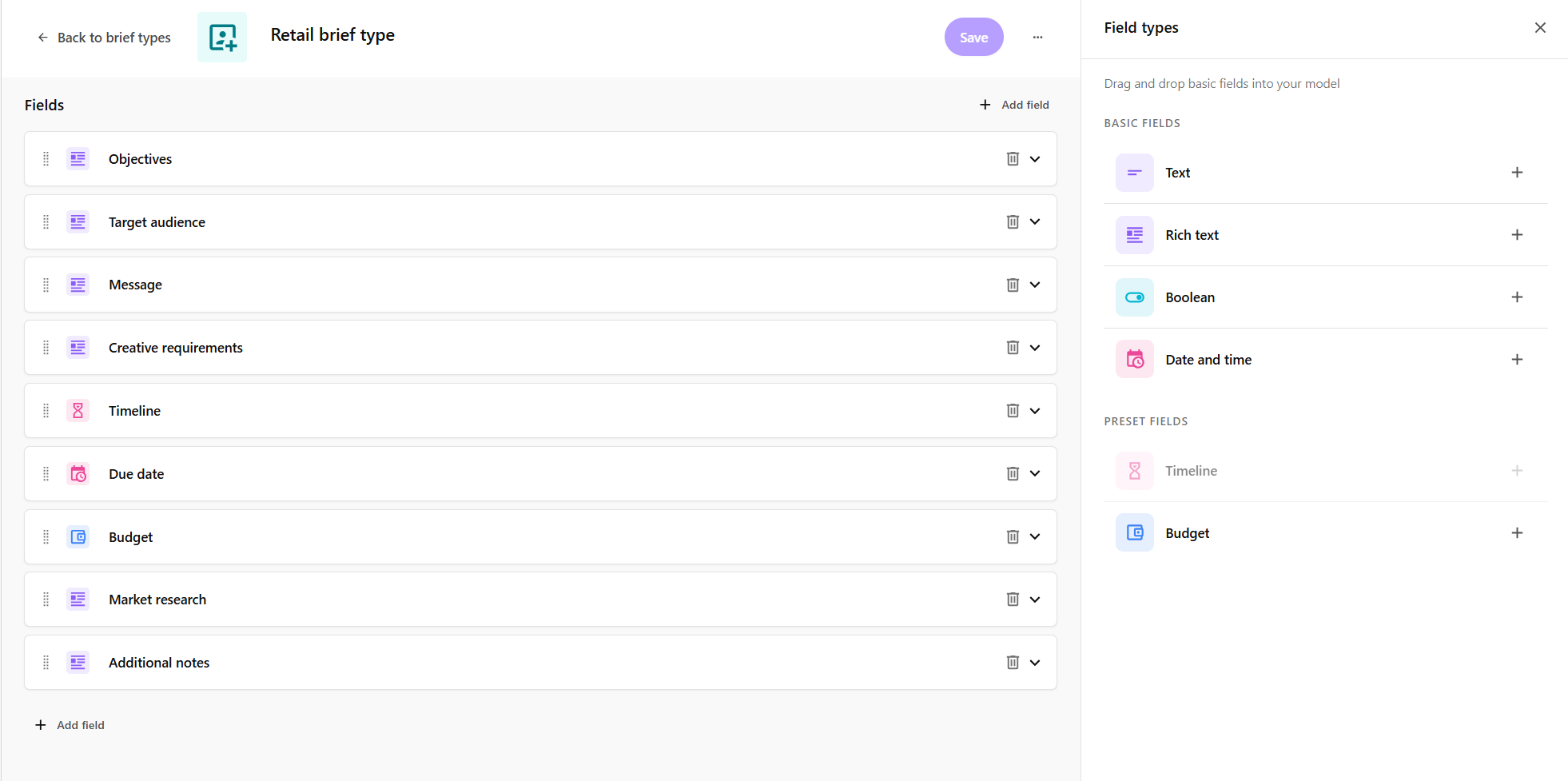
The brief type details page allows you to build and manage the structure of the brief by adding, removing, and reordering fields. You can customize it to fit your campaign requirements. For more details, see Manage brief type fields.
In the right pane of the page, additional details are available in the following tabs:
-
Overview - displays the brief type description.
-
Usage - lists briefs currently using this brief type, along with their status.
-
Info - shows information such as the brief type label, creator, and creation date.