Overview of agent configuration tabs
A custom workflow agent in Agentic studio is configured through a set of tabs that define its purpose, inputs, output structure, and execution workflow.
When you create or edit a workflow agent, the editor displays the following tabs:
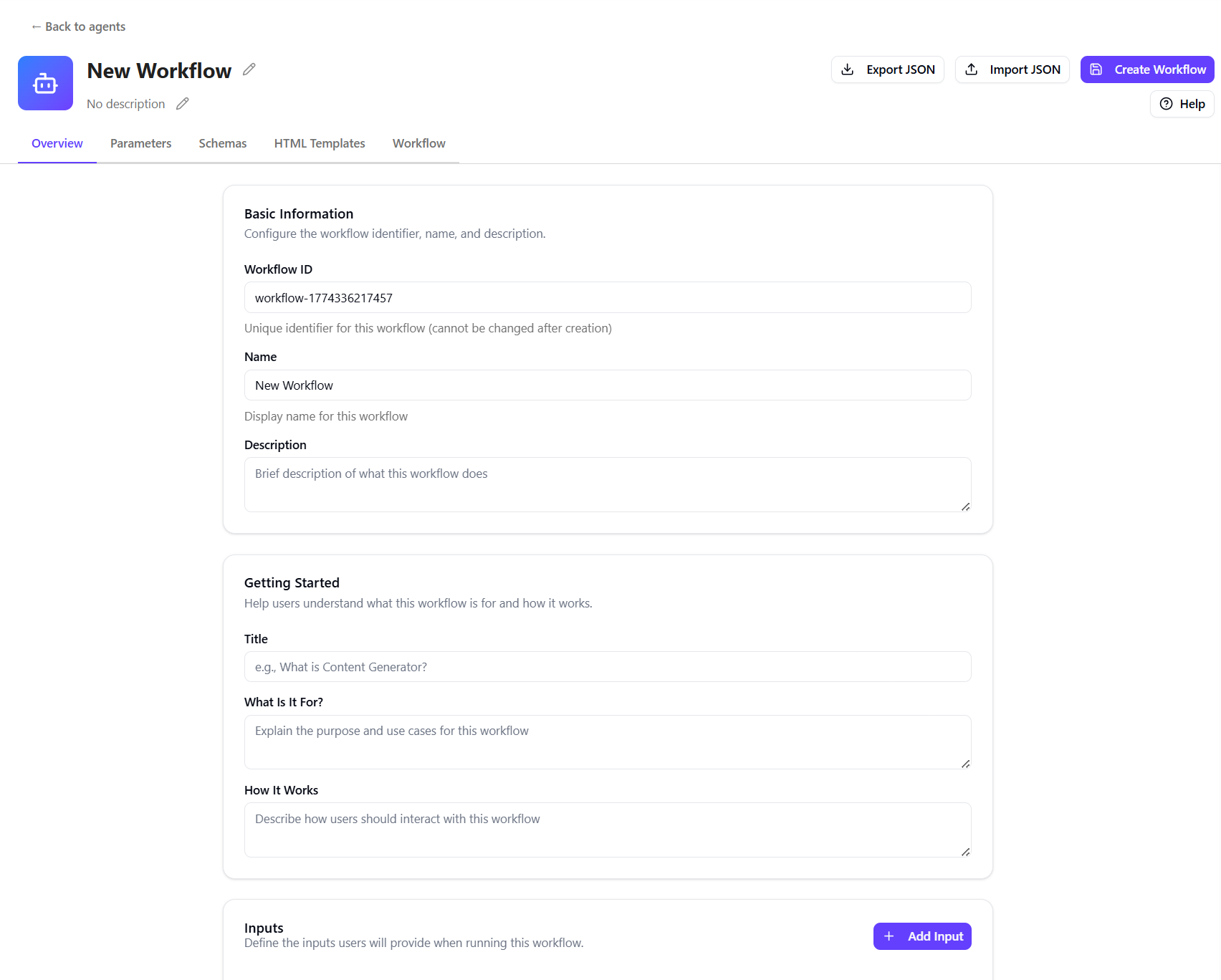
The following sections describe each tab.
Overview
The Overview tab is where you define what the agent is, what it does, and what inputs users must provide.
This tab affects the user experience at the start of a run. It determines how the agent is presented on the run page and what information users must provide before the agent begins.
On this tab, you can:
- Define the agent’s name and description - give the agent a clear identity and explain what it does.
- Provide introductory information - add help text that appears on the execution page to guide users.
- Configure required inputs - specify what information users must provide, such as a website URL, file upload, topic, or prompt when running the agent.
Example
For a custom Marketing Content Generator agent, you might configure:
- Name: Marketing Content Generator
- Description: Generates viral-ready posts based on a topic or URL.
- Input
- Type - Prompt - captures the main idea of the post.
- Label - Topic
- Description - Briefly describe what you want to write about
- Placeholder text - A high level summary about [topic]
- Required - Yes
- Min Lines - 3
Parameters
The Parameters tab is where you define structured options that guide how the agent generates output.
This tab affects how the agent adapts its responses. It allows users to select options such as language, audience, or region, which influence tone, style, and content generation.
On this tab, you can:
- Create categories that influence content generation (for example, Channel, Language, or Target audiences).
- Add options within each category (for example, LinkedIn under Channel or French under Language).
- Define guidelines for each option, such as context, tone of voice, best practices, and do’s and don’ts. See Best practices for writing prompts for guidance.
- Link a schema if structured output is required. You can also select a schema when you are editing the agent actions on the Workflow tab.
- Link an HTML template if formatting is required. You can also select a template when you are editing the agent actions on the Workflow tab.
Example
A Marketing Content Generator agent configured for LinkedIn content might use:
- Category: Channel
- Option: LinkedIn
- Context - Use for professional updates or thought leadership.
- Tone of voice - Professional and thought-provoking
- Best practices - Include industry insights and keep posts concise.
- Do’s and Don’ts
- Do's: Add relevant hashtags.
- Don’t: Avoid aggressive sales language.
- Schema - LinkedIn JSON schema.
- HTML template - LinkedIn HTML template.
With this setup, the agent generates LinkedIn content that follows the defined structure and guidelines.
Schemas
The Schemas tab is where you define the structure of the agent’s output when you need consistent, predictable results.
This tab affects how results are organized and returned. It ensures the agent produces consistent, structured output that can be validated and reused.
Schemas can help fine-tune agent output. Clearly describing each field guides the model to generate more consistent and predictable responses. If structured JSON is not required, you can instead guide the output by configuring the action's system prompt (in the Workflow editor).
For example, a LinkedIn post schema might define fields like body, hashtags, headline, mentions and call_to_action, ensuring every output follows the same structure.
Schemas can be used alongside parameters you defined or when configuring actions that require a specific output format.
On this tab, you can:
-
Create a schema by adding a Name and Description.
-
Define fields and data types using JSON Schema format:
-
Specify required fields and validation rules.
Example
The following schema defines the structure of a LinkedIn post:
This schema ensures every LinkedIn post includes all required sections and clearly defines the structure of each field. When linked to a template, the generated content is automatically formatted using the selected layout.
HTML templates
The HTML Templates tab is where you define how the agent’s output is presented.
This tab affects how results are displayed. It takes structured output (defined by a schema) and formats it into a layout, such as a report or document. Templates use Handlebars syntax to map schema fields into HTML using placeholders such as {{title}} or {{body}}.
HTML templates can be used alongside parameters you defined or when configuring actions that require a specific output layout.
On this tab, you can:
-
Create a template by providing a Name and Description.
-
Build the HTML layout using placeholders that match schema fields, for example:
-
Preview the rendered template to verify the layout and data binding.
Example
The following HTML template formats the output of the LinkedIn post schema:
This template maps schema fields to HTML elements, repeats hashtags and mentions using loops, and displays the mentions section only when mentions are available.
Workflow
The Workflow tab is where you define the sequence of steps the agent follows to complete a task.
This tab affects how the agent processes inputs, applies logic, and generates outputs. It controls how data flows between steps and how results are created and saved.
Using the Workflow editor, you design the sequence of actions the agent executes.
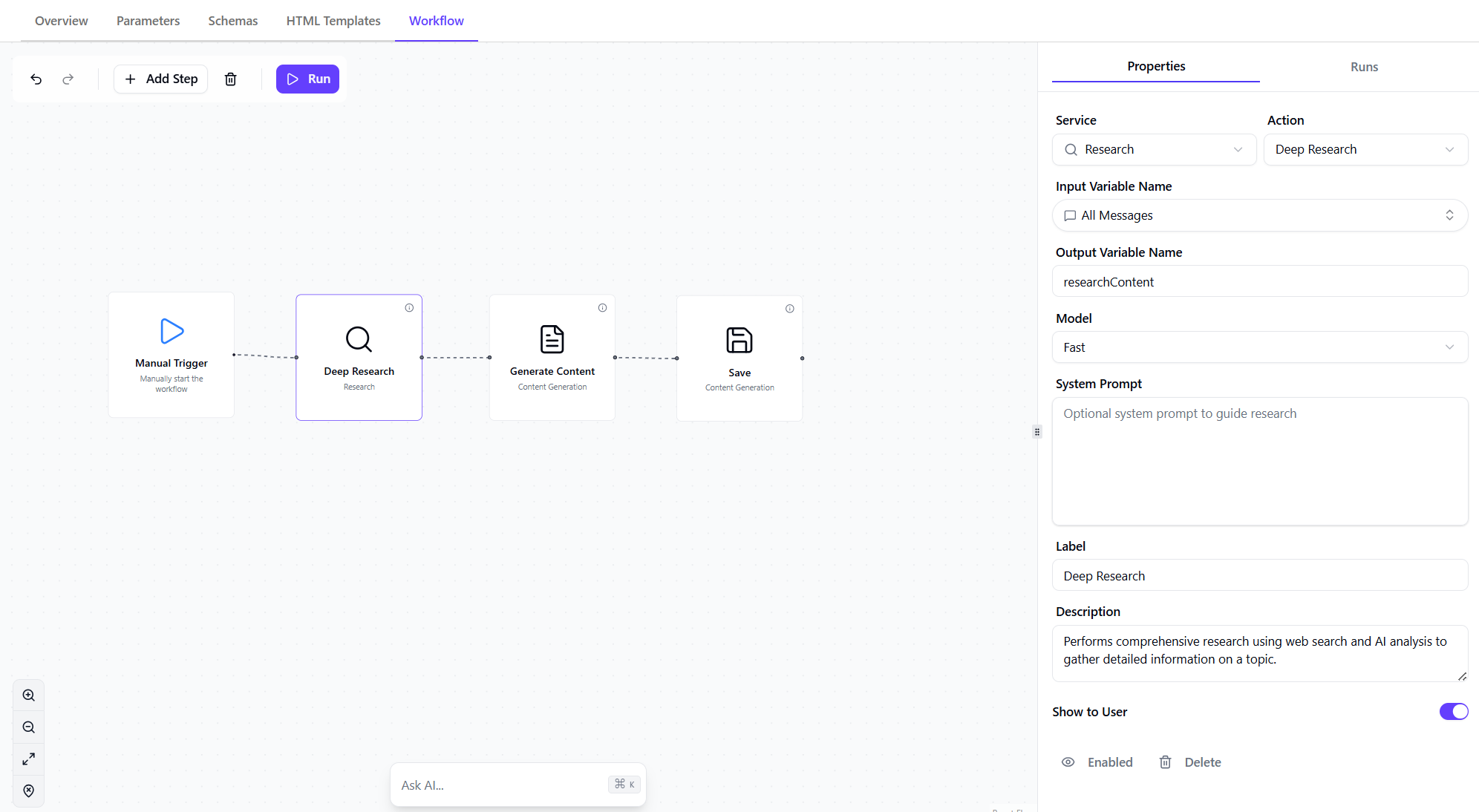
The Workflow editor includes the following areas:
- Canvas - the visual workspace where you add and connect workflow actions (or steps).
- Properties pane - a dynamic right pane that displays the following based on what you select on the canvas:
- When you select Add Step, this pane shows the available actions.
- When you select an action, this pane displays its configuration settings, which define how the action behaves, including inputs and outputs, system prompts, message templates, linked schemas or HTML templates, and artifact storage options.
After building your workflow, test it by clicking Run on the canvas. This executes the workflow using the current configuration and inputs. As the workflow runs, each step is executed in sequence, allowing you to verify how data flows between actions and how outputs are generated.
Use the Runs tab in the right pane to review the results of each run. You can inspect individual steps, check inputs and outputs, and identify any issues or errors to help with debugging.
Example
For the Marketing Content Generator example, the workflow might include the following actions:
- Manual Trigger - starts the workflow when the user runs the agent.
- Deep Research - gathers insights about the topic and stores the results for use in later steps.
- Generate Content - creates content using the workflow inputs, configured instructions (such as tone, channel, or audience), and optional prompts
- Save - stores the generated result as an artifact using the selected format and file naming settings
Together, these actions define how the agent processes input and produces the final output.
Best practices for writing prompts
Prompts can be used in several parts of an agent configuration, including instructions, message templates, and system prompts. These prompts guide how the agent interprets inputs, applies rules, and generates outputs.
Follow these best practices to improve the reliability and usefulness of generated outputs:
- Be specific - clearly define the task and expected output.
- Weak prompt - Write about the given topic.
- Improved prompt - Write a 150–200 word explanation of topic. Focus on why the topic is important and provide use cases. Write for millenials with basic familiarity with the subject.
- Provide context - include required inputs or variables such as
{{topic}}.- Weak prompt - Write a summary.
- Improved prompt - Write a 3–4 sentence summary of the following content about
{{topic}}. Focus on key takeaways relevant for product managers.
- Define consistency - specify tone, formatting rules, or response structure when needed.
- Weak prompt - Explain the feature.
- Improved prompt - Explain the feature using a clear, neutral tone and keep the explanation concise and easy to understand. Start with a title, followed by a short description (1–2 sentences), then list three key benefits as bullet points, and finish with one example use case.
- Avoid time-sensitive wording - terms such as latest or current may produce unreliable results unless dynamic data is provided.
- Weak prompt - Explain the latest AI trends in
{{industry}}. - Improved prompt - Explain three major trends in
{{industry}}based on the information provided in{{source_material}}.
- Weak prompt - Explain the latest AI trends in
- Ground responses - instruct the model to rely on provided inputs, schemas, or knowledge sources.
- Weak prompt - Answer the question.
- Improved prompt - Answer the user’s question using only the information provided in
{{brand_knowledge}}. If the answer is not present, respond with: The information is not available in the provided sources.
- Make outputs actionable - request results that are directly usable, such as structured data or clear recommendations.
- Weak prompt - Give some marketing ideas.
- Improved prompt - Generate 5 marketing campaign ideas for
{{product}}. Return the output as a table with: campaign name, target audience, key message, and example channel.