Using Invoke tool in a workflow
The Invoke Tool action lets a workflow agent run a SitecoreAI tool. For example, you can use Invoke Tool to search for a page, retrieve page content, create or update a page, validate changes, work with assets, or call other SitecoreAI tool capabilities.
Configure an Invoke Tool action
When you add an Invoke Tool action to a workflow, configure these fields:
|
Field |
What it does |
Example |
|---|---|---|
|
Tool |
The SitecoreAI tool you want to run. |
Get Page HTML, Create Page, or List Sites. See Invoke Tool reference for more details about each tool. |
|
Parameters (JSON) |
The input values required by the selected tool. |
|
|
Output |
The workflow variable that stores the tool response. |
|
Tool result format
When the Invoke Tool action runs, the workflow stores the tool result in the Output variable you configured.
A successful tool response usually looks like this:
A failed tool response may look like this:
Some tools return additional nested data objects, arrays, validation messages, warnings, or error details.
When passing a value from one Invoke Tool action to another, make sure the expression resolves to the exact value the next tool expects. For example, if the next tool expects a page ID, the expression must resolve to only the page ID string, not the full tool response.
To reference output from an earlier step, type @ in the Parameters (JSON) editor, select the upstream step, then adjust the field path.
Example workflow: Search for a page, get its content, and generate a summary
This example shows how the Invoke Tool action can be used to find a SitecoreAI page, retrieve its content, and pass that content into a Generate Content step.
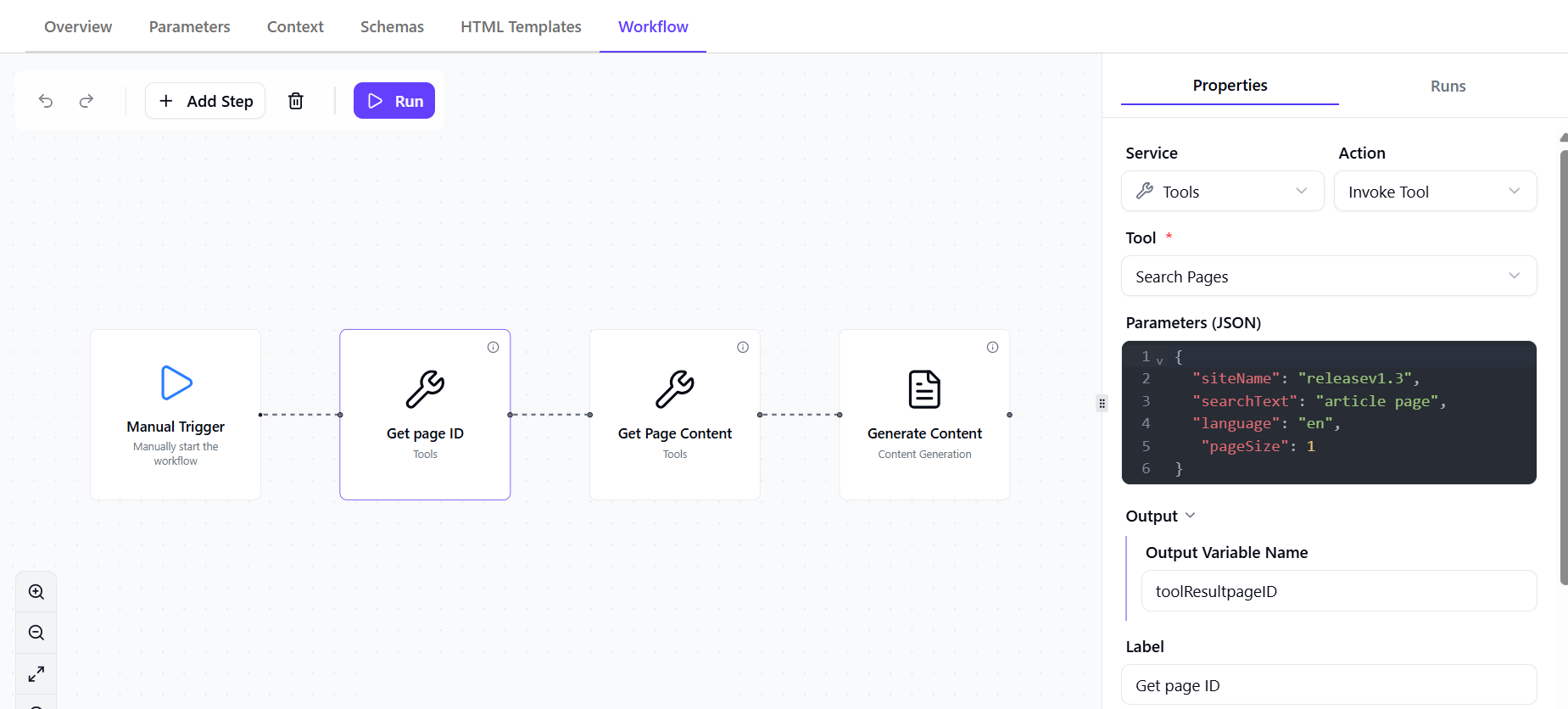
The workflow has four steps:
-
Manual Trigger - the workflow starts with a manual trigger.
-
Get page ID - the first Invoke Tool action is called Get page ID. It uses the Search Pages tool to find a SitecoreAI page.
In this example, the Get Page ID action is configured with:
-
Tool - Search Pages
-
Parameters (JSON) - the required and optional parameters for the selected tool:
-
Output - the workflow variable name that stores the tool response, for example:
toolResultpageID.The tool returns matching pages. Each result includes an
itemId, which identifies the page. ExampleitemIdvalue:cc0a3d7a-9c77-46b8-940c-19f81aa77f3a. TheitemIdis passed into Get Page Content as thepageId.
-
-
Get Page Content - the second Invoke Tool action is called Get Page Content. It uses the Get Page Content tool to retrieve the content of the page found in the previous step.
In this example, the Get Page Content action is configured with:
-
Tool - Get Page Content
-
Parameters (JSON) - the required and optional parameters for the selected tool.
In the Parameters JSON editor, type @ and select the upstream Get page ID node. Then adjust the field path so it points to the exact ID value in the tool output.
In this JSON:
-
The @ symbol tells the workflow to reference another step.
-
@EwV1zlG0lshkgOgXXhICC:Get page IDreferences the upstream Get page ID action. -
data.data.data.1.itemIdpoints to theitemIdinside that action's output.
-
-
Output - the workflow variable name that stores the retrieved page content, for example:
getPageContent. This output is passed into Generate Content as the input content to summarize.
-
-
Generate Content - the final action is Generate Content. This action uses the output from Get Page Content as its input and generates a short summary.
In this example, the Generate Content action is configured with:
-
Input Variable Name -
getPageContent. This is the output from the previous Get Page Content action and contains the retrieved page content. -
Output Variable Name -
generatedContentPage. This stores the generated summary. -
System Prompt - the instruction that tells the model what to generate. For example, Generate a 30 word summary describing the page content.
-
Key points
Invoke Tool actions can pass results to each other and to other workflow actions.
In this example, Search Pages finds the page and returns an itemId. Get Page Content uses that itemId as the pageId to retrieve the page content. Generate Content then uses the retrieved page content to create a summary.
The most important part is using the @ workflow syntax to reference output from an earlier step. This lets one action use a specific value from another action’s result.
The exact field path can vary depending on the tool output. If a later step fails, inspect the previous step’s output and make sure the expression resolves to the exact value the next action expects.
Invoke Tool reference
The following reference lists every tool that is available in the Invoke Tool action.
Each tool entry includes:
-
A plain-language description of what the tool does.
-
Guidance on when to use the tool in a workflow.
-
The Tool key, which is the internal identifier used by Agentic studio.
-
The Related surface, which identifies the specific Sitecore product area, API, or workflow capability that provides the tool's functionality. You do not need this information to use the tool, but it can help you understand where the data comes from or which Sitecore capability the tool interacts with.
-
A sample Parameters (JSON) object that shows the expected input format.
Tools are grouped by category to make them easier to find, such as site discovery, page management, assets, personalization, brand kits, and briefs.