Create and update product translations
For the Microsoft D365 products that are in Sitecore Content Hub, you can create or update product translations.
To create and update product translations:
-
Log in to the Finance and Operations portal for your D365 environment.
-
On the dashboard page, click Expand the navigation pane.
-
On the left navigation pane, click Modules and then click Product information management.
-
In the expanded Product information management pane, click Products and then click All products and product masters.
-
On the Products list view, locate your product by entering in the product number or name in the Filter box.
-
Click the product number of the product you want to update.
-
In the actions pane, under Languages, click Translations.
-
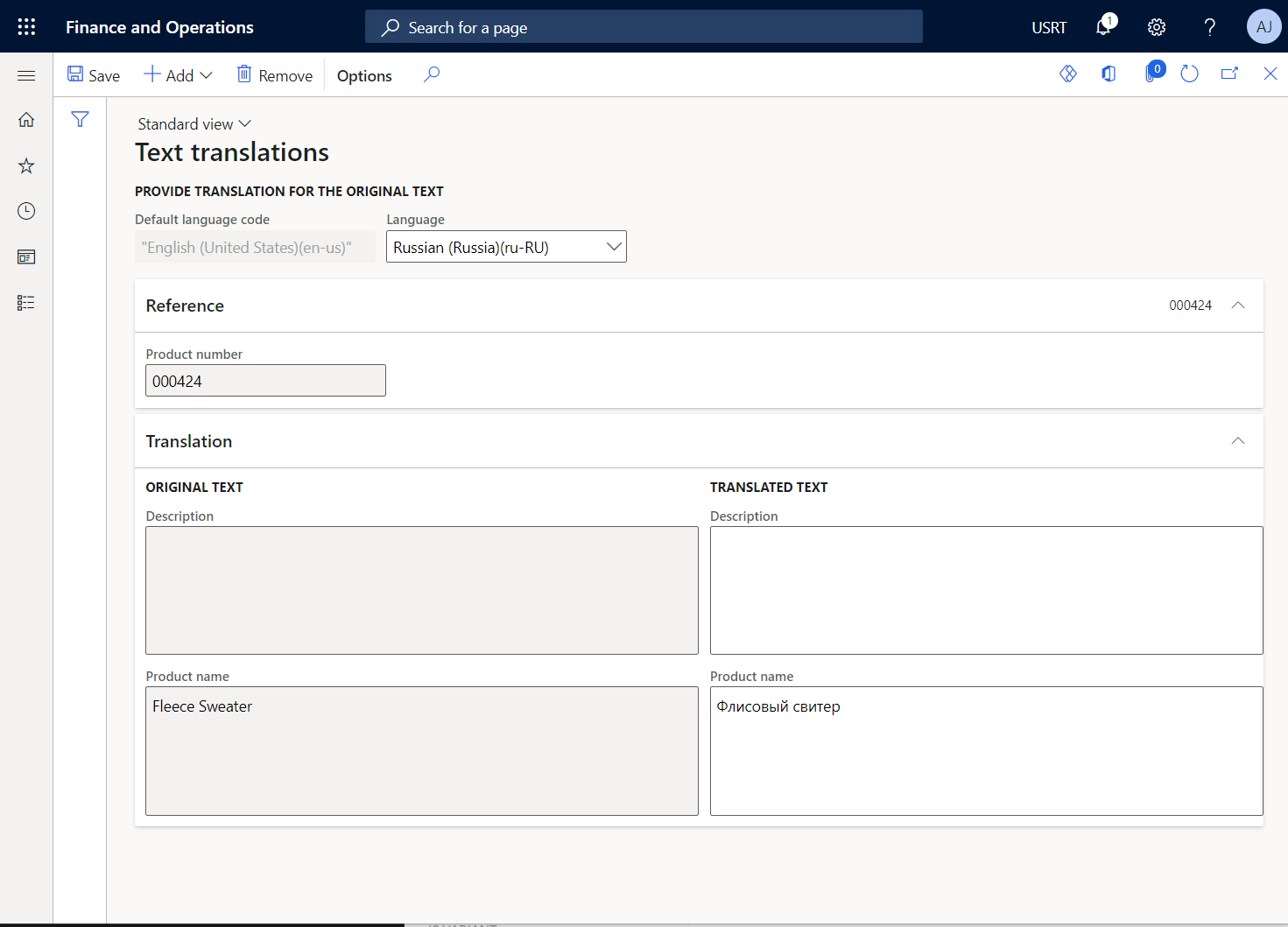
On the Text translations page, from the Language drop-down list, select a language.
ImportantThe connector only synchronizes translations for languages that are configured in your Content Hub application.
-
Click Edit.
-
Update the translated text for any applicable field.
-
Click Save. Once the translation is saved, you can review the translations for the product in Content Hub.
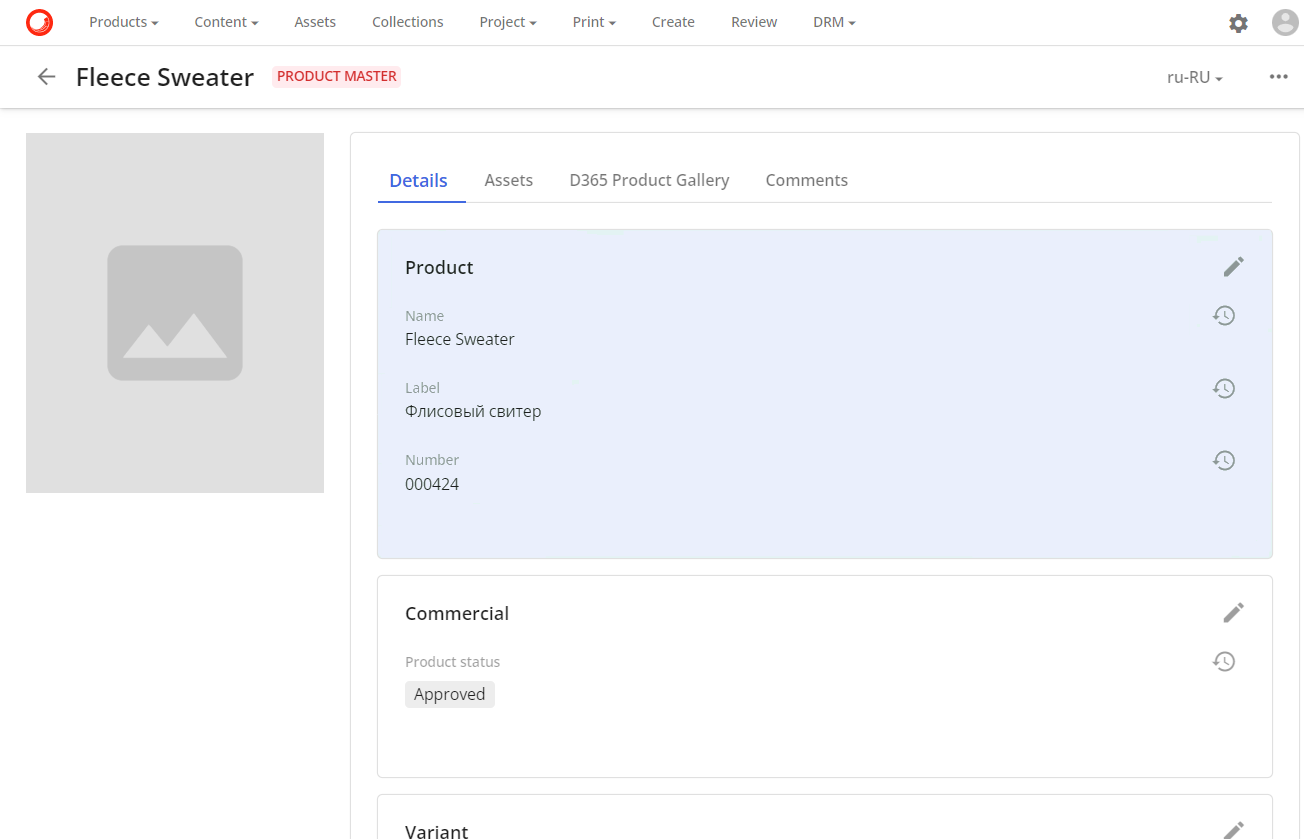
To view the translation in Content Hub:
-
Log into your Content Hub application.
-
On the menu bar, click Products and, from the drop-down list, click Products.
-
On the Products listing page, in the search box, enter the D365 product number of the newly updated translation.
-
Click the product.
-
On the product details page, click the language selector in the product header to change the language. You can now see your updates to the translation.