Sitecore Content Hub DAM Connector for Contentful
The Sitecore Content Hub DAM Connector for Contentful integrates Content Hub with Contentful so authors and editors can find, preview, and insert approved assets directly into Contentful fields. It lets you to work with Contentful while keeping assets centralized in Content Hub.
To install and configure the connector, you must either be a superuser or have the necessary permissions granted to you through user group policies. You also need the Admin role for the Contentful organization and space.
To use the connector:
- Create the app definition
- Find the page name
- Install the app in a Contentful space
- Assign your app to a content type
- Validate that the connector works
Create the app definition
The app definition defines the metadata that Contentful needs to understand how to handle your app when installing, serving, and running it.
To create the app definition:
-
Log in to the Contentful web app.
-
Open the organization or space settings, depending on your permissions.
-
Click the Apps tab to open the App details page.
-
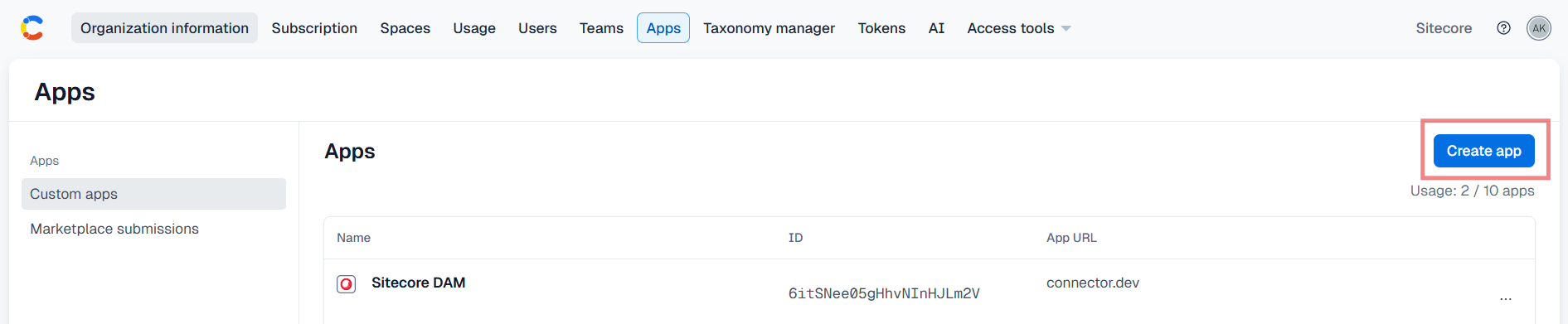
On the App details page, click Create app.
-
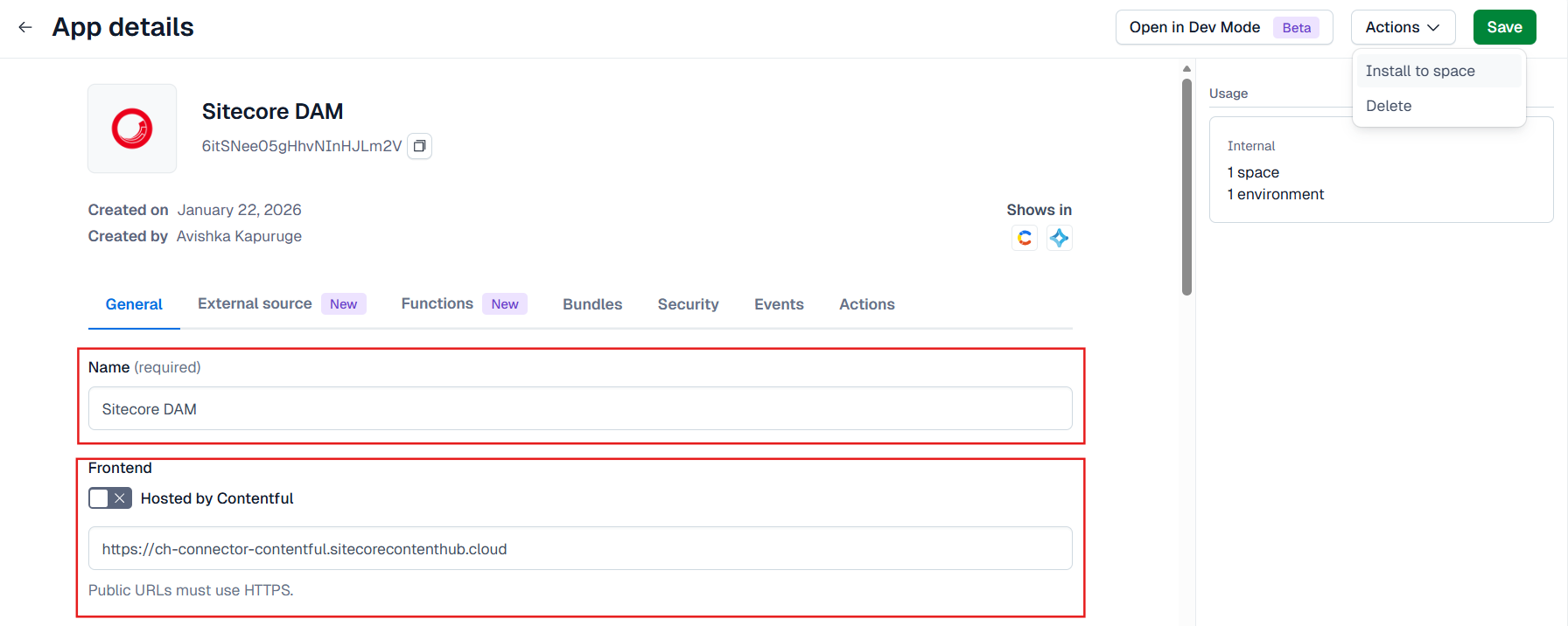
Specify the following information:
- Name - a descriptive name, for example, Sitecore DAM.
- Icon - an icon to identify the app.
- Frontend URL - the public URL of the Contentful connector deployed to Cloudflare (
https://ch-connector-contentful.sitecorecontenthub.cloud/). To try out versions of the connector not deployed to production, use the public integration URL (https://ch-connector-contentful-staging.sitecore-staging.cloud/) but be sure to add it in theCORSConfigurationin your Content Hub instance. Versions deployed to the integration URL can be unstable.
-
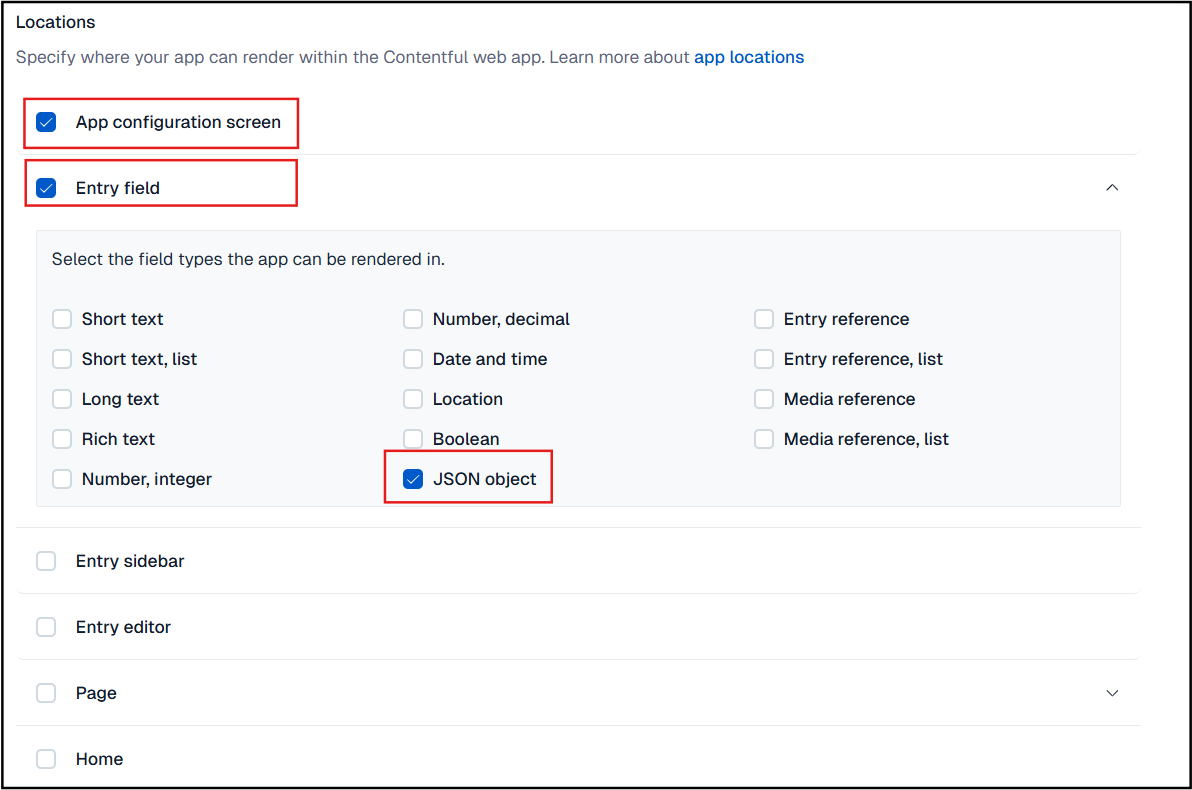
In the Locations dialog, select the required locations for your app:
- App Configuration Screen - where you specify the base URL and page name for Content Hub. By default, the page name is
SCAssetConnector. - Entry Field - a JSON object that denotes the primary user-facing component where content authors and editors interact with Content Hub assets directly within Contentful fields.
Leave all other check boxes unselected.
- App Configuration Screen - where you specify the base URL and page name for Content Hub. By default, the page name is
-
Click Save.
Find the page name
When you configure the app definition, you specify the base URL and the page name. The page name is the page that is rendered in the Contentful portal. By default, it is SCAssetConnector; however you can define your own page name as required.
To find the page name:
-
On the menu bar, click Manage .
-
On the Manage page, click Pages.
-
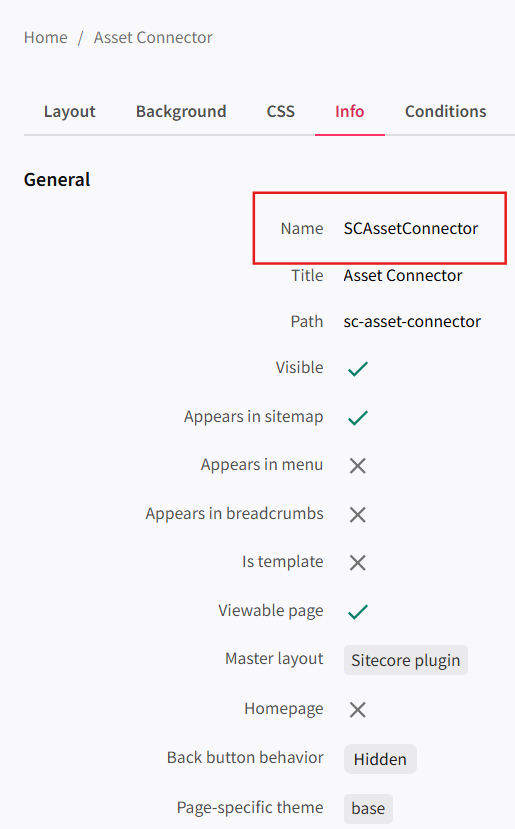
On the Pages page, in the left pane, select the page you want to work with and then click the Info tab.
The Name field displays the page name to use when you install the connector.
Install the app in a Contentful space
After you create the app definition, install your app to a Contentful space.
To install the app in a Contentful space:
-
In the Contentful web app, open the space where you want to install the app.
-
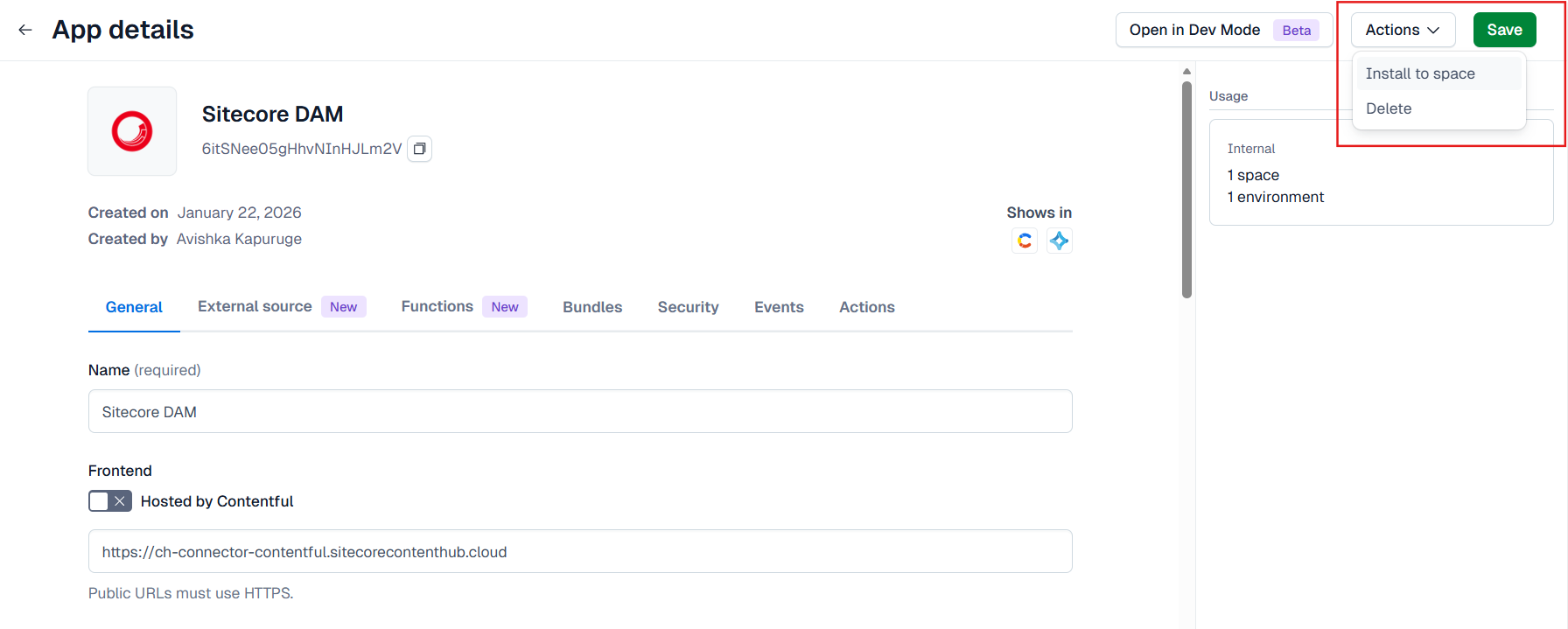
Save the app definition.
-
From the Actions drop-down list, select Install to space.
-
Choose the required space and environment and click Continue.
-
In the Manage Access dialog, verify that the selected environment is correct and then click Authorize access.
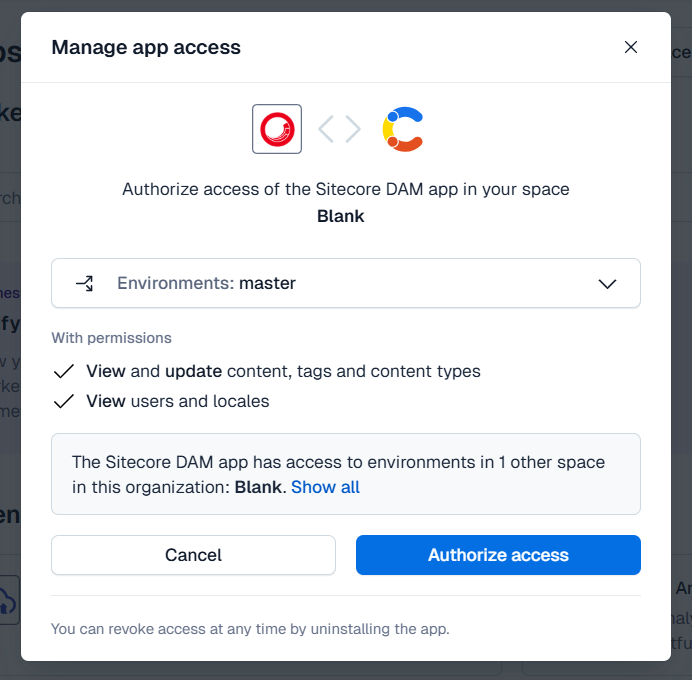
Once access is authorized, you’ll be taken to the Sitecore DAM Instance configuration page, where you can configure the ContentHub base URL.
-
On the Configure Sitecore DAM Instance page, enter the Content Hub base URL and the name of the search page from Content Hub that is to be shown in the connector dialog inside Contentful (by default,
SCAssetConnector. If you are not using the default page, enter the name of your own page.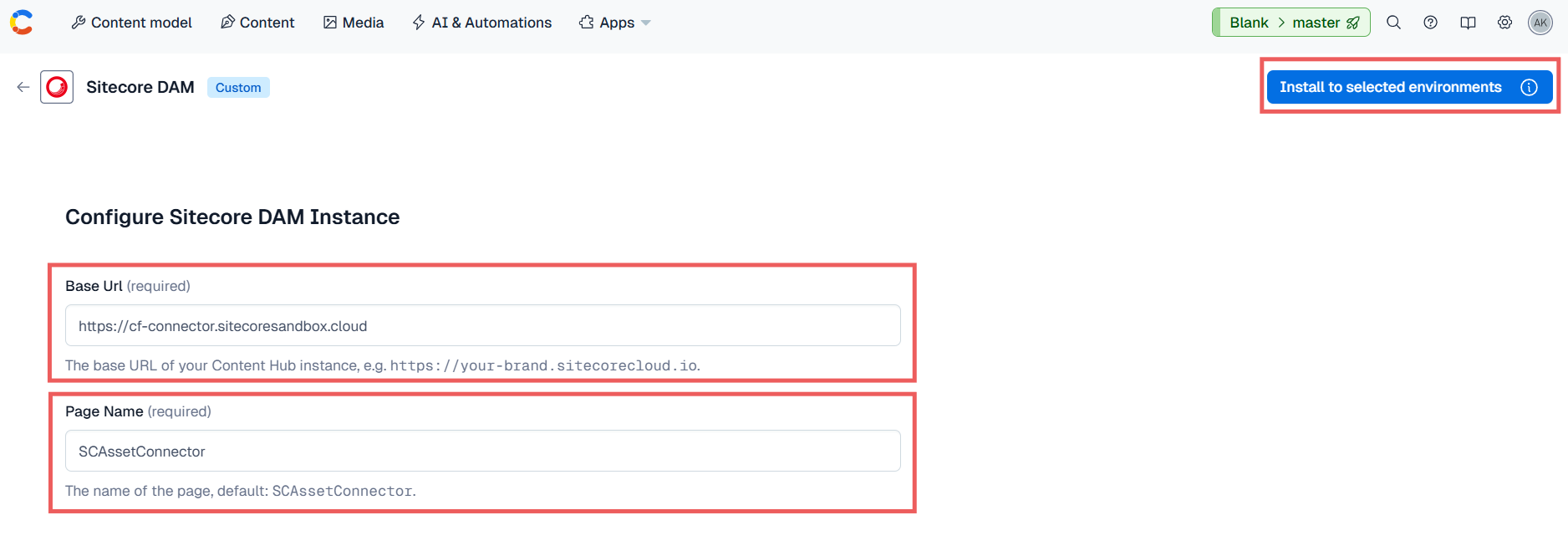
-
Click Install to selected environment.
-
Click Save.
You can also install the app from the Apps tab. On the Apps tab, select Custom apps, open the Actions menu for your app and choose Install. This will take you through the Install to space flow where the Manage access dialog is displayed to review permissions and authorize access.
Assign your app to a content type
The content model defines the types of content you work with. After you install your app, you need to assign it to a content type.
To assign your app to a content type:
-
On the Content Model tab, select the content type you want (for example, Recipe).
-
Click Add Field and select JSON object (the connector stores asset data in JSON format).
-
In the Name field, enter a field name (for example,
Media), and click Add and Configure.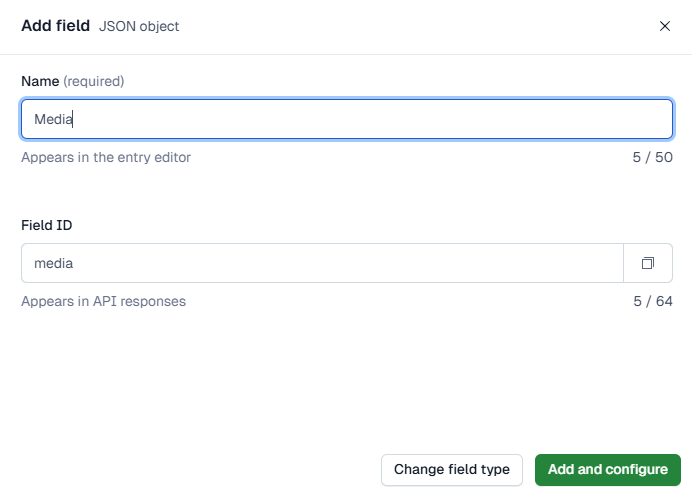
-
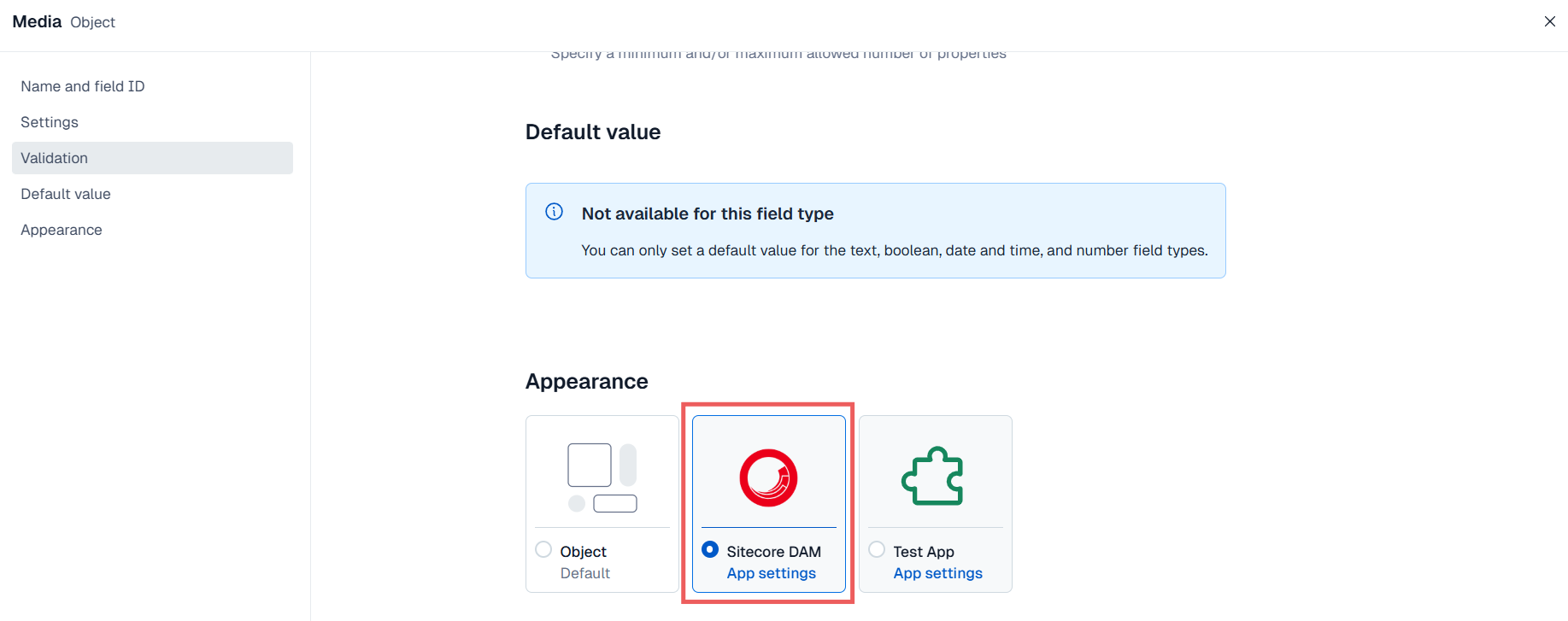
On the configuration page, in the Appearance section, select the app. The other settings are not necessary.
-
Click Confirm.
Validate that the connector works
After you have successfully created and set up your custom app, browse to Content Hub and select assets to verify that the connector is implemented and working correctly.
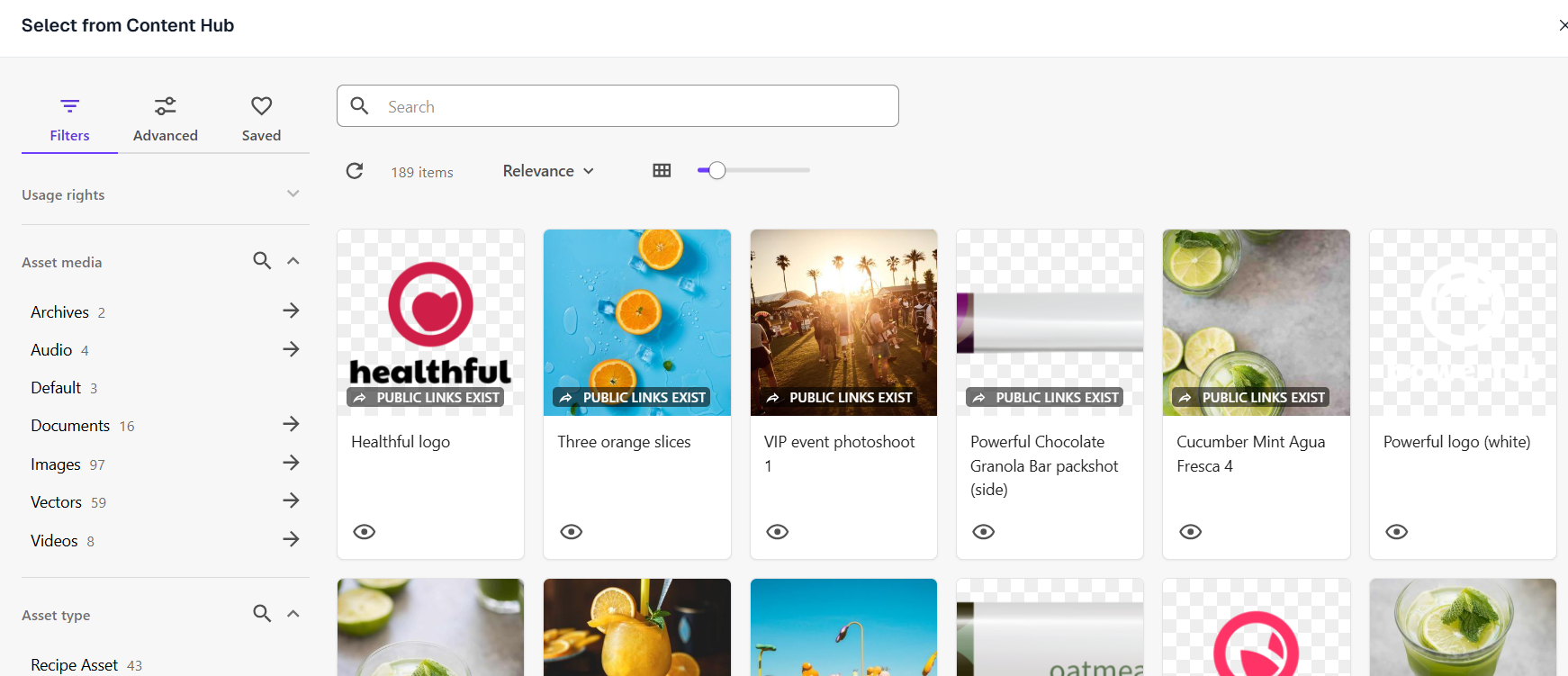
To validate that the connector works:
-
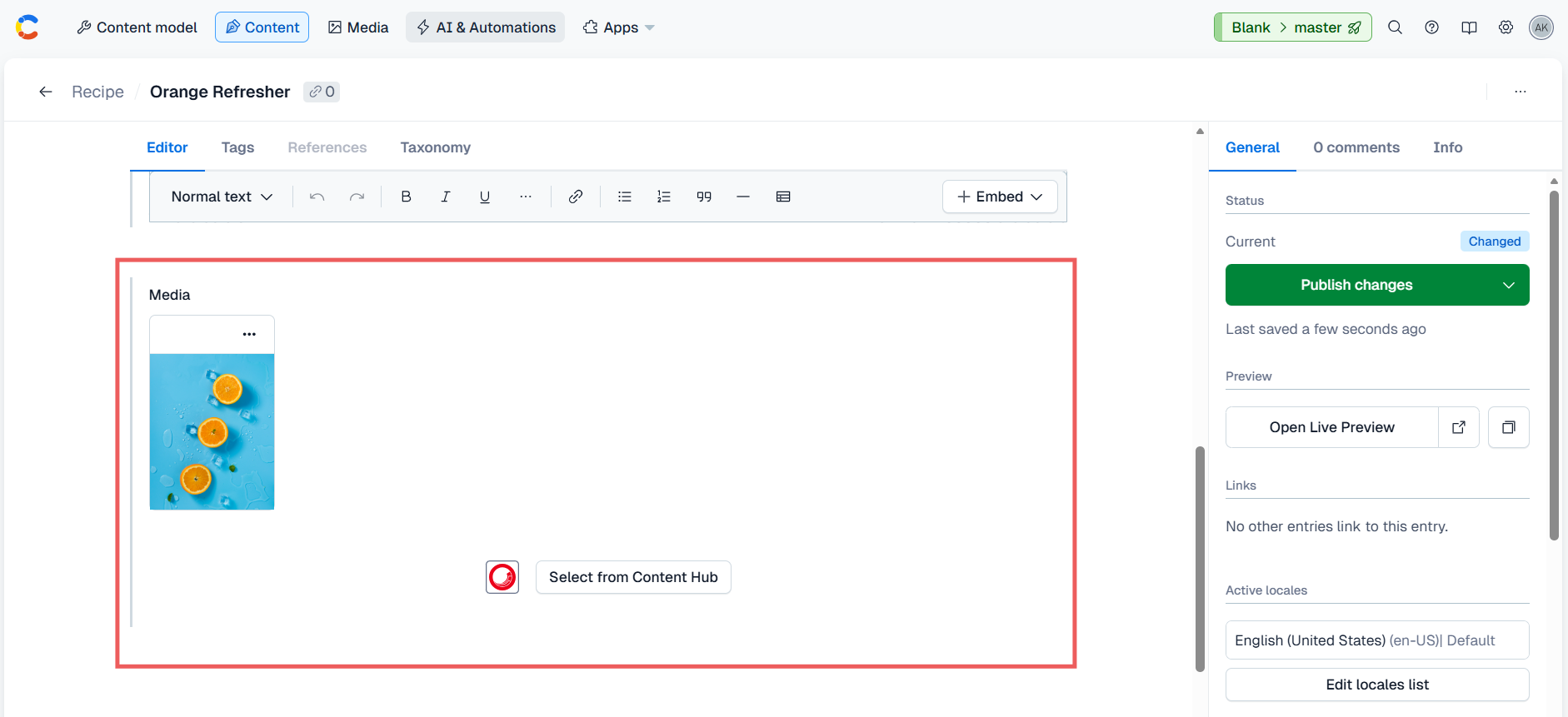
On the Content tab, click Add entry to create an entry with the content type (for example, Recipe). The entry field (Media) appears with the Sitecore Content Hub DAM connector.
-
Click Select from Content Hub to browse and select assets stored in Content Hub.