Display similar assets on the Asset details page
Important
AI capabilities in Content Hub need to be enabled and, if necessary, configured by a superuser or a user with the necessary permissions granted to them through user group policies. Most AI capabilities require Sitecore Stream.
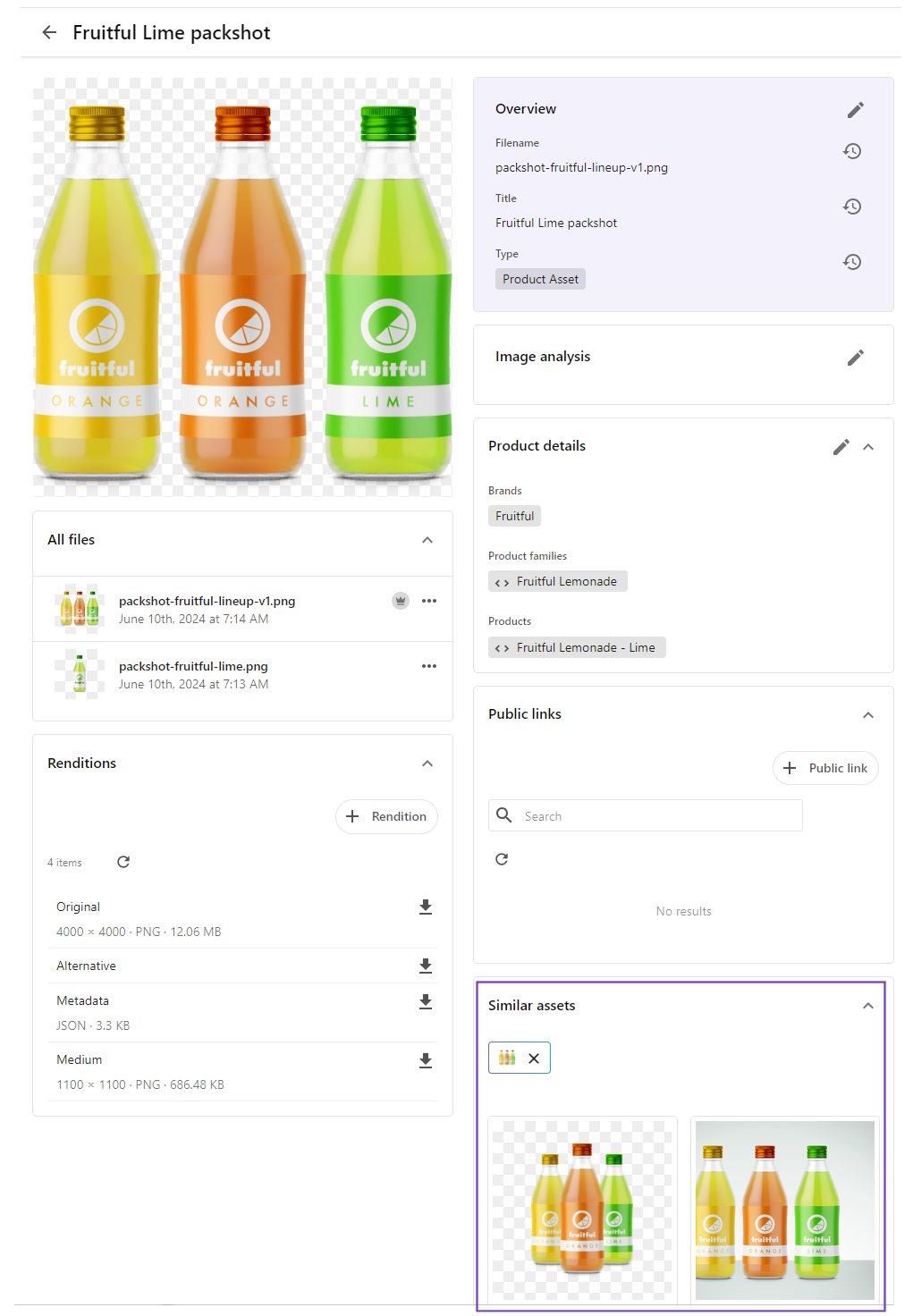
You can modify the Asset details page to show other assets that are visually similar to the one you're currently viewing.
This walkthrough explains how to:
Modify the Entity operations component
To modify the Entity operations component:
- On the menu bar, click Manage .
- On the Manage page, click Pages.
- On the Pages page, in the search box, enter Asset details and then select it.
- On the Asset details page, on the Layout tab, click the Entity operations component to open its details page.
- In the left-hand pane, click Add operation > View similar assets.
- In the right-hand pane, in the View similar assets section, define the following settings:
- Display format - Icon + Label
- Icon + Label - View similar assets
- Button style - Primary
- redirectPage - Assets
- On the EntityOperations component page, click Save and close.
Add a Search component
To add a Search component:
- On the Asset details page, on the Layout tab, add a Search component called Similar assets.
- Click the Search component to open its details page.
- In the left pane, click the Filters section and, on the System tab, click Add filter and define a filter with the following settings:
- Filter type - Definition
- Definition - Asset (M.Asset)
- Click Save.
- On the Fixed tab, define a fixed filter with the following settings:
- Input type - Page entity.
- Filter type - Similar images.
- Click Save.
- In the Functionality section, ensure all the switches are turned off except Show view selector.
- In the left pane, in the Views section, turn on the Grid switch.
- In the Operations section, click Add operation > View similar assets.
- Click Save and close.
If you have suggestions for improving this article, let us know!