Display similar assets on the Assets page
AI capabilities in Content Hub need to be enabled and, if necessary, configured by a superuser or a user with the necessary permissions granted to them through user group policies. Most AI capabilities require Sitecore Stream.
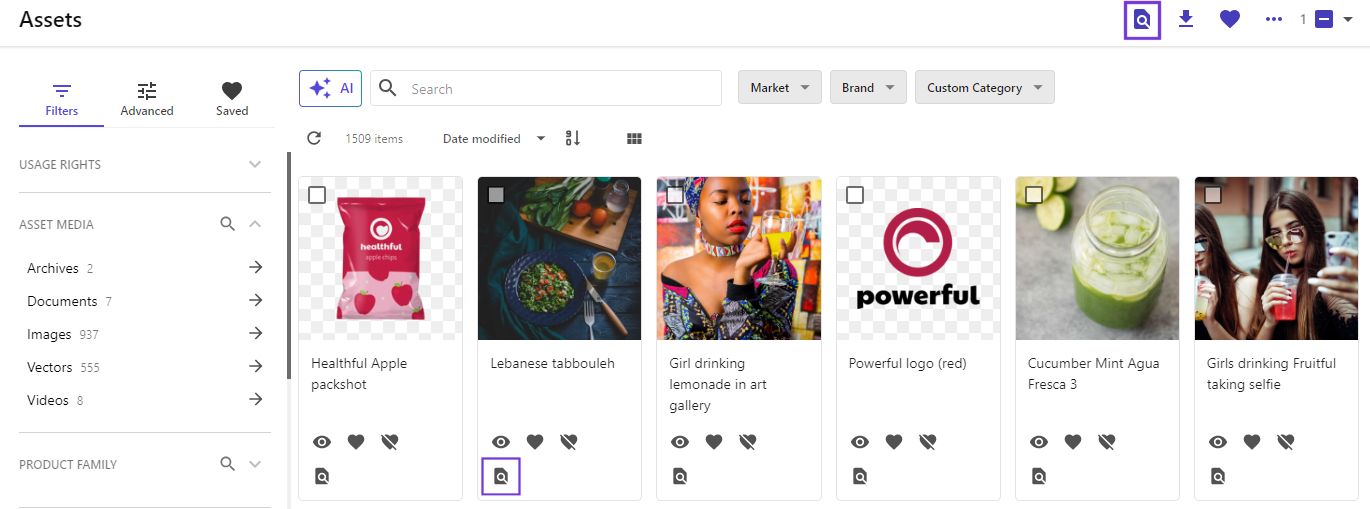
You can modify the Assets page to include options for displaying images that are similar to the one you have selected. Doing this adds a View similar assets option to the menu bar, but you can also add this option to asset tiles if needed.
This walkthrough explains how to:
Modify the Search component
You can modify the Search component to add the View similar images functionality and icon to the menu bar and, if needed, to each asset tile.
To modify the Search component:
-
On the menu bar, click Manage .
-
On the Manage page, click Pages.
-
On the Pages page, in the search box, enter Assets and then select it.
-
On the Assets page, on the Layout tab, click the Search component to open its details page.
-
In the left pane, click Functionality and turn on the Visual search switch.
-
Do one of the following:
- If you only want the View similar assets option to appear on the menu bar when someone selects an asset, go to step 9.
- If you want to add the View similar assets option to asset tiles, in the left pane, turn on the Grid switch and go to step 7.
-
In the Views section of the left pane, click Grid and, on the Operations tab, click Add operation > View similar assets.
-
In the View similar assets dialog, define the following settings and click OK:
- Display format - Icon + Label
- Icon, Label - View similar assets
- Button style - Default
In the Operation Settings section, accept the default without defining a redirect page.
-
Click Save.
-
On the Search component page, click Save and close.
Add a Selection component
Instead of adding the View similar images operation to each search term by configuring the Search component, you can add it to the Selection component instead. In this case, the View similar assets icon on the menu bar is only visible when one asset is selected.
To add a Selection component:
- On the Assets page, on the Layout tab, click Component.
- In the Add component dialog, click Selection, and turn on the Visible switch and then click Add
- Click the Selection component to open its details page.
- On the Operations tab, click Add operation > View similar assets operation.
- Click Save and close.