Confirm content provenance and authenticity
C2PA (Coalition for Content Provenance and Authenticity) provenance information helps marketing teams verify where content originated, whether it has been altered, and whether its digital history is authentic. Based on this metadata, Sitecore Content Hub can automatically detect and mark assets and files created or modified using AI tools that embed C2PA manifests.
When C2PA is enabled, Content Hub verifies the current C2PA configuration, evaluates uploaded files and their associated manifests, generates renditions, and applies signing where required. If the uploaded file already contains a C2PA manifest, Content Hub preserves the existing manifest and extends the provenance chain when supported transformations are applied. For example, if a file was created by an AI tool and later cropped or transformed in Content Hub, the resulting manifest can contain both the original creation information and the Content Hub processing steps. This allows provenance information to be maintained across multiple systems and processing stages.
Supported file types
Content Hub uses the DigiCert Content Trust API to sign renditions and supports the following file types:
-
Images -
.jpeg,.png,.dng,.heic,.heif,.tiff,.webp,.svg,.gif,.jxl,.avif -
Videos -
.mp4,.avi,.mov -
Documents -
.pdf -
Audio -
.wav,.mp4,.flac,.mp3
Assets using other file formats are processed normally and are not signed with a C2PA manifest.
C2PA settings are not retroactive. If you modify the C2PA settings, only newly uploaded or newly processed files will use the new settings. This means that you might have a mix of signed and unsigned renditions unless you regenerate them all. In addition, on-the-fly public-link transformations do not currently preserve existing C2PA manifests. If provenance information must be preserved, use standard renditions.
Content credentials and asset provenance
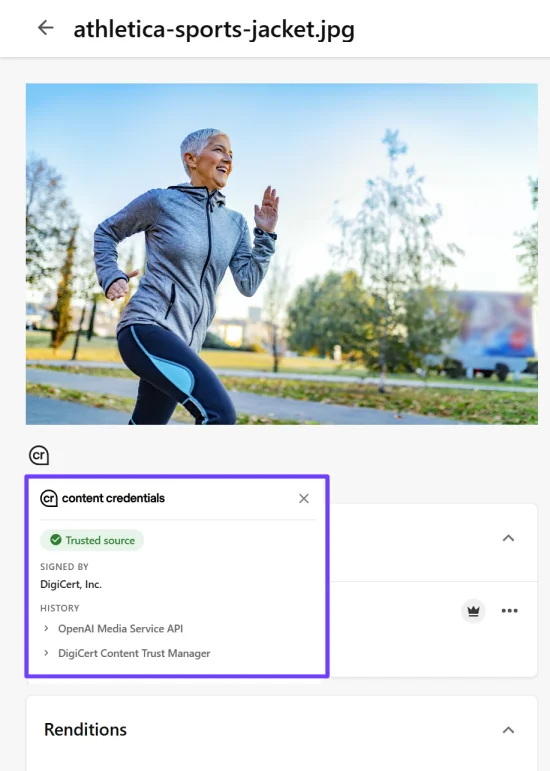
Assets that contain information about their provenance, that have been modified, or that do not have the required certificates are identified with the content credentials icon. On the asset details page, when you click the content credentials icon that is displayed beneath the asset thumbnail, the digital history of the asset is displayed, including:
-
Provenance validation status
-
Content Credentials and trust information
-
Did the asset validation fail due to missing or improperly configured parameters
-
Information about the signer or signing authority
-
The claim chain or provenance history associated with the asset
-
Transformation information, such as resize, crop or conversion steps, when available
-
AI-related information contained within the manifest, when present
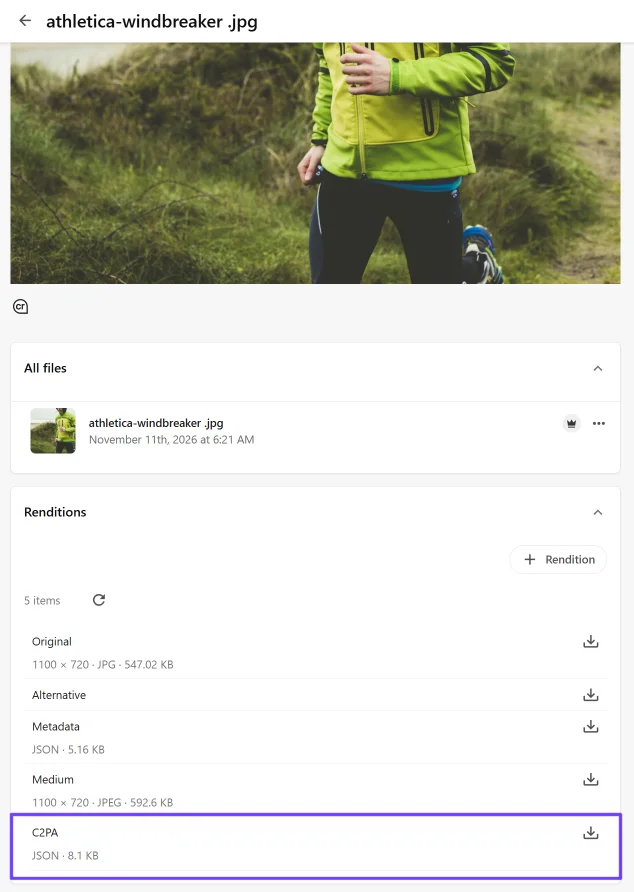
After the asset has gone through the approval process, on the asset details page, in the Renditions section, you'll see a C2PA rendition. Download the rendition to view the c2pa.json manifest.