Add a filter
You can add simple, composite, or fixed filters to a page to change the number of search results displayed in a Search component.
- Add a Search component to the page.
Add a simple filter
Use a simple filter to include only entities that match a specific definition, property, relation, or selection.
Example of a simple filter
In the following example, the Products page includes a simple filter that displays all products. Here, the filter settings are:
- Filter type - Definition
- Definition - Product (M.PCM.Product)
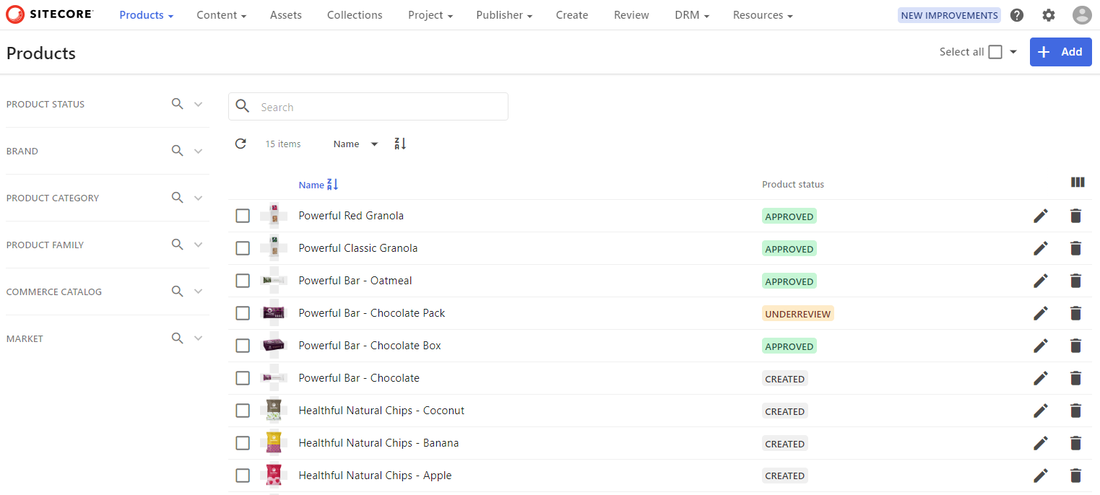
To add a simple filter:
- On the Layout tab, click the Search component to open its details page.
- In the left pane, in the General section, click Filters.
- Click Filter.
- In the Filter type list, choose one of the following filter types:
- Definition - to filter on an entity definition only.
- Property - to filter on a specific entity definition field and value.
- Relation - to build a filter expression.
- Selection - to filter on an entity definition selection pool where the entity is stored.
- In the Definition list, select a definition.
- Based on your choices, configure the additional parameters required for the filter.
- Click Save.
Add a composite filter
Use a composite filter to combine simple filters using AND or OR logic for more advanced search conditions.
Example of a composite filter
In the following example, the Project content page includes a composite filter at the top level that uses an OR operator to display assets or fragments. There are two nested composite filters that use the AND operator.
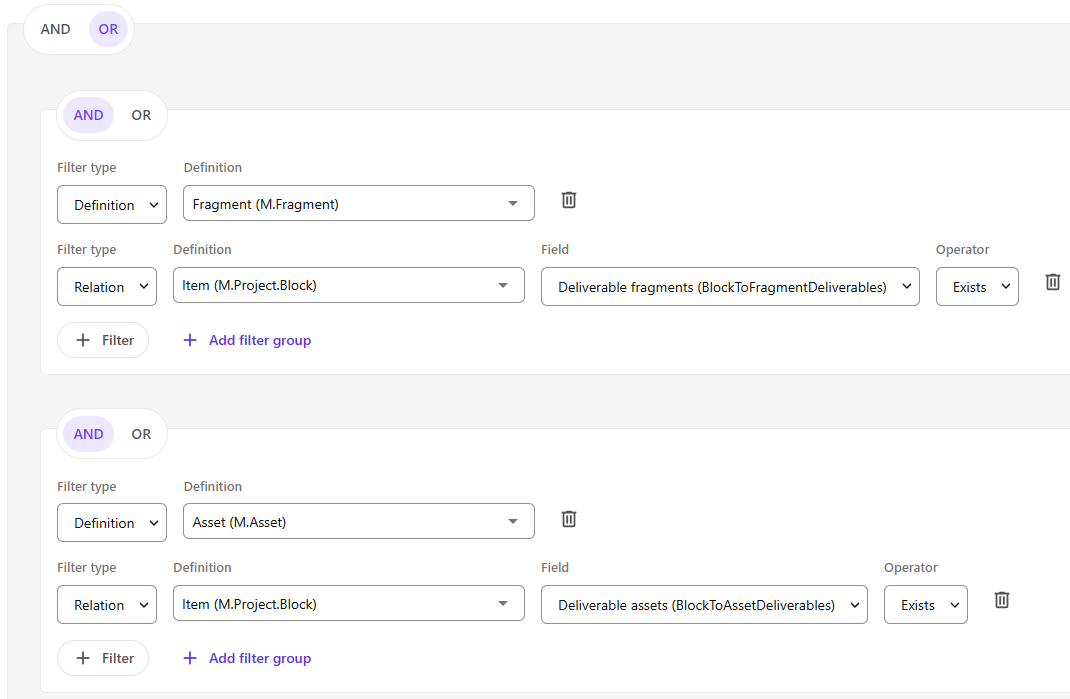
This configuration of composite filters produces the following search results.
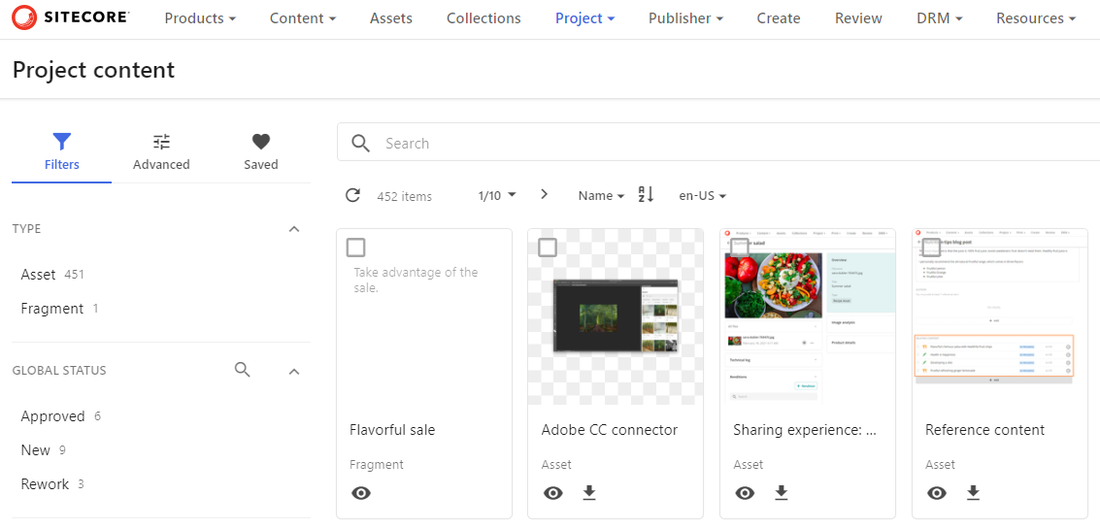
To add a composite filter:
- If you haven't already done so, add the first simple filter.
- Click Add filter group.
- Choose one of the following operators:
- AND - requires both of the adjacent simple filters to be satisfied.
- OR - requires one or both of the adjacent simple filters to be satisfied.
- Click Save.
- Add the next simple filter.
- Repeat steps 2-6 until you've added all the required conditions.
- Click Save and close.
Add a fixed filter
Use fixed filters to render related content for a selected entity, for example, to show all assets linked to a specific project on that project's details page.
Example of a fixed filter
In the following example, the Content collection page includes a fixed filter that displays the contents of a selected collection. If any changes are made to that collection, the filter dynamically updates what is shown on the page.
Here, the page definition is Content (M.Content) and the filter settings are:
- Input type - Page entity
- Filter type - Relation
- Filter - Content (ContentCollectionToContent)
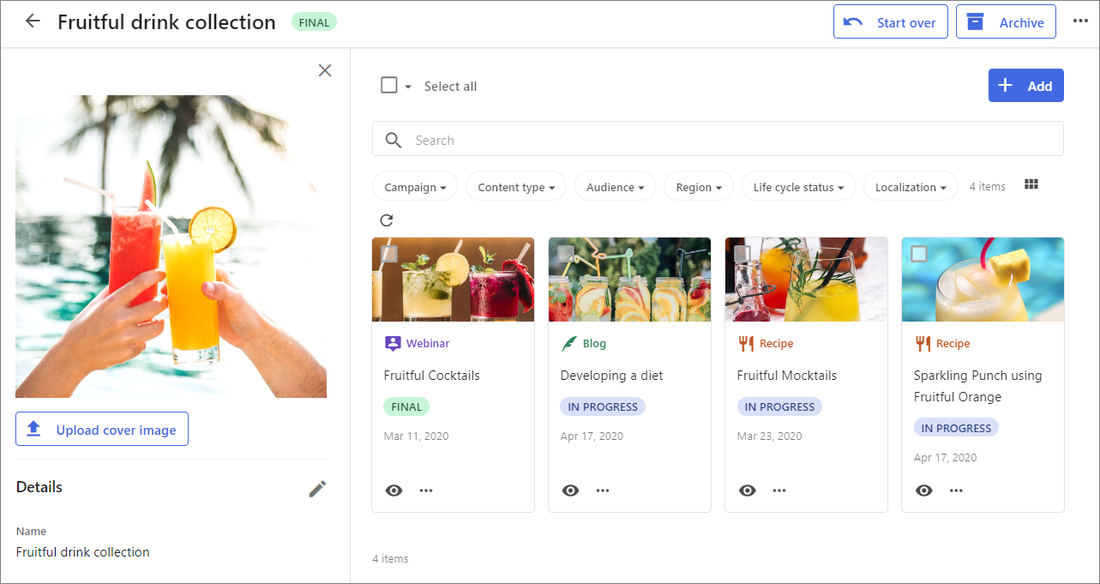
To add a fixed filter:
-
On the Layout tab, click the Search component to open its details page.
-
In the left pane, in the General section, click Filters and then click the Fixed tab.
-
Click Fixed filter.
-
In the Input section, define the following settings.
Field Description Input type The input type of the filter, which can be Page entity or Related entity. Relation For Related entity types, a list of relations defined in your solution. -
In the Filter section, in the Filter type list, choose the type of filter you want.
-
depending on the chosen Input type and Filter type, fill out the following settings.
Field Description Filter The relation used for filtering. Parent/Child Whether the filter applies to child entities or the parent entity. If you want to see items linked to many relations, all with a similar name pattern.
For example, you want all assets linked to this collection + all fragments linked to this collection. Relation names are
CollectionToAssetandCollectionToFragment, your dynamic relation name will beCollectionTo*.Field Description Name The dynamic relation name you want. Field Description Name Name of the related ancestor. In combination with Visual Search and only to be used on an asset detail page, if you want this search component to show images similar to the current asset.
-
Click Save.
-
Click Save and close.