Use AI to generate image alt text
AI capabilities in Content Hub need to be enabled and, if necessary, configured by a superuser or a user with the necessary permissions granted to them through User group policies.
To use AI-assisted capabilities, you must have a Stream subscription and, for some features, be a Stream Premium user. Contact your Account Manager for more information.
You can use AI to generate alt text for your image assets.
- Configured image alt text generation
- Create a brand kit and map it to a Content Hub entity if you want to generate brand-aware text.
To use AI to generate image alt text:
-
To use the Generate with AI feature, on the relevant page (for example, the Assets page or the Products page), click an image or product to open its details page.
-
On the details page, click Edit.
-
In the Alt text field, click Generate with AI .
-
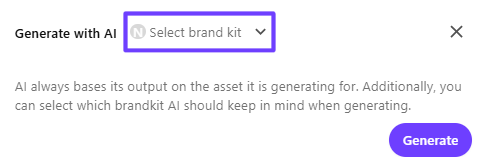
In the Generate with AI dialog, do one of the following:
-
If no brand kit is available, click Generate and AI will propose Alt text for the image. Text uses a generic tone and voice.
-
If a brand kit is available, click in the bottom left corner of the window to select it and then click Generate and AI will propose Alt text that aligns with your brand.
-
-
Do any of the following:
-
To generate new alt text, click Retry .
-
To copy the text, click Copy .
-
To discard the proposed alt text, click Discard.
-
To accept the proposed alt text and insert it into the Alt text field, click Apply.
-
-
In the Overview section, click Save.
To use AI-assisted alt text generation, assets must have a preview rendition.