Enable the Brand Assistant
AI capabilities in Content Hub need to be enabled and, if necessary, configured by a superuser or a user with the necessary permissions granted to them through user group policies.
To use AI-assisted capabilities, you must have a Stream subscription and, for some features, be a Stream Premium user. Contact your Account Manager for more information.
The Brand Assistant in Sitecore Content Hub helps you create content that is on-brand and contextually relevant. It provides access to your brand guidelines, elements such as fonts and colors, and enables AI-assisted content generation that aligns with your tone and style across channels.
The Brand Assistant relies on a published brand kit created in Sitecore Stream, which must be linked to relevant entities in Content Hub as part of the brand kit mapping process. After the integration is complete, the Brand Assistant can be enabled to make it available on all pages in Content Hub.
Make sure you have the following:
-
A Sitecore Stream Premium subscription.
-
Admin app role in Stream to create brand kits.
-
ManageBrandKitsprivilege in Content Hub. -
An Admin or Owner role in Sitecore Cloud Portal.
This walkthrough describes how to:
- Enable Portal auto enrollment
- Verify connection status
- Prepare brand kits
- Map brand kits to brands in Content Hub
- Configure brand kit permissions
- Enable Brand Assistant in Content Hub
Enable Portal auto enrollment
To use Stream AI capabilities in Content Hub, users must belong to a Sitecore Cloud Portal organization.
Organization Admins or Organization Owners can enable automatic enrollment so that Content Hub users are automatically added to the organization's Portal. See Enable automatic enrollment of Content Hub users.
Verify connection status
To confirm the connection between Content Hub and Sitecore Cloud Portal:
- In Content Hub, on the menu bar, click Manage .
- On the Manage page, click AI features.
- On the AI features page, in the left pane, click Brand settings.
- On the Brand assistant tab, verify that the connection indication shows Connected.
Prepare brand kits
Users with an Admin role can create and manage brand kits containing the organization’s brand documents and guidelines.
After creating the brand kit and uploading documents:
- Ensure all documents are fully processed.
- Confirm the brand kit and all documents are in Published status.
- Note the names of your published brand kits for later steps.
Map brand kits to brands in Content Hub
To use brand kits with the AI features in Content Hub, superusers or users with ManageBrandKits privileges must map published brand kits to the appropriate brands in Content Hub. Make sure you have already configured brand kit mapping.
Mapping brands to brand kits will update your schema as it adds a relation from your Brand to the Sitecore Brand Kit in the system graph.
To map brand kits to brands in Content Hub:
-
On the menu bar, click Manage .
-
On the Manage page, click AI features.
-
On the AI features page, in the left pane, click Brand settings.
-
To associate a brand kit to entities in Content Hub, on the Brand mapping tab, in the Brand kits section, click next to a brand kit and then click the check boxes next to the entities you want to link, and click Save.
In the following example, the brand kit Fruitful is linked to the Content Hub entity
M.Brand - Fruitfulentity.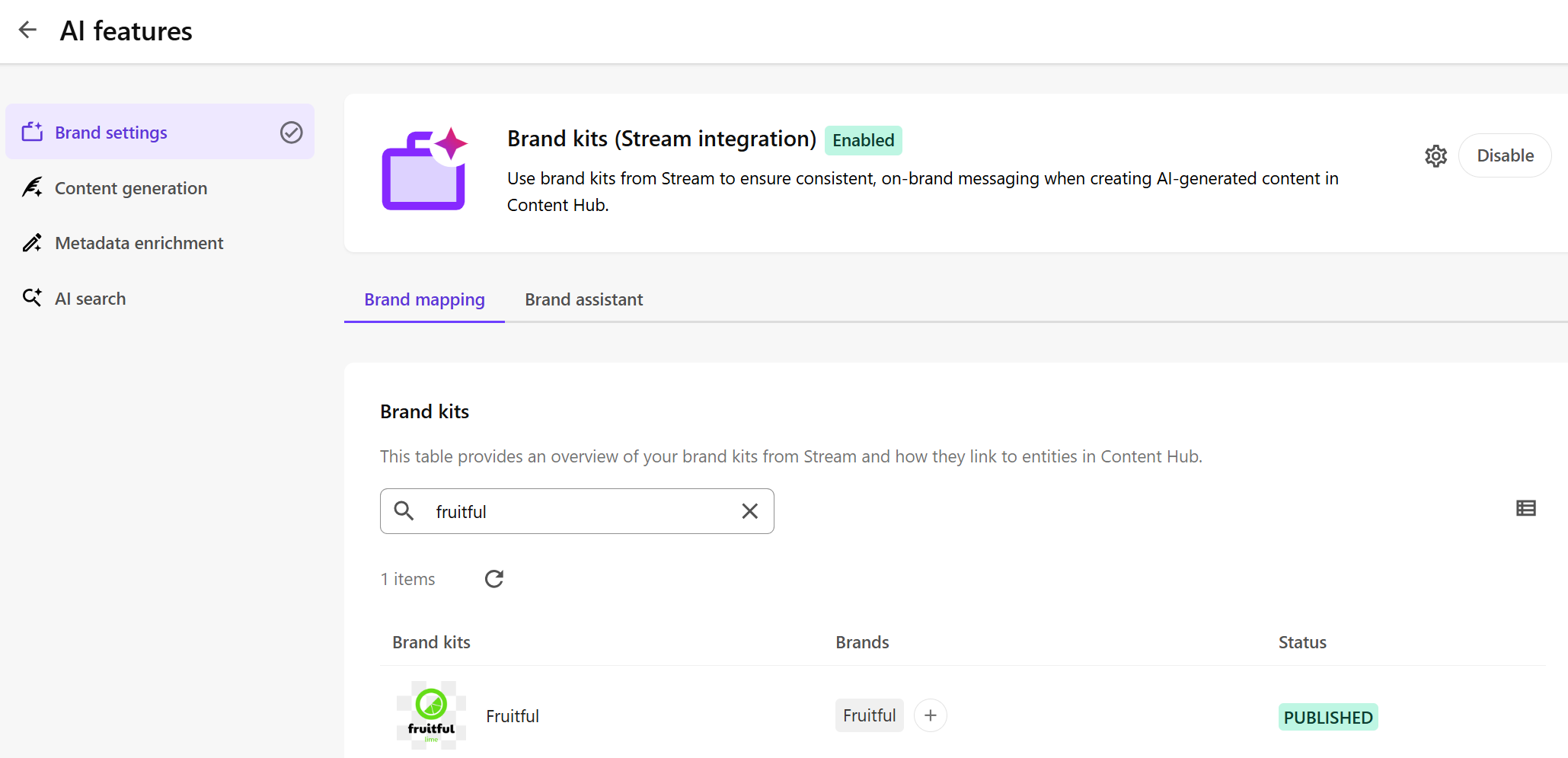
Configure brand kit permissions
Depending on your user group policies, you might need to update permissions to ensure the correct level of access to brand kits. In Content Hub, there is a new entity called SC.Brandkit. Review your user group policies and include rules for this entity as needed. For example, if permissions are driven by Brand, you can define:
Rule: for SC.Brandkit Read AND M.Brand: Fruitful.
Enable Brand Assistant in Content Hub
After mapping is complete, enable the Brand Assistant to make it available in Content Hub.
To enable Brand Assistant:
-
On the menu bar, click Manage .
-
On the Manage page, click AI features.
-
On the AI features page, in the left pane, click Brand settings.
-
On the Brand assistant tab, click the switch to turn on the Brand Assistant.
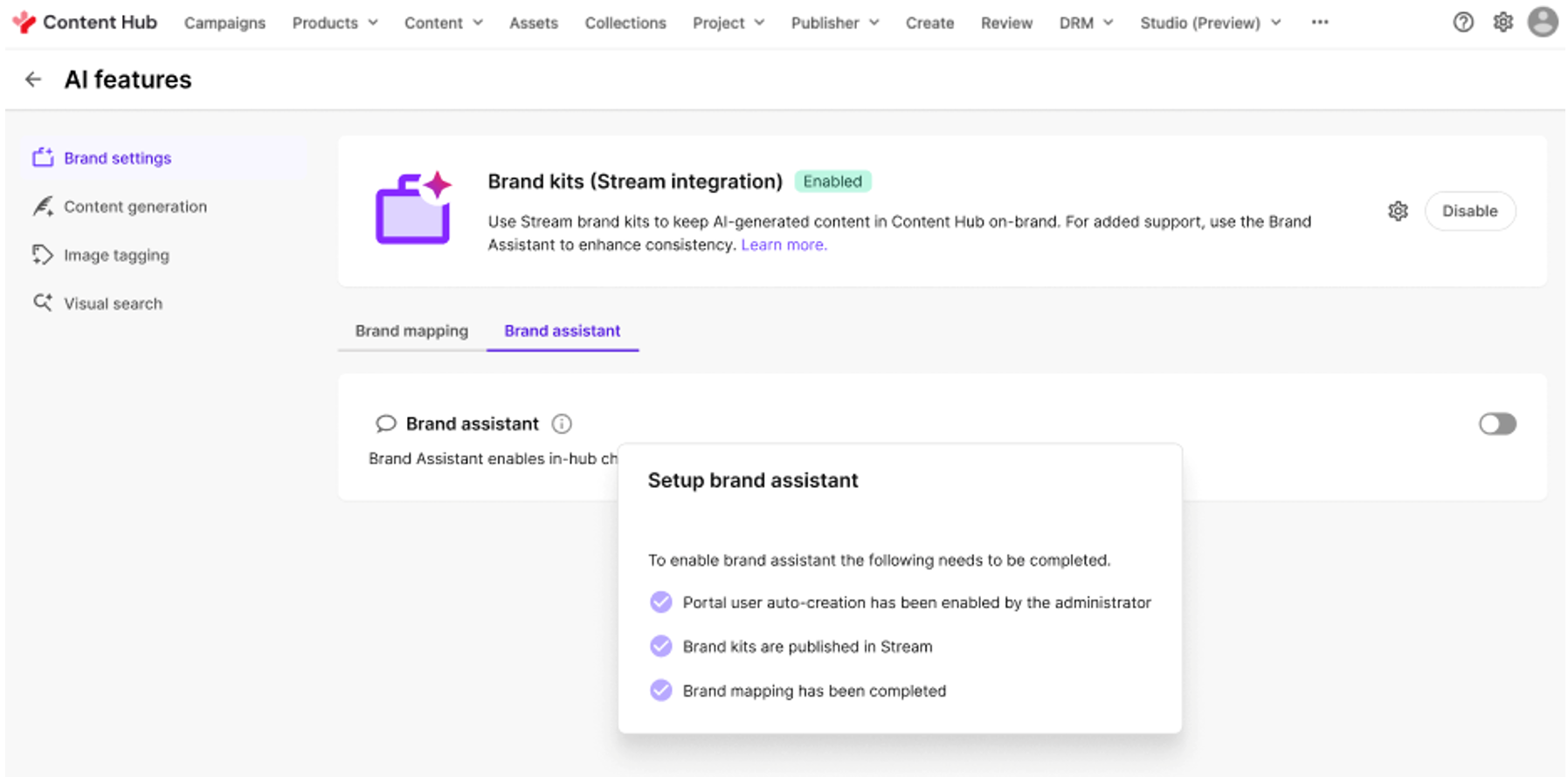
-
In the Legal disclaimer field, enter the text you want to display below Brand Assistant responses.
After the Brand Assistant is enabled, you can configure its information sources and writing style and start using it in Content Hub.