Compare versions and annotations
You can compare versions of an asset side by side to easily verify changes and review the annotations that were added to each.
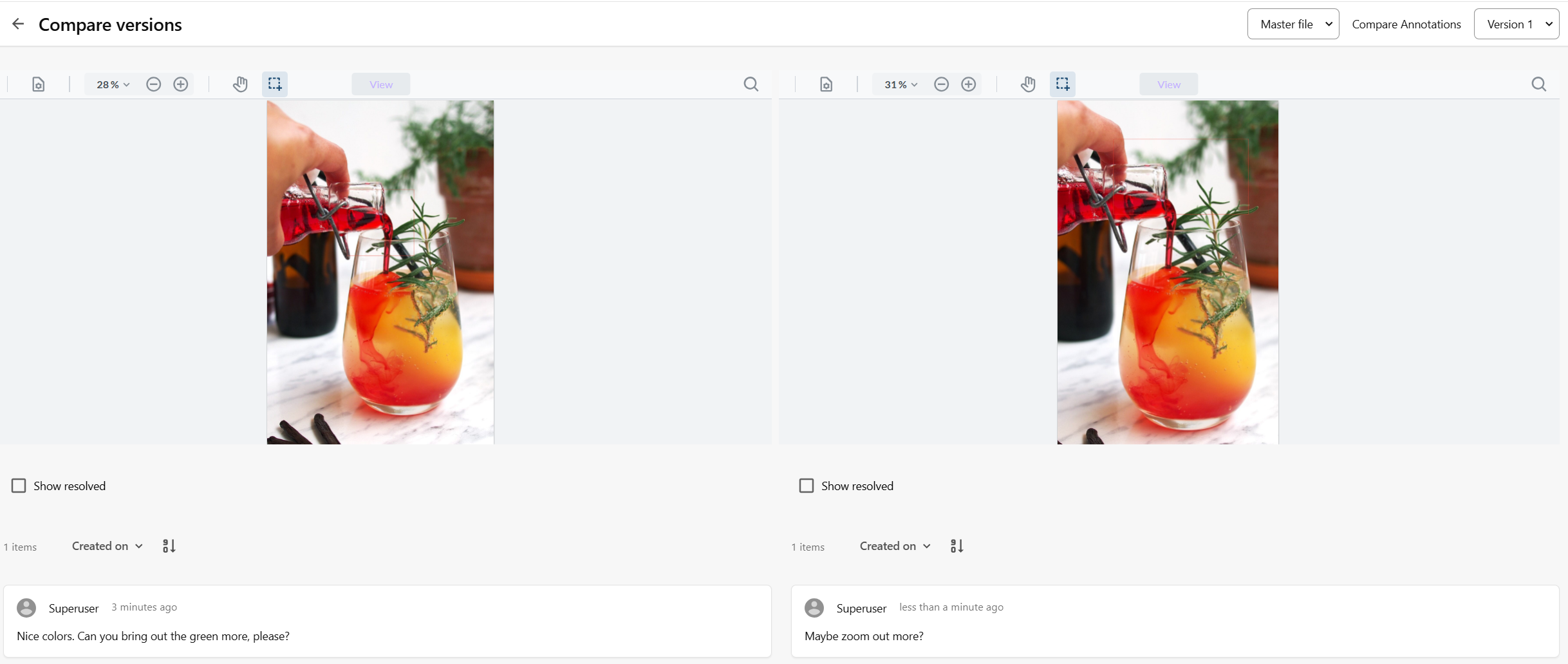
To compare versions and annotations:
-
On the menu bar, click Assets.
-
On the Assets page, click the asset you want to annotate.
-
On the asset details page, in the top-right corner of the window, click Annotate .
-
On the Annotations page, use the annotation tools to add annotations.
-
To compare the current version of the asset and its annotations to an earlier version, click Compare.
-
On the Compare versions page, click an annotation to open the View annotation dialog and see the annotation comment.
NoteThe Compare button is only available if the asset has more than one version of the same file.
If you have suggestions for improving this article, let us know!