- Configuration
Configure visual search manually
You need to manually configure visual search if you have modified the default media processing flows or preview rendition names for images or vectors, or if the following message displays when you enable visual search - The media matrix with identifier 'M.MediaMatrix.Content' has been modified. Manual configuration is required.
The preview rendition name must remain preview (lowercase).
Before you begin:
- On the Assets page, modify the Search component to add a View similar assets operation and also add a Selection component
- On the Assets details page, modify the Entity operations component and add a Search component. Then, add a Container component.
This walkthrough explains how to:
- Add a container component to the asset details page
- Configure media processing for images and vectors
To verify your visual search implementation, upload a file with an extension for which you configured embeddings and verify that a new embeddings rendition is visible using the Entities API (/api/entities/<ASSET_ID>).
Add a Container component
After you have modified the Entity operations component and the Search component on the Asset details page, add a container component.
To add a container component:
-
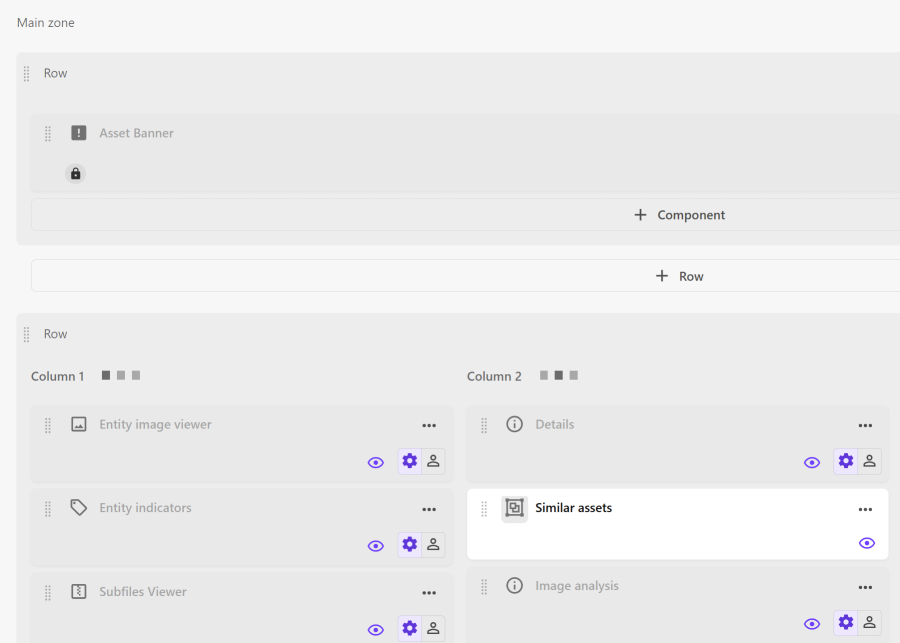
On the Asset details page, on the Layout tab, in the Main zone, click Component.
-
In the Add component dialog, click the Container component to select it and then click Add.
-
In the Component settings dialog, in the Title field, type Similar assets.
-
Turn on the Visible switch and, from the UI visibility drop-down list, click Always and then click Save.
-
Click Save.
-
On the Similar assets container component, click Actions > Settings.
-
On the General tab, from the Container drop-down list, click Panel and then click Save.
-
Click Similar assets to open the details page and add a Search component and then click the component to open its details page.
-
On the Search component details page, in the left pane, click Filters and, in the right pane, on the System tab, from the Filter type drop-down list click Definition and then select the Asset (M.Asset) definition.
-
Click the Fixed tab and add a fixed filter with the following settings:
- Input type - Page entity
- Filter type - Similar images
-
Click Save.
-
In the left pane, click Functionality, turn off all switches.
-
In the left pane, in the Tools section, turn on the Paging switch and, in the right pane, change all values to 3 and then Save and Close.
Configure media processing for images and vectors
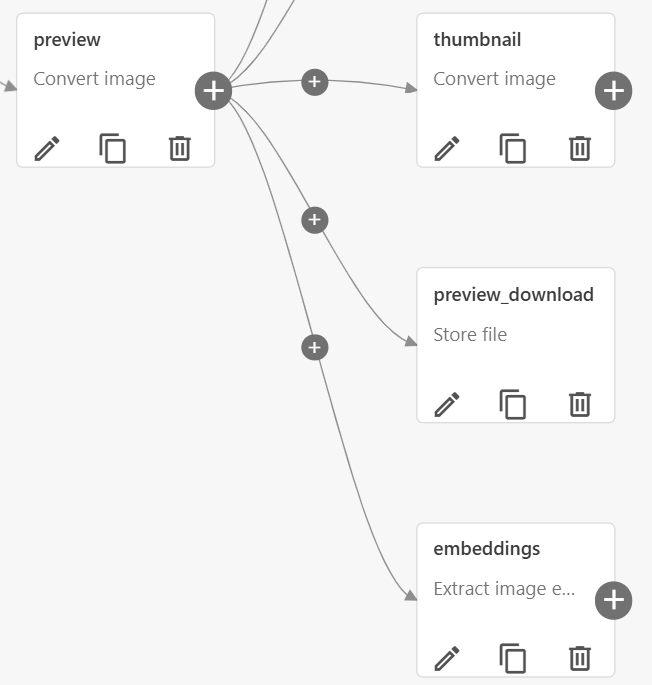
For each images or vectors media flow in the Content set, configure an Embeddings task as a child of the Extract preview task. Embeddings will be created based on the preview rendition. You can also create a new rendition specifically for the embeddings calculation if needed
To use visual search, you must have a preview rendition.
To configure media processing:
-
On the menu bar, click Manage .
-
On the Manage page, click Media processing.
-
On the Media processing page, in the left pane, click Content.
-
In the right pane, click the media processing flow used by your visual search configuration to open it.
-
For each relevant flow (images and vectors), on the preview rendition, click , in the Add task pane, click Extract image embeddings to add the task as a child of the preview task.
-
Click Save to accept all default values and then click Close.
-
On the Media processing page for Content, click Publish.
-
Click Publish again to confirm you want to publish your changes.