Edit Excel data
After you export content data as an Excel spreadsheet, you can open the file to access that data. If you used an export profile, the data will be limited to the fields you included in that profile.
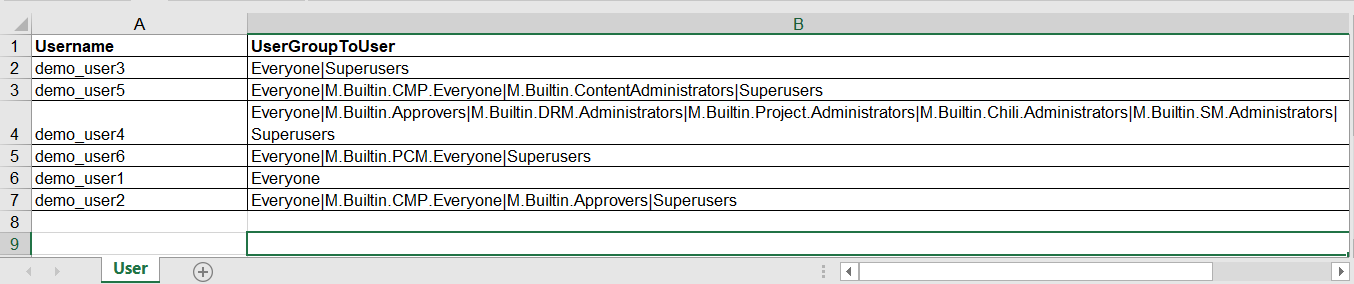
In the following example of an exported spreadsheet, each user is represented by a single row. You can use Excel to make required changes by adding, editing, and deleting the corresponding rows. When you have finished making changes to the spreadsheet, you can import it to Sitecore Content Hub.
Example of user management with Excel
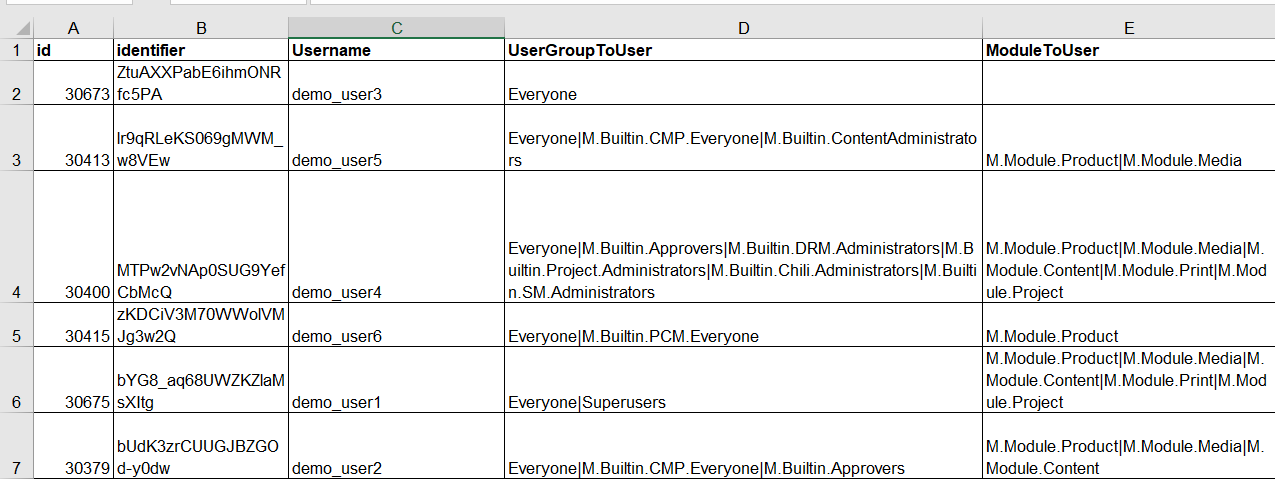
The following table shows an example of exported user data, including the required columns Identifier and ModuleToUser. Module names must be separated with a pipe (|) and contain no spaces:
| Identifier | Username | ModuleToUser |
|---|---|---|
| y1p5Vbf9TUWYDMvotFoO7Q | CMP_user | M.Module.Content |
| kMAjtFSd0k69Tc-6S-F4Gw | Combined_user | M.Module.Media|M.Module.Project|M.Module.Content |
| wQaES5Nn3kCFz_ngV3XdTA | DAM_user | M.Module.Media |
| OwHjo8uyA0KHx0GYy1oI4w | Full_user | M.Module.Media|M.Module.Project|M.Module.Content|M.Module.Product|M.Module.Print |
| KxD7U-UT9EGHdBWrC4xpqg | MRM_user | M.Module.Project |
| 7NRbtXp2jUC9woVx2CRkDg | PCM_user | M.Module.Product |
| oBt_h9zWG0SA7N4oYDt0gg | Print_user | M.Module.Print |
In the following example, most of the users have been added to the Superusers group by appending |Superusers to the UserGroupToUser field where needed. You can also remove unwanted group names from this field: