Link asset items
When you upload InDesign or Adobe Illustrator packages as ZIP files, you can identify whether the files in the package are already assets in Content Hub. If they are, the file can be linked to the respective asset. If they aren't, you can create a new asset based on the file.
The package must contain .indd or .ai files and a Links folder, both placed within a single folder. This is the default structure for Adobe packages.
Example
In this example, you have uploaded a ZIP file containing an InDesign file and its associated files or images, found in the Links folder. If these associated files or images are not already in Content Hub, they can be created as new assets.
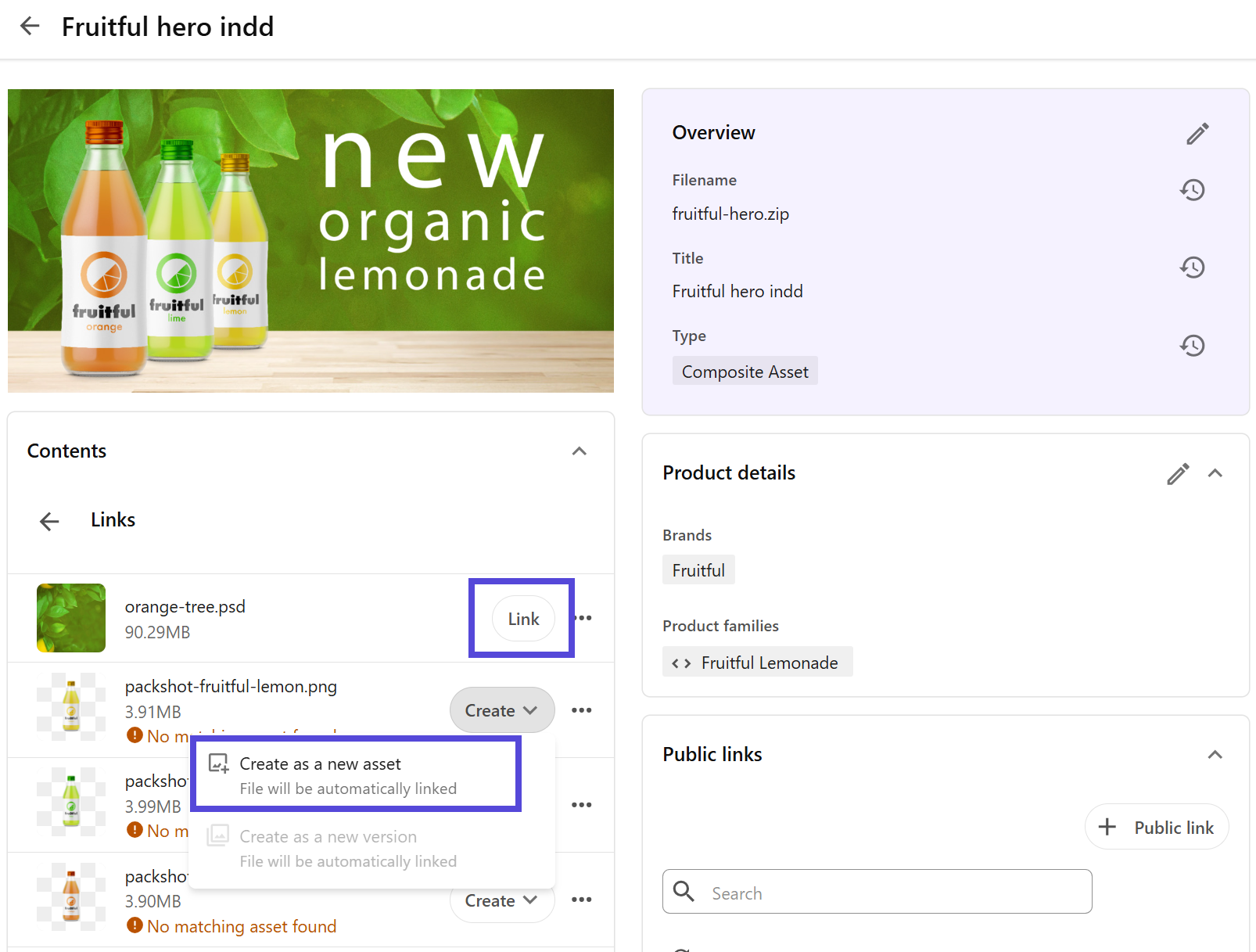
In the same package, there is a file that already exists in Content Hub. Therefore, it can be linked to the existing asset.
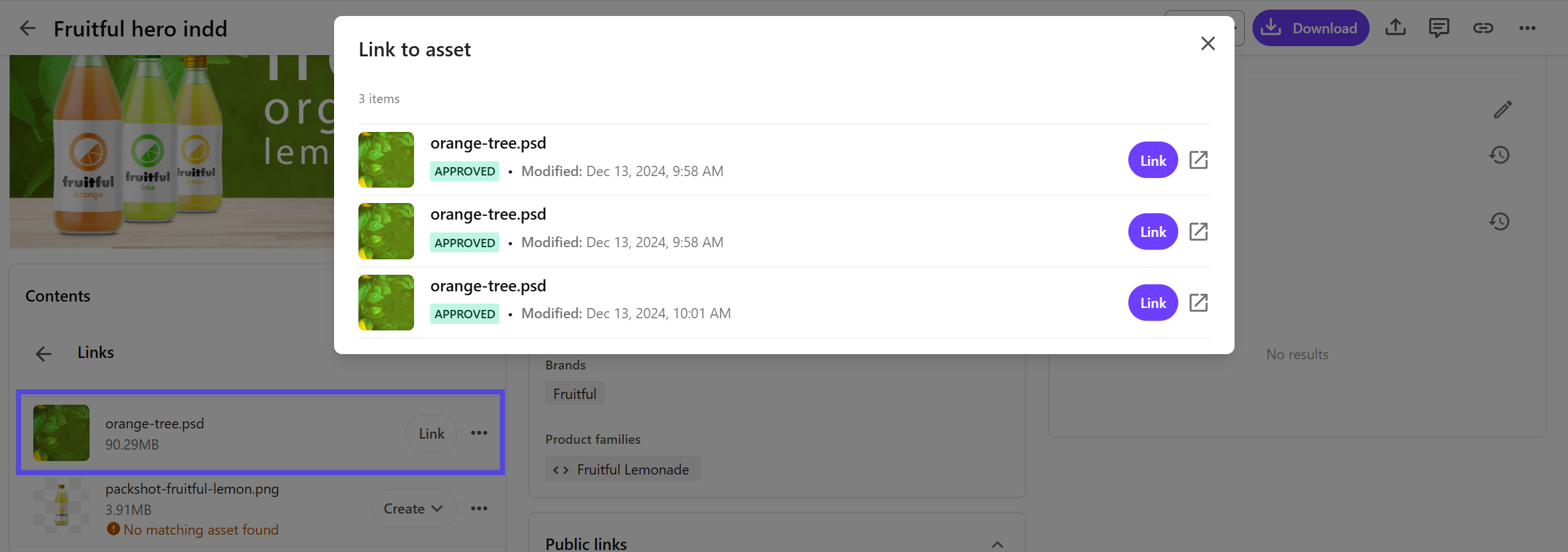
To link items:
- On the menu bar, upload an InDesign or Adobe Illustrator package as a ZIP file.
- Ensure that the asset type can trigger the extract archive.
- On the Assets page, click the asset you uploaded.
- On the asset details page, in the Contents pane, click the containing folder and then click the Links folder.
- Do one of the following:
-
If the files contained in the ZIP file already exist in Content Hub, click Link to link them to the ZIP asset.
-
If the files contained in the ZIP asset don't already exist in Content Hub, click Create > Create as new asset.
A new asset is created and linked to the ZIP asset.
NoteFiles are processed only if their file extension, such as
.SVG, is listed in theCompositeAssetsFlowTemplatesetting. -
Linking asset items lets you track which assets are included in a ZIP package through the Linked Assets/Includes pane, so you can see which ZIP packages an asset belongs to in the Linked Assets/Used in pane. You can also see if a file in the ZIP package links to an older version of an asset, in which case the package is considered outdated.