Annotate
In Sitecore Content Hub, you can use annotations to review content, provide feedback, and collaborate with others. You can add annotations to images and documents (such as PDFs, Word files, or Powerpoint files). When an asset has existing annotations, an indicator on the asset details page next to the Annotate icon displays the number of annotations.
You can also add annotations to video or audio files.
In the following example, the reviewer used the Note, Squiggly, Rectangle, Highlight, and Free Hand tools to annotate a document.
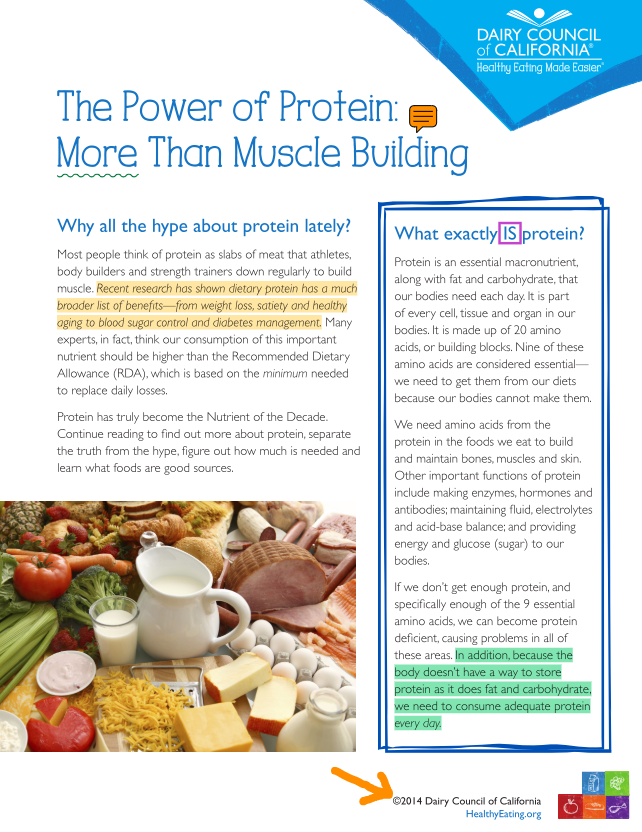
The following tabs describe the available annotation tools:
Use these tools to add emphasis to text-based documents. Each text tool has presets that you can modify according to your needs (color, opacity, and so on):
- Highlight
- Underline
- Strikeout
- Squiggly
Use these tools to draw lines and shapes on images and text-based documents. Each shape has presets that you can modify according to your needs (color, opacity, stroke, and so on):
- Rectangle
- Ellipse
- Line
- Arrow
- Free Hand
The other available tools are:
| Button | Description |
|---|---|
| Note | Add a short text comment to the file. |
| Undo | Reverse your most recent action. |
| Search | Search for specific text in the file. This tool includes case-sensitivity and whole-word matching to improve your search focus. |
View controls
You can use the following tools to adjust how the asset appears in the annotation viewer:
| Button | Description |
|---|---|
| Resize actions | Adjust the magnification using one of the following options:
|
| View Controls | Change the page transition, orientation, or layout. |
| Pan | When the image is magnified, click-and-drag to control the position of the image in the viewer. |
| Zoom out | Reduce the magnification level in the viewer. |
| Zoom in | Increase the magnification level in the viewer. |