- Configuration
Configure image alt text generation
AI capabilities in Content Hub need to be enabled and, if necessary, configured by a superuser or a user with the necessary permissions granted to them through user group policies
To use AI-assisted capabilities, you must have a Stream subscription and, for some features, be a Stream Premium user. Contact your Account Manager for more information.
After you configure image alt text generation, the Generate with AI icon is displayed next to the entity definition in the Settings section of the AI features page.
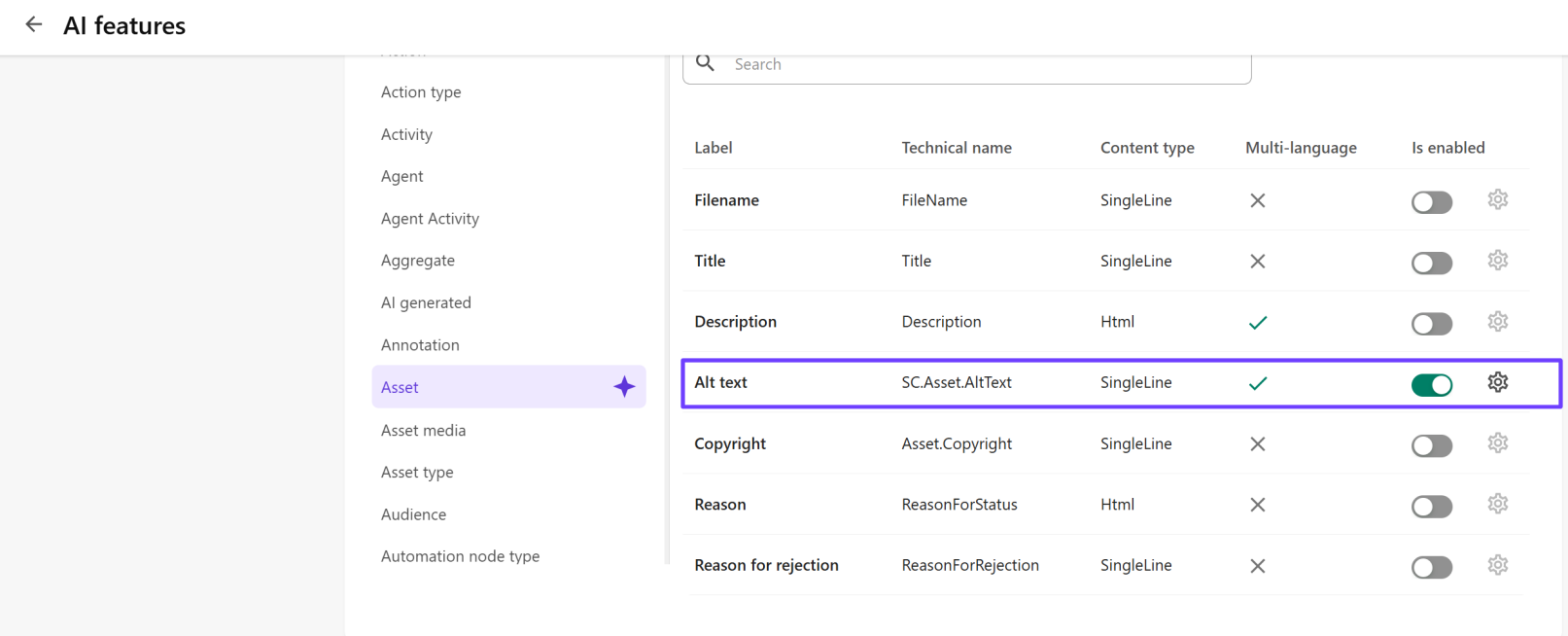
You can ground AI text generation by specifying for each entity definition up to 10 fields that add context data, such as a taxonomy relation, a context relation (parent or child), a thumbnail or preview rendition.
To automatically add image alt text to assets that you upload, enable automatic metadata enrichment on upload.
You can configure AI-assisted text generation for any entity definition and member.
To configure image alt text generation:
-
On the menu bar, click Manage .
-
On the Manage page, click AI features.
-
On the AI features page, in the left pane, click Content generation, and ensure it is Enabled.
-
In the Settings section, in the left pane, search for and select the Asset entity definition.
-
In the right pane, click Edit definition to add context fields to the entity definition.
-
In the Edit definition dialog, click Add field and select a context field. Repeat this step to add additional fields and then click Save.
-
Next to Alt text member, click the Is enabled switch to turn it on.
-
To define the generation type, click Configure member and, in the dialog that opens, from the Generation type drop-down list, choose Alt text, and click Save. Use the Alt text generation type when you want AI to take the image context and generate suitable alt text.
-
On the AI features page, to save the configuration, click Save.