Reference use case
In this scenario, you are managing a food-related blog. You want to:
- Reference related blog posts and recipes in a blog item.
- Find all recipes written by the same chef.
Before you begin
Complete the reference configuration example to set up the required members.
Reference existing content in a blog post
To reference blog and recipe content in a blog post:
-
On the menu bar, click Content > Search.
-
On the Search page, click the blog you want to modify.
-
On the blog details page, scroll down to the ATTACHMENTS section, click Add and select Add existing items.
-
In the Add existing items dialog, select the content items you want to reference in your blog, then click Add.
The list of content items you added shows on the blog details page.
-
On the blog details page, click Save.
Create a recipe reference from a blog details page
To create a recipe reference directly from a blog details page:
-
On the menu bar, click Content and select Search.
-
On the Search page, click the blog you want to modify.
-
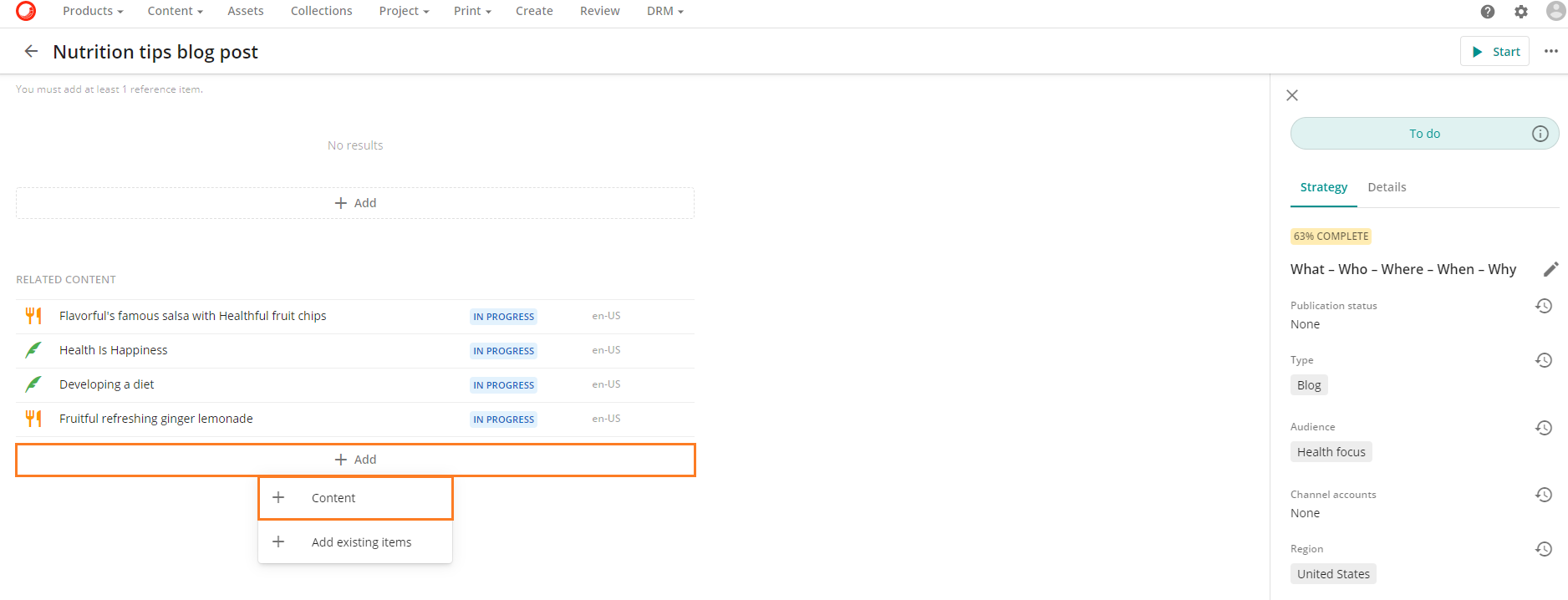
On the blog details page, scroll down to the RELATED CONTENT section, click Add and select Content.
-
In the Content dialog, in the Name field, enter the name of the recipe.
-
To select a type, in the Type field, click and then in the Type dialog, select Recipe, then click Save.
-
In the Content dialog, click Save.
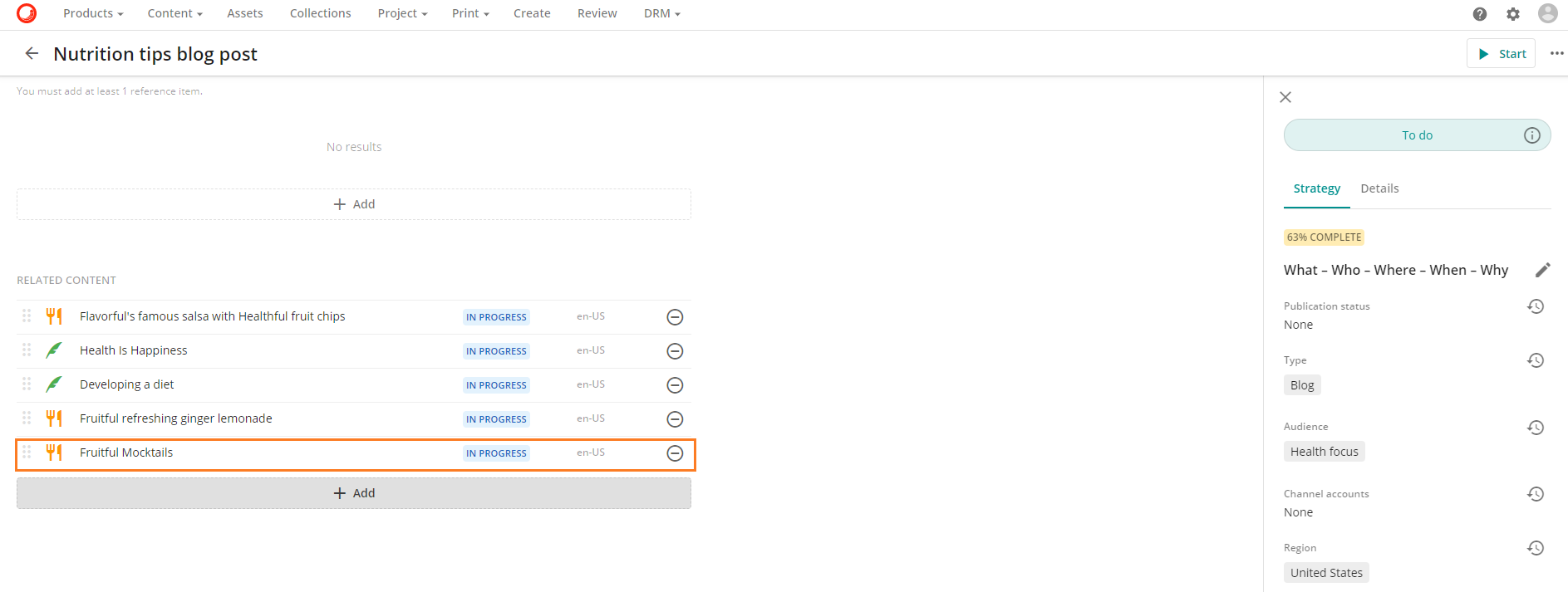
The recipe you added shows on the blog details page.
-
On the blog details page, click Save.
Find all recipes written by a chef
To find all the recipes written by the same chef:
-
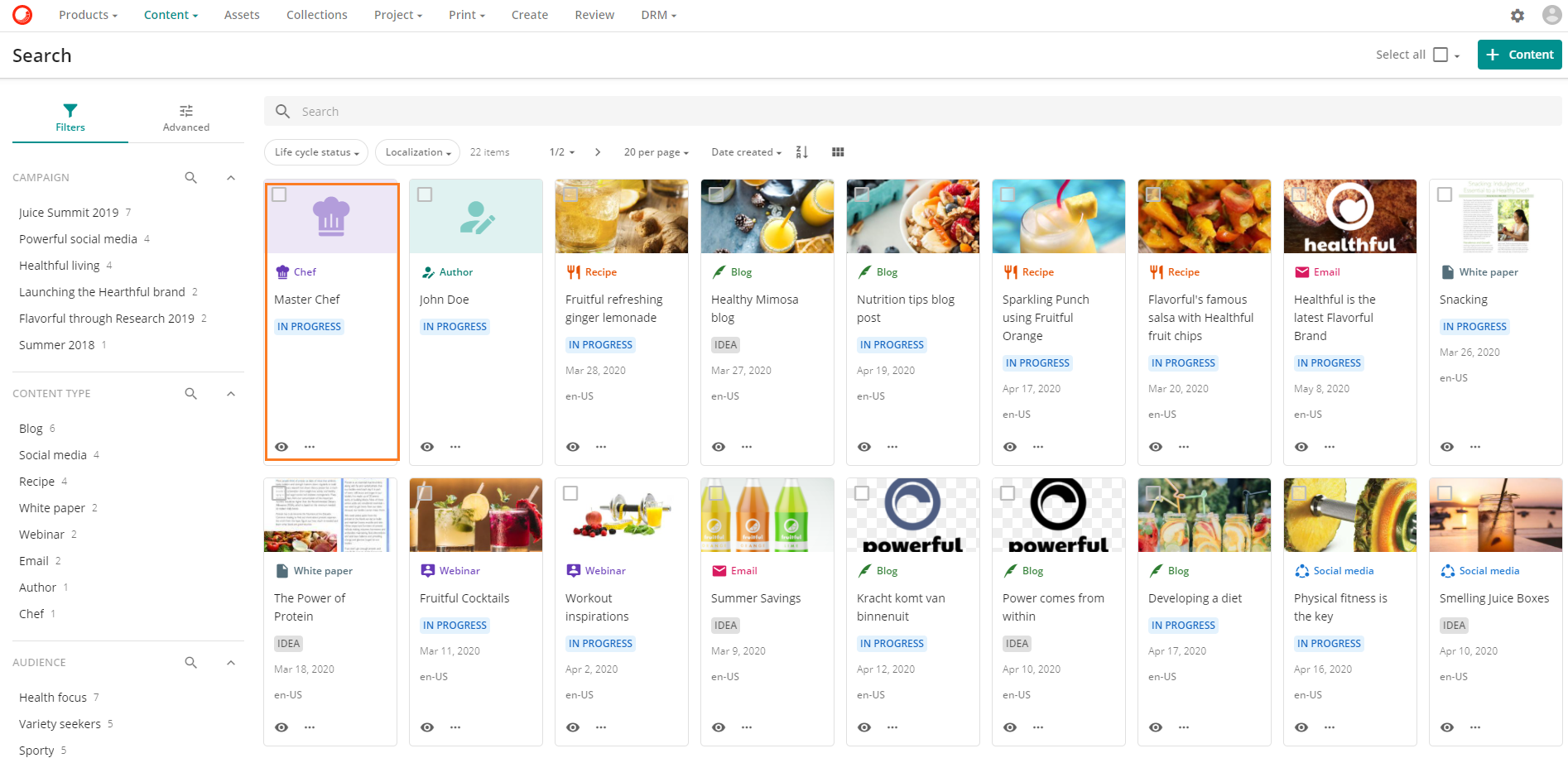
On the content Search page, click the chef whose recipes you want to see (for example, Master Chef).
-
In the top-right corner of the chef details page, click More actions > Referenced by .
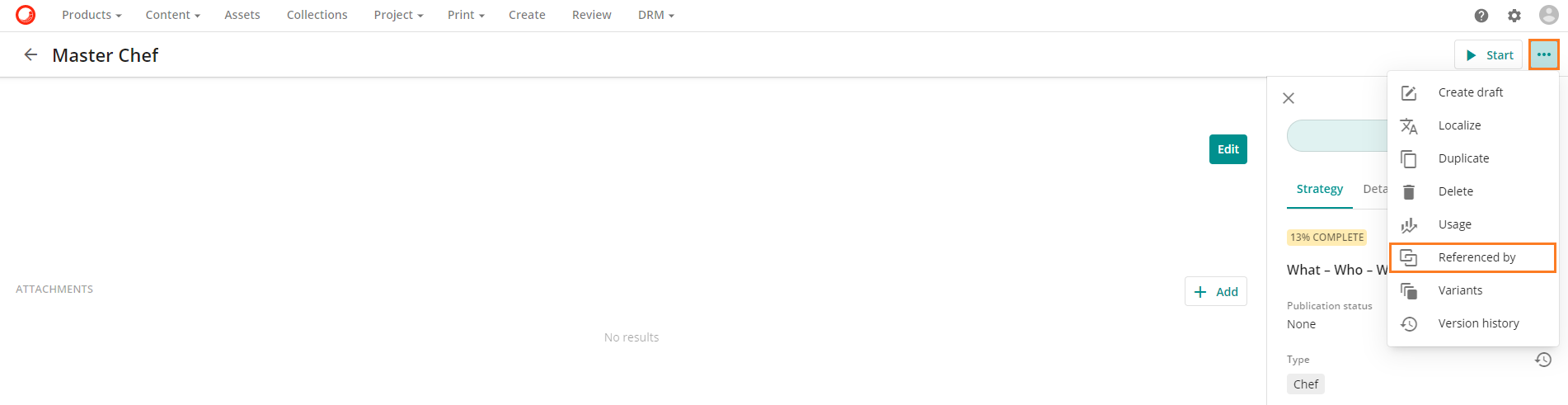
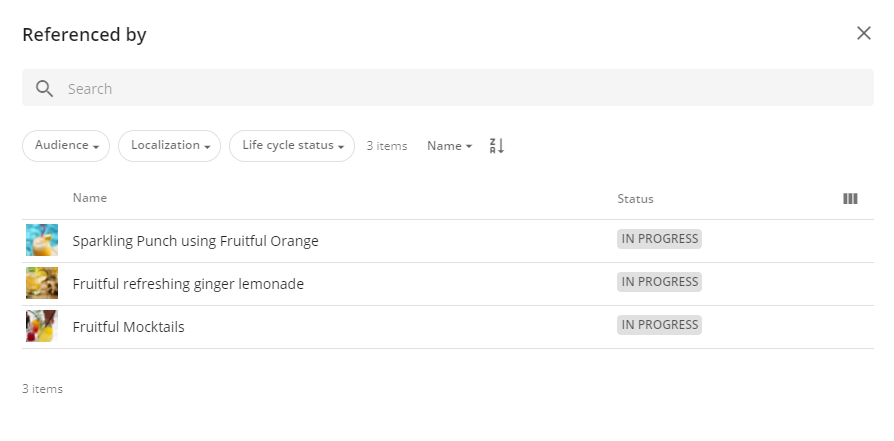
The Referenced by dialog lists every content item referencing Master Chef as the chef who wrote the recipe.