Reference configuration example
To configure Sitecore Content Hub, you must either be a superuser or have the necessary permissions granted to you through user group policies.
In this example, you are a superuser for a food blog. You want users to be able to:
- Link blog posts with the related blog or recipe content.
- Attribute blogs and recipes to authors and chefs, respectively.
- Easily find all recipes from a chef and all blog posts from an author.
- Reuse the authors' and chefs' details to avoid duplicating information.
To achieve this, you:
- Create two new content types called Author and Chef.
- Update the Recipe content type to reference at least one chef.
- Update the Blog content type to reference at least one author and any number of Blog and Recipe content items.
The following diagram illustrates the relations between the different pieces of content: 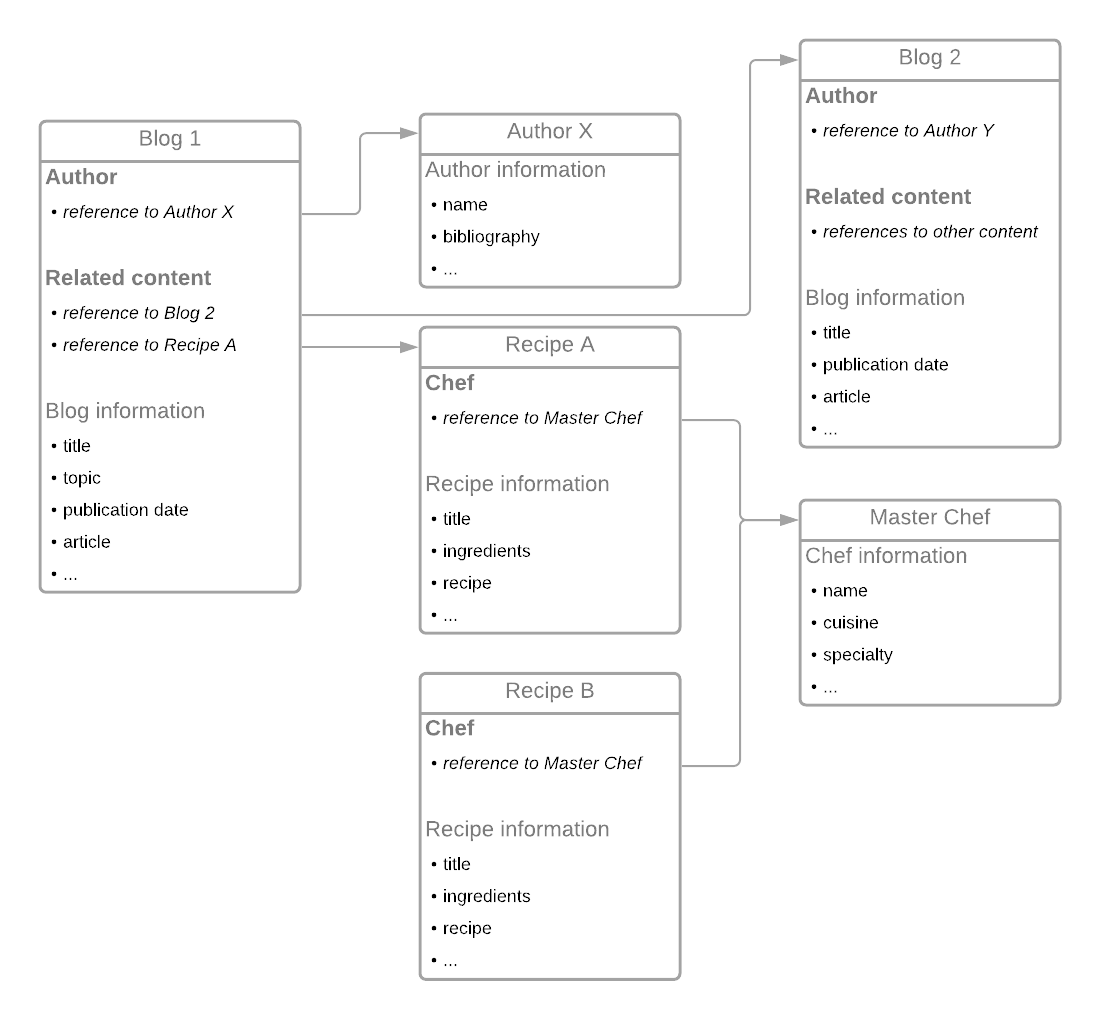
The reference configuration example is the prerequisite for the reference use case where you can see the end-user's point of view. For search results to include reference content, make sure the user group policy includes Read permission for Portal.Page: Content detail. This example follows the Add a content type procedure.
Create new content types for Author and Chef
-
On the menu bar, click Manage .
-
On the Manage page, click Content types.
-
On the Types tab, click Add type.
-
In the New M.ContentType dialog, fill in the following fields:
Field name Value to enter Label Author Identifier M.ContentType.Author Prefix Author -
Select an icon and a color of your choice.
-
On the Validation conditions tab, leave the default condition, and click Save.
-
Select the Author content type and click Add member.
-
In the Add member dialog, click Single-line text.
-
On the Details tab, fill in the following fields:
Field name Value to enter Name NameOfAuthor Label Name Help text Name of the author -
On the Validation rules tab, select the Required check box.
-
Click Save.
You can add other members to the newly created content type. To create the new Chef content type, repeat steps 1 to 11.
Add a new Chef member to the Recipe content type
-
On the menu bar, click Manage .
-
On the Manage page, click Content types.
-
On the Content types page, select the Recipe content type and click Add member.
-
In the Add member dialog, click Reference.
-
On the Details tab, fill out the following fields:
Field name Value to enter Name Chef Label Chef Help text Chef who created the recipe -
On the Validation rules tab, restrict the allowed content type to Chef, and set the allowed number of references to At least 1.
-
Click Save.
Update the Blog content type
Once created, the content type can be updated to accommodate your needs.
-
On the menu bar, click Manage .
-
On the Manage page, click Content types.
-
Select Blog, and then click Add member.
-
In the Add member dialog, click Reference.
-
On the Details tab, fill out the following fields:
Field name Value to enter Name References Label RELATED CONTENT Help text Related blog post and recipes -
On the Validation rules tab, restrict the allowed content types to Blog and Recipe, but do not put any restriction on the allowed number of references.
-
Click Save.