
Update the Search component
Updating the Search component involves changes to the Search component itself as well as updates to facets, paging, and sorting functionalities.
To update the Search component:
-
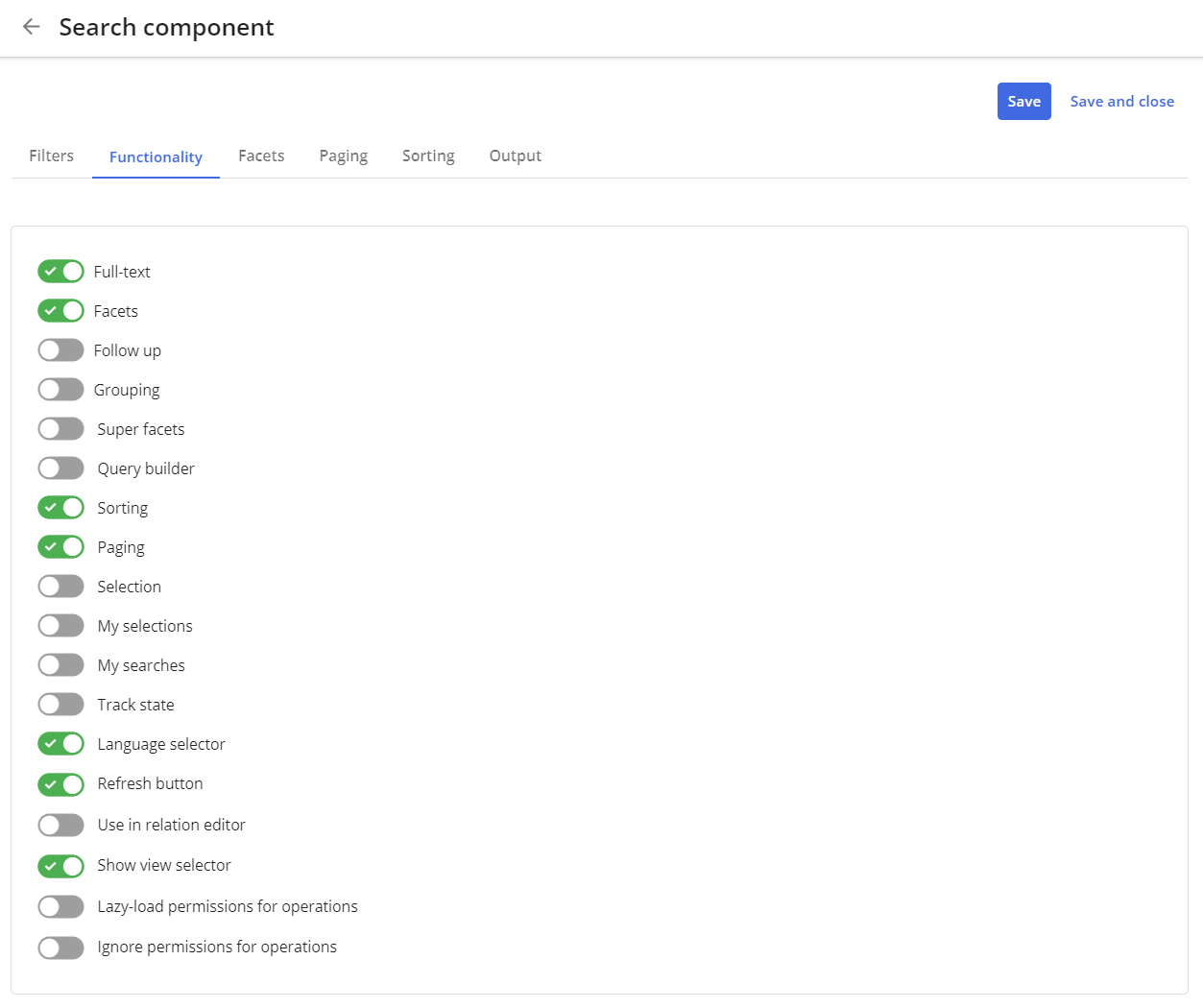
On the Search component detail page, click the Functionality tab, and click the following switches to make them active (On):
- Full-Text
- Facets
- Sorting
- Paging
- Language selector
- Refresh button
- Show view selector
-
Click Save. The Search component now has the following activated functionality.
Update facets
To update facets:
- On the Search component detail page, click the Facets tab.
- Click Add facet .
- Enter in the following settings to add a product color facet:
- Facet type - Taxonomy item
- Taxonomy item - Product color (DVC.Color)
- Label type - Default
- Sorting - Alphabetical
- Direction - Descending
- Position - Left vertical
- Click Save.
- Repeat steps 2-4 for Product style (DVC.Style).
Update paging
To update paging:
- On the Search component detail page, click the Paging tab.
- Select the Infinite scroll option.
- Click Save.
Update sorting
To update sorting:
- On the Search component detail page, click the Sorting tab.
- Click Add sorting to add a new sorting option.
- From the list, select Relevance and click Sorting to change the default sort direction.
- Click Save.
- Repeat steps 2-4 to add additional sorting options.
If you have suggestions for improving this article, let us know!