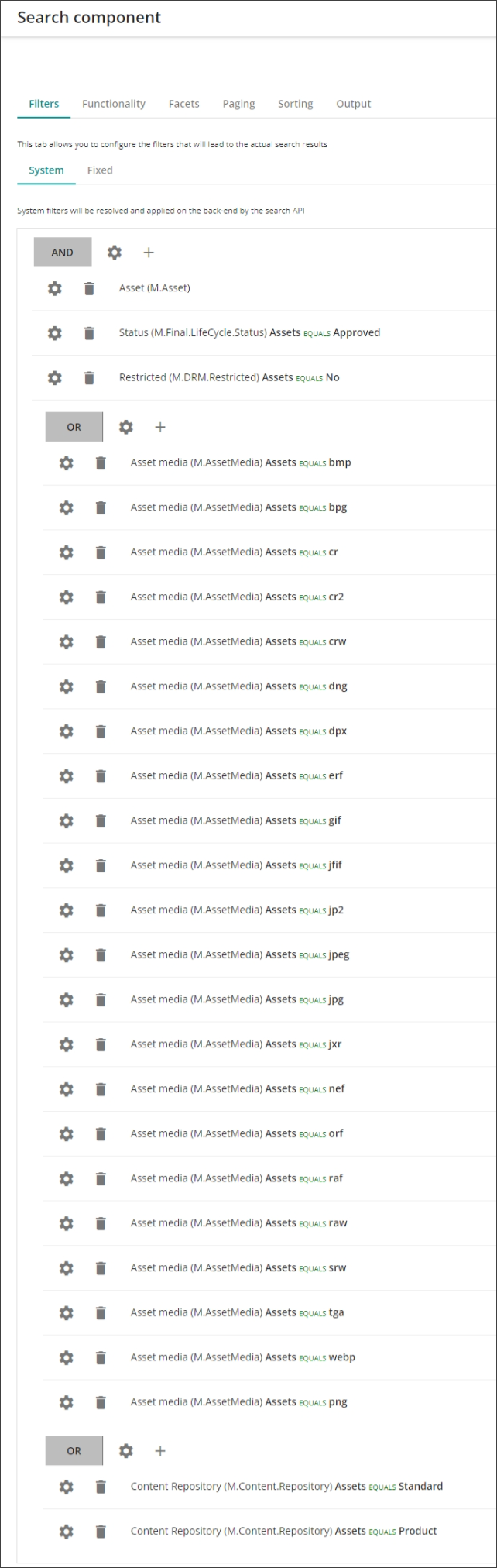
Create the Product Gallery URL mapping asset Search component
In order for searches to display only approved, non-DRM restricted assets from the standard repository, you need to create a new Search component.
Before you create the URL Mapping Asset Search component, you must have added the Product Gallery tab.
To create a Search component:
- In Content Hub, on the menu bar, click Manage Manage .
- On the Manage page, click Pages.
- On the Pages page, in the search box, type Product details and press Enter.
- In the left pane, click Product details to select it.
- In the left pane, in the MAIN ZONE, in COLUMN 2, click + Component, select the Search component, and click Add.
- In the Component settings dialog box, do the following:
- In the Title field, type Add approved assets for Product Gallery search.
- Click the Visible switch to make it active (On).
- Click Save.
- Click Actions > Settings.
- In the Settings dialog box, do the following:
- Click the Nested switch to make it active (On).
- From the Container list, select None.
- Click Save.
To update the search component:
-
Click the search component you just created to open the Search component page.
-
Click the Filters tab and, on the System tab, click Add filter and do the following:
- Select the Simple option.
- Select the Definition filter type.
- From the Definition list, select Asset (M.Asset).
- Click Save.
-
Click Add filter again and do the following:
- Select the Simple option.
- Select the Relation filter type.
- From the Definition list, select Status (M.Final.LifeCycle.Status).
- From the Field list, select Assets (FinalLifeCycleStatusToAsset).
- From the Operator list, select equals.
- Click + Add and, in the Status dialog box, select the Approved check box, and click Select.
- Click Save.
-
Click Add filter again and do the following:
- Select the Simple option.
- Select the Relation filter type.
- From the Definition list, select Restricted (M.DRM.Restricted).
- From the Field list, select Assets (DRM.Restricted.RestrictedToAsset).
- From the Operator list, select equals.
- Click + Add and, in the Status dialog box, select the No check box, and click Select.
- Click Save.
-
Click Add filter again and do the following:
- Select the Composite option.
- From the Combine operator list, select or, and click Save.
- Next to OR, click Add filter .
- Select the Simple option.
- Select the Relation filter type.
- From the Definition list, select Asset media (M.AssetMedia).
- From the Field list, select Assets (AssetMediaToAsset).
- From the Operator list, select equals.
- Click + Add and, in the Asset media dialog box, select the bmp check box, and click Select.
- Click Save.
-
Repeat step 5 to add filters for the following media types: bpg, cr, cr2, crw, dng, dpx, erf, gif, jfif, jp2, jpeg, jpg, jxr, nef, orf, raf, raw, srw,
-
Click Add filter again and do the following:
- Select the Composite option.
- From the Combine operator list, select or, and click Save.
- Next to OR, click Add filter .
- Select the Simple option.
- Select the Relation filter type.
- From the Definition list, select Content Repository (M.Content.Repository).
- From the Field list, select Assets (ContentRepositoryToAsset).
- From the Operator list, select equals.
- Click + Add and, in the Content Repository dialog box, select the following Standard check box, and click Select.
-
Click Save.
-
Repeat step 7 and 8 for the Product content repository. The Search component page is updated.