Download assets
In Sitecore Content Hub, you can download single or multiple assets to print or use externally. Default renditions are available and you can create custom renditions during the download process.
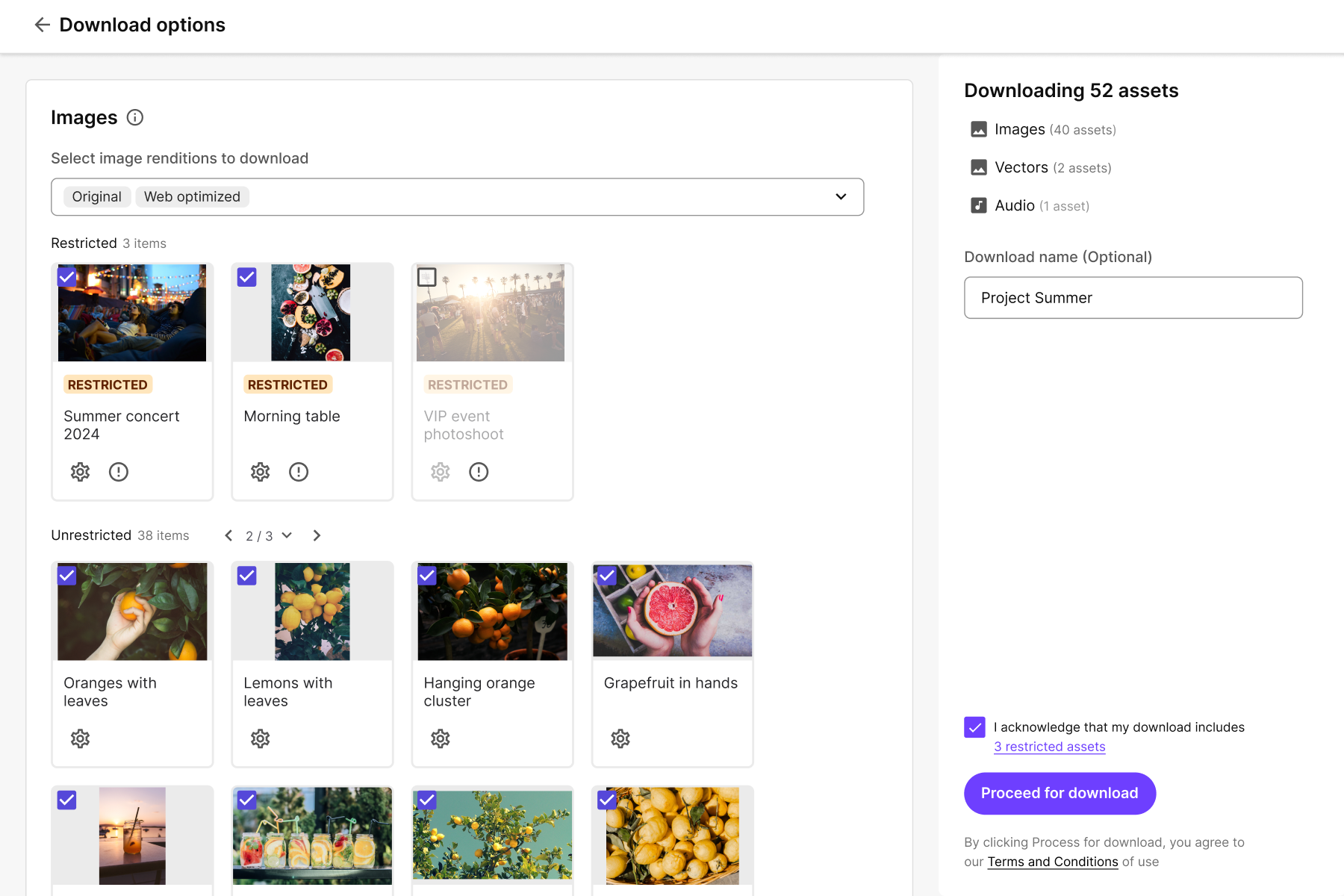
The ordering page for downloading assets includes the following features:
- Selected assets grouped by media type and restriction status for a clear and more structured view.
- You can deselect individual assets to exclude them from the order, and select specific renditions per asset, even when a default rendition is applied to the group.
- A real-time summary shows what you're about to download, and pagination appears when a group includes more than ten assets.
- Preview any asset directly by clicking on it.
To prevent any breaking changes, customers with a customized download order page were not automatically migrated to the new download order page.
If you have a customized download order page and want to move to the new download order page:
-
Find the page that uses the old download order page, and open its Layout tab.
-
Click the relevant Selection component details page, then on the Operations tab, in the Download operation settings, change the Page to the new Downloads options page (the new download order page's Name is CHOrderCreation and Path is ch-order-creation).
-
Click Save.
To download assets:
-
On the menu bar, click Assets.
-
On the Assets page, select the assets you want to download.
-
In the top-right corner of the page, click Download .
-
On the Download options page, for each asset type in your selection, from the Rendition drop-down list, select the rendition types you want to download or select the Custom rendition type and define the custom download parameters.
-
To override the download options for a specific asset, on the asset card, click Individual download options , define the options, and click Save.
-
To remove an asset from the download, select the Remove from selection check box.
-
In the Download name field, enter an optional name for your download order.
NoteIf you include periods in the download name, the name of the ZIP file is truncated (for example, a download named download4.2 is downloaded as
download4.zip). -
To download any restricted assets, select the I acknowledge that my download includes restricted assets check box.
TipTo see the asset restrictions, click the restricted assets link.
-
Click Process for download.
To follow the status of the download order you created and download it when ready, go to the Downloads page.
By default, download orders are available for 30 days.