Configure information sources and writing style
You can personalize how the Brand Assistant generates responses by configuring two key aspects of how the Assistant behaves:
- Information sources - controls whether the Brand Assistant uses brand knowledge, web search, or both when generating responses.
- Writing styles - determines the style used in responses. You can choose from five predefined styles (Formal, Casual, Bold, Informative, Friendly) or create custom styles tailored to your brand.
These settings ensure the generated content aligns with your information needs and your brand's unique voice and communication style.
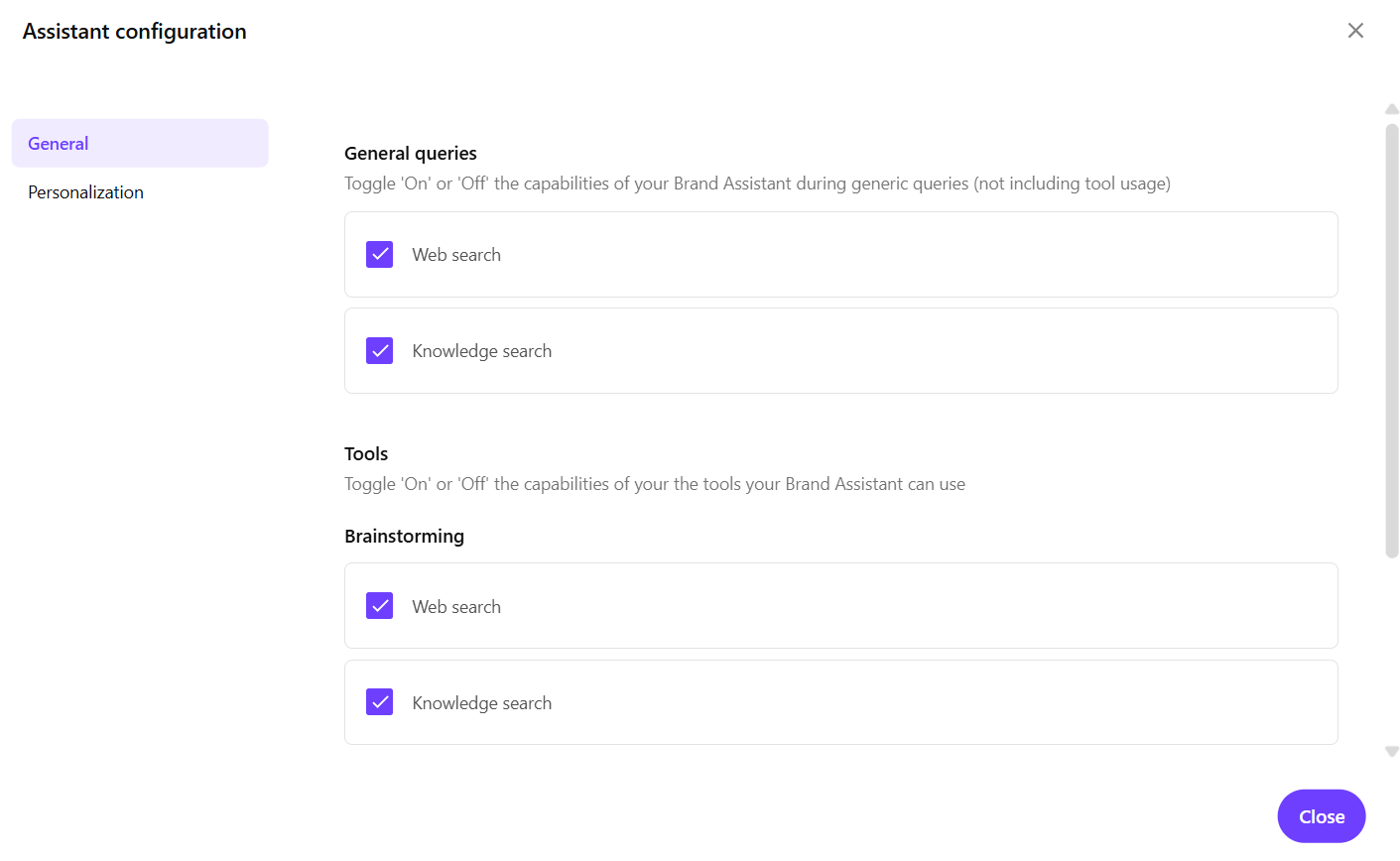
Configure the information sources
The Brand Assistant uses information sources to generate responses. You can configure which sources the Brand Assistant accesses for general queries, brainstorming, and brief generation.
By default, both web search and knowledge search are selected, allowing the Brand Assistant to draw from both your brand knowledge and web sources to produce comprehensive and relevant responses.
The information sources you configure here are applied globally across all chats and brand kits.
To configure the information sources:
-
In Content Hub, on the page where you want brand assistance, in the upper-right corner of the application window, click Brand Assistant .
-
On the Brand Assistant menu bar, click Tool configuration .
-
In the Assistant configuration dialog, on the General tab, select the check box next to a source if you want the Brand Assistant to use it:
- Web search - the Brand Assistant searches the web for current information and trends. Clear this check box if you want responses based only on your brand knowledge.
- Knowledge search - the Brand Assistant accesses your brand knowledge. Clear this check box to use only web-based information.
By default, both web search and knowledge search are selected for all features: General queries, Brainstorming, and Brief. You must select at least one information source in each section.
Your changes are saved automatically.
-
Click Close to exit the Assistant configuration dialog.
Configure the writing style
The Brand Assistant can adapt its writing style to match your brand personality. You can choose a predefined style or create custom styles to guide how the Brand Assistant generates responses. This ensures all AI-generated content reflects your brand’s unique voice and tone.
-
The writing style you configure here is applied globally across all chats and brand kits.
-
When generating responses, the Brand Assistant considers both the writing style and the brand kit's tone of voice, but prioritizes the writing style if they differ.
To configure the writing style:
- In Content Hub, on the page where you want brand assistance, in the upper-right corner of the application window, click Brand Assistant .
- On the Brand Assistant menu bar, click Tool configuration .
- In the Assistant configuration dialog, on the Personalization tab, click the Saved styles tab to use a predefined writing style.
- Click one of the following options:
- Formal - professional, structured, and authoritative communication.
- Casual - relaxed and conversational language that builds rapport.
- Bold - confident, assertive, and action-oriented messaging.
- Informative - clear and detailed explanations focused on knowledge sharing.
- Friendly - warm and approachable communication that emphasizes connection.
- To create a custom writing style, click the Add a style tab, and complete the following fields:
- Label - enter a descriptive name for the new writing style (for example, Tech-Forward, Storytelling, or Minimalist).
- Description - describe the writing characteristics you want the Brand Assistant to follow, such as:
- Tone and personality (for example, witty, serious, enthusiastic)
- Vocabulary preferences (for example, simple language, technical terms)
- Structure and format (for example, bullet points, narrative, conversational)
- Specific phrases or expressions to use or avoid if any.
- Click Add style to save your custom style. Your new writing style appears in the Made by you section on the Saved styles tab.
- Select the new style to enable Brand Assistant to use it.
- Click Close to exit the Assistant Configuration dialog.