Use the Brand Assistant
AI capabilities in Content Hub need to be enabled and, if necessary, configured by a superuser or a user with the necessary permissions granted to them through user group policies.
To use AI-assisted capabilities, you must have a Stream subscription and, for some features, be a Stream Premium user. Contact your Account Manager for more information.
After a superuser has configured brand kit mapping and enabled the Brand Assistant, you can use it in your content workflows to generate on-brand content for campaigns and briefs, find answers about brand, target audience, and guidelines or do research.
We prioritize data security. All interactions with the Brand Assistant follow our data privacy and security policies. Your data is never used to train the LLM, ensuring it remains secure and confidential. Our AI capabilities feature built-in AI guardrails to protect sensitive brand information throughout the marketing workflow. All brand documents and data from interactions with our AI-enabled tools are safeguarded under strict data privacy and security policies.
The Brand Assistant is available to users with a verified email address who are members of at least one user group other than the Everyone user group. It can only be accessed on React pages.
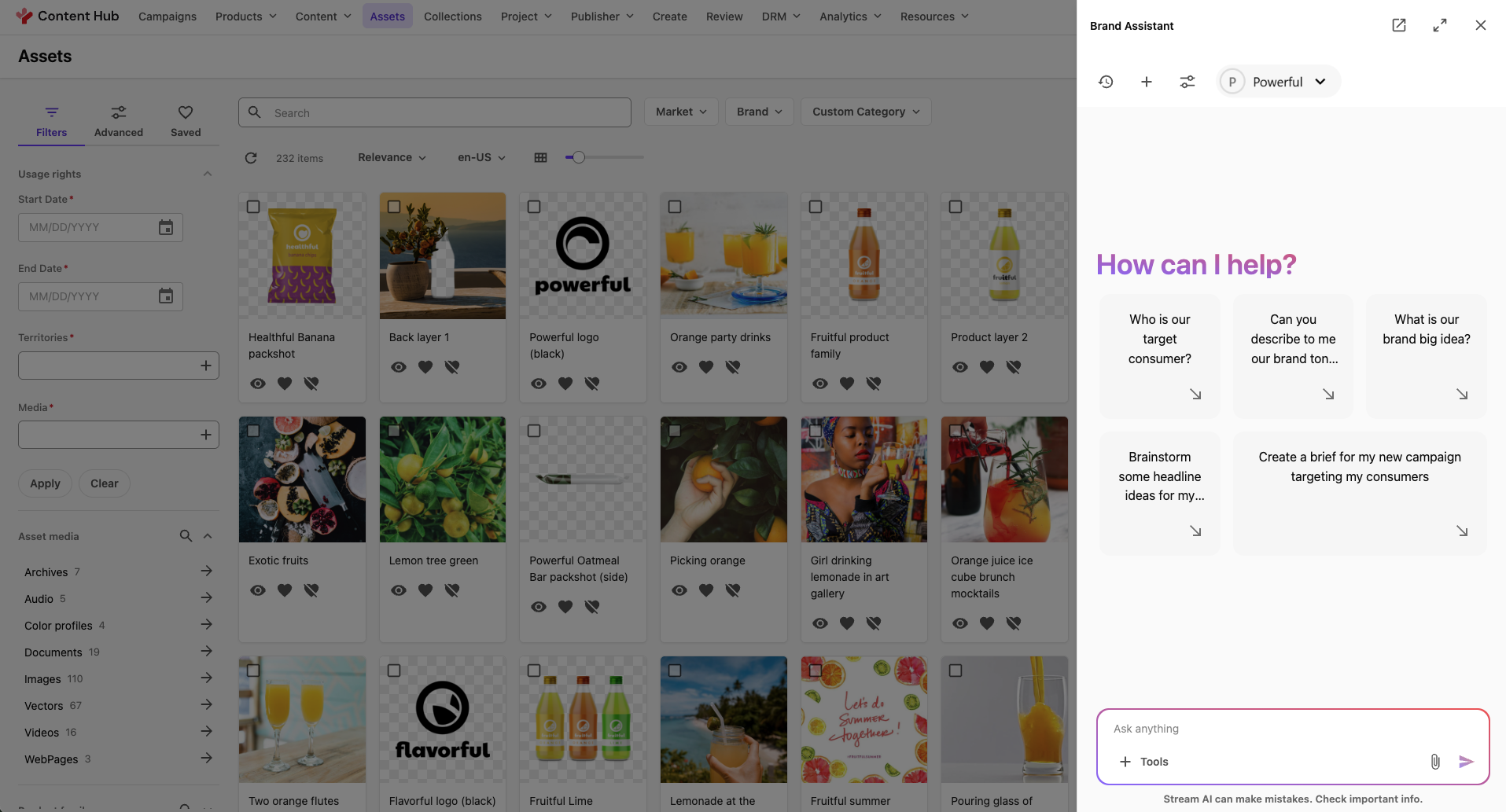
The Brand Assistant works within the context of your selected brand kit, ensuring that all outputs align with your brand’s tone, style, and guidelines. To generate responses, the Brand Assistant gathers and organizes information following a comprehensive process.
Make prompts clear and concise. Be sure to specify the type of content you want (for example, Write step-by-step instructions on how to create a new campaign). Specify important keywords and constraints.
To use the Brand Assistant:
-
In Content Hub, on the page where you want brand assistance, in the upper-right corner of the application window, click Brand Assistant .
-
As required, select the information sources and writing style to match your needs.
-
On the Brand Assistant menu bar, click the Select a brand kit drop-down list and then click the brand kit you want to use. If you have multiple brand kits, ensure you choose the correct one for accurate results.
-
In the chat field, enter your prompt. Clear, detailed prompts help the Brand Assistant generate relevant answers. Prompts can be entered in any supported language.
-
Optionally, in the chat field, click Upload to upload images or PDFs that provide the Brand Assistant with additional context, then navigate to where the file is saved, select it, and click Open. You can drag the image or PDF file into the chat field and upload multiple files simultaneously:
- Images - upload
.jpg,.jpeg, or.pngfiles up to 20 MB each - PDFs - upload
.pdffiles up to 20 MB each.
The total upload limit is 50 MB per file type in a single session. Uploaded files remain visible in the chat for easy reference. Images appear as inline previews, PDFs appear as document icons, and multiple files display side by side, making it simple to track and reuse them throughout the conversation.
- Images - upload
-
Optionally, to enable additional functionality for the content you want to generate , in the chat field, click Tools and select one of the following:
- Brainstorming - lets you generate long form content. This is useful when you want to create longer, in-depth pieces of content, such as blog posts and articles, that align with the brand's voice and identity.
- Brief - lets you generate content that aligns marketing efforts with business goals and connects with your audience.
- Web search - lets you generate a response based solely on web sources.
-
Click Submit .
After submitting your prompt, the Brand Assistant generates a response. This might take a few minutes, especially if it's using multiple AI agents to complete the task.