Mass edit entities
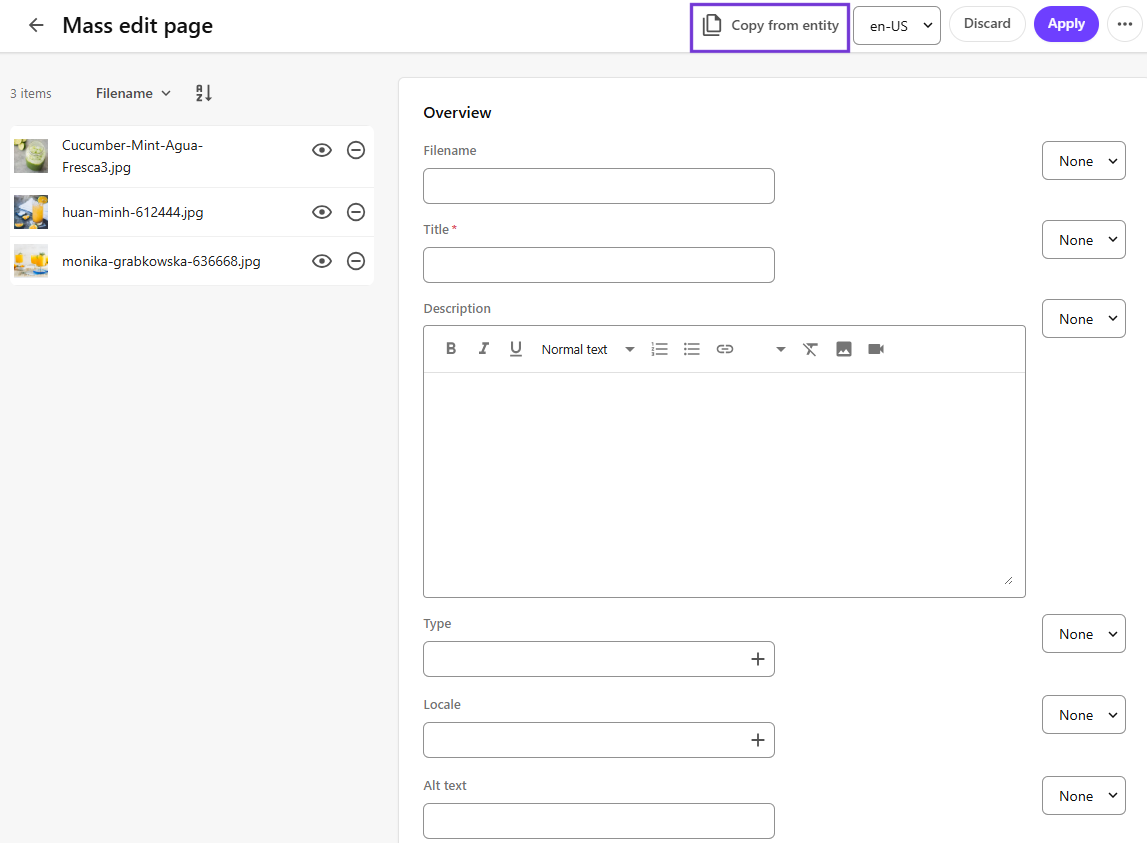
You can update the fields in multiple entities based on the values from another entity using the Copy from entity operation. For each field, you can specify whether the mass edit replaces the existing value, appends new values, or leaves the existing value unchanged.
If the mass edit source contains a one-to-one relation, the mass edit job will fail for all the entities except the first one in the list, because a one-to-one relation cannot apply to more than one entity.
To mass edit entities:
-
On the menu bar, click the page for the entities you want to mass edit, for example Assets.
-
On the page, select the entities you want to edit.
-
Click Actions > Edit.
-
To copy metadata from an existing entity, click Copy from entity.
-
In the Copy from entity dialog, click the entity from which you want to copy metadata, and click Done.
-
Modify field values as required.
-
For each field, from the list next to it, select one of the following actions:
- None - does not modify the value or change the property of the field.
- Replace - overwrites the current value of the field.
- Append - adds information to a field, or adds taxonomy items to a list of related items.
- Clear - removes all items from a relation or removes the current value of a field.
Which actions are available depends on the property type and how mass edits are configured.
-
Click Apply.
Applying a mass edit creates a mass edit job. You can follow the progress of the job on your Background processes page.